
Android 17 Pause Point: How to Turn It On (and Get It on Any Phone)
Quick answer: Pause Point is an Android 17 Digital Wellbeing feature that adds a 10-second pause before a “distracting” app opens. On a supported Pixel, go to Settings → Digital Wellbeing → Pause Point, switch it on and pick your apps. It started on the Pixel 11 series and is reaching older Pixels through Android 17 QPR1. On other phones you can get a similar effect with app timers, Focus mode, iPhone Shortcuts or apps like one sec and ScreenZen.
Most of us don’t open Instagram or YouTube because we decided to. We open them because our thumb got there first. You unlock the phone to check the time and look up twenty minutes later, deep in reels you won’t remember.
Google’s answer in Android 17 is Pause Point, and it takes a different approach from the screen-time tools that came before it. Instead of telling you off after an hour of scrolling, it slows you down at the exact moment you open the app. Here’s how it works, which phones have it, and how to get the same benefit on a phone that doesn’t.
What Is Pause Point?
Pause Point is part of Android’s Digital Wellbeing tools. You choose which apps count as distracting. When you open one of them, Android doesn’t launch it immediately. Instead, you get a 10-second pause that asks, in effect, “why am I here?”
During those 10 seconds you can:
- Do a short breathing exercise.
- Set a timer for how long you want to use the app.
- Look at a few of your favourite photos instead.
- Pick an alternative, such as an audiobook or another app you’d rather spend the time on.
After the pause, you can still open the app. Pause Point doesn’t block anything. It just turns an automatic habit into a small decision.
The clever part: it’s hard to switch off
Most screen-time limits fail because ignoring them takes one tap. Pause Point is designed differently: turning it off requires a full phone restart. That 30-second hassle is usually enough to stop you disabling it on impulse when you just want “five more minutes”.
Which Phones Have Pause Point?
When Android 17 launched, Pause Point was limited to the Pixel 11 series. Google has since started bringing it to older Pixel phones through the Android 17 QPR1 update, in phases, so it may not appear on every eligible Pixel yet. The feature has also been spotted in a ColorOS 17 beta on a OnePlus phone, which suggests other brands may get it later, but nothing official has been announced for Samsung, OnePlus or other manufacturers.
If you have a recent Pixel and don’t see it, go to Settings → System → Software updates and install any pending Android 17 update.
How to Turn On Pause Point
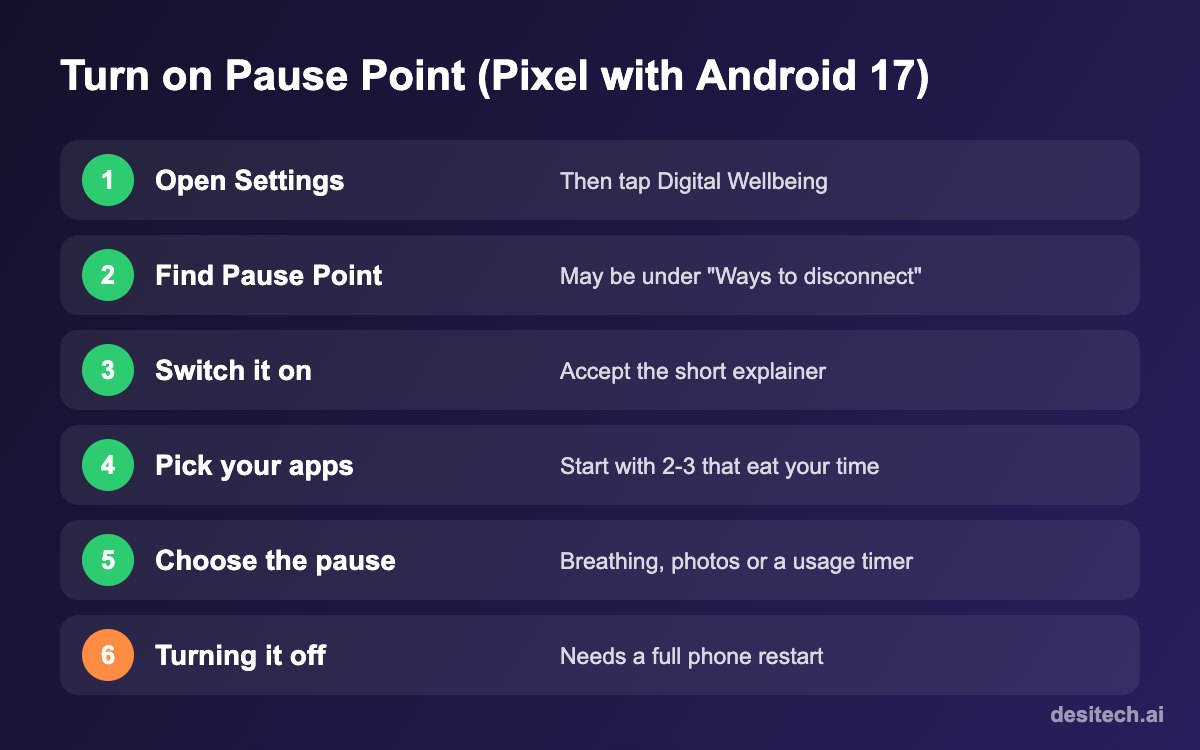
- Open Settings and tap Digital Wellbeing (on some phones it’s called Digital Wellbeing & parental controls).
- Tap Pause Point. On some builds it sits under a “Ways to disconnect” section.
- Turn it on and read the short explainer.
- Choose your distracting apps. Start small: two or three apps you open without thinking, such as Instagram, YouTube or a news app.
- Choose what the pause shows, such as breathing, photos or a usage timer, if your version offers the option.
To turn it off later, go back to the same screen and switch it off. Your phone will need to restart to complete the change.
Don’t Have Pause Point? Here’s How to Get the Same Effect
The idea behind Pause Point, adding friction before the habit kicks in, works with tools you already have.

On any Android phone
- App timers: Settings → Digital Wellbeing → Dashboard, then tap an app and set a daily limit. When time runs out, the app icon greys out until midnight.
- Focus mode: Settings → Digital Wellbeing → Focus mode. Choose apps to pause during set hours, like 10 pm to 7 am or your work hours.
- Bedtime mode with grayscale: a black-and-white screen makes feeds noticeably less appealing at night.
- Move the app off your home screen. One extra swipe to find it in the app drawer is a surprisingly effective speed bump.
On Samsung Galaxy phones
Use App timers in Digital Wellbeing, and Modes and Routines to create a “Focus” or “Sleep” mode that limits distracting apps and silences their notifications.
On iPhone
- Screen Time → App Limits sets daily limits for app categories or specific apps.
- A Shortcuts automation gets closest to Pause Point: in the Shortcuts app, create a Personal Automation that runs “When [app] is opened” and add a Wait action for 10 seconds followed by a Show Alert asking whether you want to continue.
Third-party apps
Apps such as one sec and ScreenZen add a similar pause before chosen apps open, and they work on both Android and iPhone. Check which features are free before committing, and review the permissions they ask for.
| Tool | When it steps in | Easy to bypass? |
|---|---|---|
| Pause Point | Every time you open a chosen app | No, turning it off needs a restart |
| App timers | After you’ve used your daily allowance | Yes, unless protected with a PIN |
| Focus mode | During scheduled hours | Fairly easy |
| iPhone Shortcuts automation | Every time you open a chosen app | Moderate |
| one sec / ScreenZen | Every time you open a chosen app | Moderate |
Tips to Make It Stick
- Start with your worst two apps only. Adding ten apps on day one makes the pause annoying, and you’ll turn it off.
- Use the timer option. Deciding “10 minutes” before you start is more effective than trying to stop halfway through a feed.
- Turn off notifications for the same apps. Pause Point handles the urge to open the app; notifications are the other half of the habit.
- Give it a full week before judging. The first few days feel slow on purpose.
Pause Point FAQ
Does Pause Point block apps?
No. It adds a 10-second pause before the app opens. You can always continue after the pause.
Is Pause Point available on Samsung phones?
Not officially at the time of writing. Samsung users can use App timers and Modes and Routines for a similar effect.
Why do I have to restart my phone to turn it off?
It’s intentional. The restart adds just enough effort that you won’t switch the feature off on impulse when you feel like scrolling.
Can I use Pause Point for work apps like Slack or email?
You can add any app, but it works best for apps you open out of habit rather than necessity. For work apps, notification controls usually help more.
Is there Pause Point on iPhone?
No, but a Shortcuts automation that runs when an app opens, with a short wait and an alert, gets very close.
The Bottom Line
Pause Point works because it doesn’t fight your willpower. It gives you 10 seconds to notice what you’re doing. If your phone has it, switch it on for two apps today. If it doesn’t, an app timer or a Shortcuts automation can give you most of the same benefit in a few minutes.
Sources
- Google announcement of Pause Point (May 2026), as reported by TechCrunch and Digital Trends.
- TalkAndroid and Android Headlines on Pause Point reaching older Pixels with Android 17 QPR1 (October 2026).
- Android Authority on Pause Point appearing in a ColorOS 17 beta.
