

How to Speed Up a Slow Android Phone Without Factory Reset
My Samsung A52 slowed to a crawl last year. Apps took four seconds to open and the keyboard lagged behind my typing. I googled the problem, got the same answer from fifteen different sites. Which is always factory reset.
I didn’t want to do that. I had two years of WhatsApp conversations, saved files, app configurations I would spent hours setting up. So I spent a weekend digging into what was actually causing it and fixed it without wiping anything.
This guide is what I found. Eight specific causes with fixes and no factory reset required.
Why Android Phones Actually Slow Down
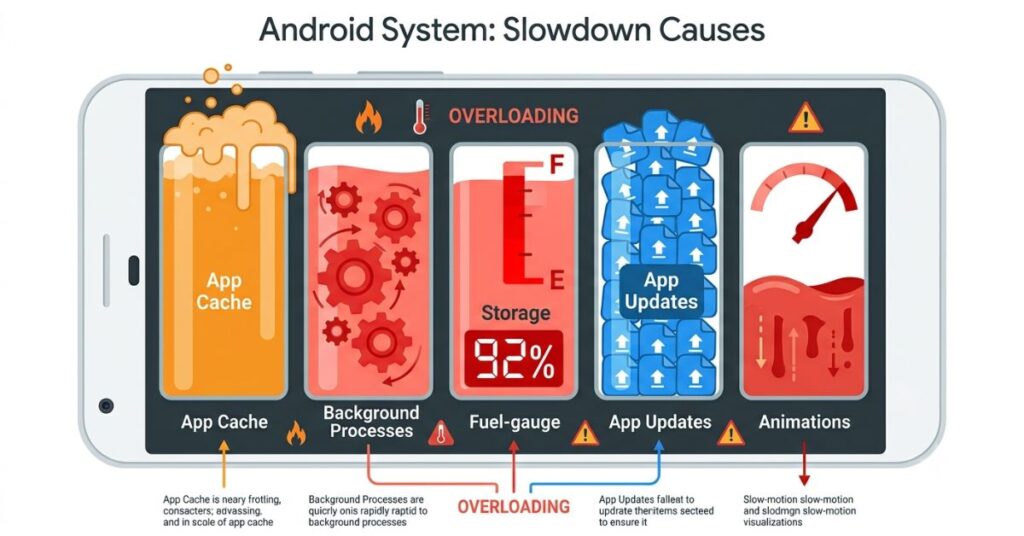
Here’s what I confirmed after testing, the hardware on a three year old Android hasn’t changed. Same processor, Same RAM, what’s changed is everything piled on top of it.
When I checked my A52’s storage, it was sitting at 91% full. That alone explained most of the lag. Android needs free space to write temporary files constantly in the background. When you drop below 10–15% free, the whole system starts choking on itself. The slowdown isn’t gradual. It’s a threshold. Cross it and the phone feels like a different device.
The second thing I found: nine apps were running background processes simultaneously without me ever opening them. That’s not unusual, it’s what apps do by default. But on a 4GB RAM phone, nine background processes is a significant chunk of what the system has to work with.
Those two things, full storage and background overload cause the majority of Android slowdowns. Everything else in this guide is a layer underneath them.
Fix One: Free Up Storage First
Start here before anything else.
Go to Settings, Storage and check your percentage. If you’re above 85% used, this is almost certainly your main problem and you will feel the difference after fixing it alone.
Here’s what worked best for me, in order of how much space each step recovered:
1. Clear app caches individually Open Settings tap on Apps. Go into Instagram, YouTube, TikTok, Chrome and Snapchat one by one. Tap Storage then clear Cache on each. On my phone, this recovered 3.4GB in under ten minutes. Nothing gets deleted. You don’t get logged out. The apps just rebuild their cache from fresh content.
2. Clean out your Downloads folder Open your Files app, go to Downloads, and sort by size. What I found on my own phone: six old APK files from apps I’d already installed (about 800MB total), three PDFs from email attachments I would never reopened and two video files from a group chat. Gone in two minutes. If you’ve never done this, expect 1–3GB sitting there quietly.
3. Clear WhatsApp media Open WhatsApp, Settings then Storage and Data. Tap manage Storage. Sort by chat size. Group chats are the worst offenders, I had 4.2GB of received videos and photos in three group chats alone. You can delete received media without losing the conversation.
4. Use Google Photos ”Free up space” option If your photos are backed up (confirm this first, look for “Backup is up to date” in Google Photos settings), tap your profile photo and free Up device storage. This removes local copies of photos that are already safely in the cloud. On my phone 6.1GB recovered instantly.
After those four steps, I went from 91% used to 67%. The phone was noticeably faster before I changed a single other setting.
If photos are taking up most of your storage, freeing up space on Android without deleting them covers the specific options for handling that without losing anything.
Fix Two: Take Back Control of Background Apps
What Background Apps Are Actually Costing You
Here is the thing about background apps that is rarely explained clearly: Android does not just keep recently used apps paused. It allows apps with background services to keep running code continuously, consuming RAM and processor cycles, to stay ready, to check for updates, to maintain connections, and in some cases simply because the app was designed to resist being closed.
On a phone with 4GB of RAM, a situation where eight to twelve apps are actively running background services at the same time is not a software malfunction. It is normal. It is also the reason the phone feels sluggish when you switch apps, why the keyboard lags, and why launching any app takes longer than it used to. The RAM that should be available for the active app is being borrowed by apps you are not using.
How to Restrict Background Activity Effectively
Go to Settings and click Battery then Battery Optimization. This path varies slightly by manufacturer but is present on every Android device. Apps listed as “Not Optimized” are running without restriction when the screen is off. Apply battery optimization to every app that does not need to deliver real-time notifications. Social media apps, shopping apps, games, news readers, and most productivity apps function perfectly well without unrestricted background access.
In Developer Options (enabled by tapping Build Number seven times in Settings then click About Phone), find Background Process Limit. The default allows unlimited background processes. Setting this to a maximum of four immediately reduces the number of apps that can maintain background state simultaneously. On phones with 4GB of RAM or less, this setting produces one of the most noticeable performance improvements available. It takes thirty seconds to set and costs nothing.
Disable Bloatware That Cannot Be Uninstalled
Pre-installed apps from the manufacturer and carrier that serve no function in your daily use cannot always be uninstalled but can almost always be disabled. Go to Settings and click Apps then see all apps. Identify anything you have never opened, anything that was installed by the carrier, and any branded app that duplicates functionality you cover with another tool. Tap Disable. A disabled app consumes zero RAM, runs no background processes and cannot update itself. It stays on the device but is completely inert.
Fix Three: Change the Animation Speed
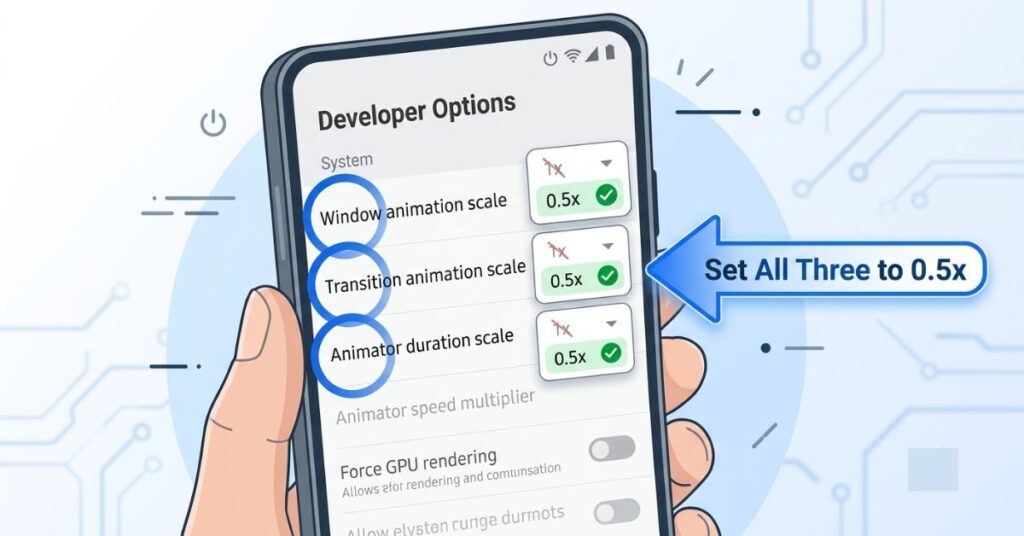
There is a setting in Android that most of us never touch, that requires no app download, costs nothing and makes the phone feel immediately more responsive after a thirty-second change. It has been in Android for years. It is hidden in Developer Options, which is deliberately not visible to new users. And it consistently produces the most dramatically immediate improvement in perceived performance of any software change available.
Animation speed.
Every time you open an app, switch to a different screen, dismiss a notification or return to the home screen, Android plays a transition animation. These animations were designed with a duration that felt appropriate on hardware from several years ago. On a mid-range or older device today, that duration is not just aesthetic. The phone is waiting for the animation to finish before it responds to the next input. At the default 1x speed, those waits add up to a phone that constantly feels like it is one step behind your fingers.
How to Make the Change
Go to Settings: About Phone and tap Build Number seven times until you see “You are now a developer.” Then go back to Settings. Developer Options and look for three settings:
- Window animation scale
- Transition animation scale
- Animator duration scale
Set all three to 0.5x or turn them off entirely by setting them to Off.
I know this one sounds like it shouldn’t matter. It’s just animations, how much could that actually affect speed? More than you’d think. Before I changed these settings, my A52 felt sluggish switching between apps. After changing them, the phone felt almost snappy. Nothing in the hardware changed. The animations were just making every interaction feel slower than it actually was by adding a half-second visual delay to everything.
This is the quickest fix on the whole list. It takes under two minutes and the difference is immediately noticeable.
Fix Four: Remove What Is Running on Your Home Screen
Why the Home Screen Is Heavier Than It Looks
The home screen is not a static background. It is a continuously active environment that maintains live connections to several data sources depending on what you have placed on it.
Live wallpapers run as persistent background applications. They consume GPU resources continuously to produce motion on a screen that a still photograph would cover identically at zero processing cost. On a mid-range device that is already running twelve background services, routing additional GPU resources to animate a wallpaper that nobody is watching while the phone is in a pocket is straightforwardly wasteful. Switch to a high-quality static image. The visual difference is a matter of preference. The performance difference on any mid-range device is measurable and immediate.
Widgets are a subtler problem. A weather widget contacts a weather server periodically. A news widget fetches headlines on a schedule. A calendar widget queries your calendar data every few minutes. Each one maintains an active data connection and runs a background process to keep its display current. Four or five widgets collectively run more background activity than most users realise. Remove anything that does not genuinely change your daily behaviour and the home screen itself becomes lighter.
The test worth applying: for each widget, ask when you last made a decision based on what it showed you. If the answer is not recently, it is decoration with a background process attached.
Fix Five: Address the App Size Problem Directly
The most underappreciated cause of Android slowdowns in 2026 is app size growth over time. TikTok’s installation footprint has grown significantly across versions. Instagram, Facebook, and Snapchat follow the same pattern. These apps add features, expand their local databases, and increase their background processing requirements with each update, without any visible indication that they are consuming more of the device’s resources than they were six months ago.
Go to Settings, Apps and sort by size. The list you see is not the list of apps you use most. It is the list of apps that have accumulated the most combined installation, data, and cache space on your device. An app at the top of this list consuming 800MB may have installed at 150MB two years ago.
For any app that is significantly larger than expected and that you suspect is contributing to slowdowns, go into its storage settings and tap Clear Data. This is different from Clear Cache. Clear Data removes all accumulated user data within the app and resets it to a fresh post-install state. You will be logged out and preferences will be lost. The app itself stays installed. For social media apps that have grown bloated with locally cached feeds, recommended content databases, and stored media, this produces a meaningful performance improvement that persists for several months before the accumulation cycle begins again.
The option most people do not consider is replacing installed apps with their web versions. Facebook’s mobile website, Instagram’s web interface and Twitter’s web app are all fully functional through a phone’s browser and consume a fraction of the device resources their installed counterparts do. For a phone where a specific social media app is clearly contributing to slowdowns, this substitution is the most effective solution available.
Fix Six: Manage Thermal Throttling From Overheating
Most people are aware that their phone gets warm during intensive use. Fewer understand that Android deliberately reduces processor speed when temperature exceeds a safe threshold. This is thermal throttling, and it is a direct and immediate cause of the sluggish performance that appears during extended gaming sessions, video calls, or charging during use.
When the processor throttles, every operation takes longer. Apps load slowly. Scrolling stutters. The phone feels like a different, older device. It is not broken. It is protecting itself by running slower.
The most effective ways to reduce thermal issues: remove the phone case during intensive use or while charging. Cases designed for impact protection, particularly thick rubber and leather designs, trap heat effectively. A phone charging inside a thick case generates and retains significantly more heat than the same phone charging on a surface without a case. The performance difference during charging is noticeable on mid-range devices.
Avoid charging while performing processor-intensive tasks. Gaming, video streaming, and large file operations all generate heat from the processor simultaneously with the heat generated by charging the battery. These combine to push temperatures higher than either would alone. Charging while idle and performing intensive tasks while unplugged produces lower sustained temperatures and more consistent performance.
Check Settings then Battery, check Battery Usage for any app consuming disproportionate battery during periods when you are not actively using it. An app using 20 percent of daily battery while you rarely open it is running significant background processing. This background activity generates heat even when the phone is sitting idle, producing the specific pattern of a phone that feels warm and slow without obvious cause.
Fix Seven: Reset App Preferences Without Wiping the Phone
This is the fix that most people, and most guides, skip entirely. Go to Settings and tap Apps then tap the three-dot menu in the top right corner and then Reset App Preferences.
What this does is reset all app permission settings, default app associations and background restriction states to factory defaults, without deleting any data, removing any account or uninstalling anything. No photos are lost. No accounts are logged out. Every app remains installed exactly as it was.
What it fixes is a specific and common class of performance problem that builds up over time: permission conflicts and default association errors caused by installing and uninstalling many apps. A specific example: when WhatsApp is set as the default for handling certain link types and then updated in a way that creates a conflict, Android may call the wrong handler every time a link is tapped. This produces delays and failures that feel like general slowness but are caused by a specific permission mismatch. Reset App Preferences resolves this class of conflict in a single operation.
On phones where a significant slowdown appeared gradually following a period of heavy app installation, uninstallation and permission management, this thirty-second operation frequently resolves more than its simplicity suggests. It is worth doing regardless, because the worst outcome is no improvement.
Fix Eight: Reduce Background Sync Load
Background sync is the process that keeps your apps current with their server data: new emails appear, calendar events update, contacts sync, cloud photos back up. Each sync operation uses processor time, network activity and battery. With fifteen to twenty apps and accounts all syncing on their own schedules, the cumulative background load at any given moment is not trivial.
If the slowness happens mainly when you’re connected to Wi-Fi rather than on mobile data, the problem might be the router rather than the phone.
Go to Settings then tap Accounts and review what is syncing. The majority of what you will find does not need real-time sync. Contacts that change rarely do not need to sync hourly. Photos that back up to cloud storage do not need to push during the working day when you are also trying to do other things with the phone. Reducing sync frequency for lower-priority data types reduces the ongoing background processing load without meaningfully affecting the availability of that data when you need it.
What Actually Matters More Than Any Single Fix
The eight fixes above address specific causes. What matters more is recognising that Android phone performance is a maintenance problem with a predictable trajectory, and that the trajectory only runs in one direction if nobody intervenes.
The dramatic slowdown that most people notice feels sudden. The build-up was not. Storage filled over eighteen months. App sizes grew across dozens of updates. Background processes accumulated with each new install. No individual change was the cause. The cumulative effect of all of them, unmanaged over time, is what produced the phone that now feels broken.
The car maintenance analogy is accurate: a car does not become slow in one day. It becomes slow because the oil was never changed, the tyre pressure drifted, and a slow fuel efficiency decline that started months ago finally became impossible to ignore. The hardware is the same. The maintenance is what determines whether it performs.
A phone maintained monthly, with caches cleared, storage kept above 20 percent free, and background apps periodically reviewed, does not accumulate the performance debt that produces emergency recovery sessions. The total time invested is fifteen minutes monthly. The alternative is two hours of cleanup every six months, plus a factory reset every eighteen, plus the persistent background frustration of a phone that always feels slightly behind where it should be.
Fixes by Impact and Effort
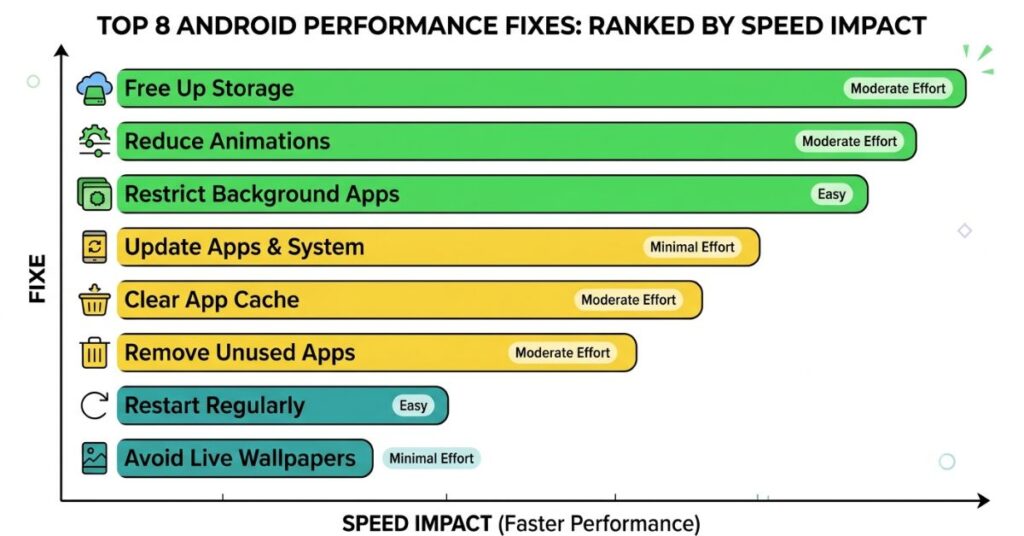
| Fix | Speed Impact | Effort Required | Permanent Effect |
|---|---|---|---|
| Free up storage | Very High | Medium | No, needs monthly maintenance |
| Reduce background apps | High | Medium | Yes, once restrictions set |
| Reduce animation speed | High | Very Low (one-time) | Yes |
| Remove live wallpaper and widgets | Medium | Very Low | Yes |
| Reset app preferences | Medium | Very Low | Partial |
| Manage sync settings | Medium | Low | Yes |
| Address overheating | High | Low to Medium | Depends on cause |
| Clear app data on bloated apps | Medium to High | Medium | Partial |
Common Mistakes That Make Things Worse
Using a RAM cleaner or booster app. This one deserves plain statement because these apps are marketed aggressively and produce the opposite of their claimed effect. Android’s RAM management is deliberate. The memory that a booster shows as “used” is often being used efficiently as a read cache by the operating system. Clearing it forces the system to rebuild the cache from scratch, producing a brief apparent improvement followed by worse baseline performance for the rest of the day. RAM booster apps do not speed up Android phones. They slow them down over time while generating revenue through advertising.
Disabling core system apps. Pre-installed apps from manufacturers and carriers are legitimate targets for disabling. Core Android system apps are not. System apps manage connectivity, rendering, permissions, and fundamental device functions. Disabling them produces cascading failures that are harder to diagnose and reverse than the original slowdown. If you cannot clearly identify an app as a manufacturer or carrier addition, leave it alone.
Applying every fix simultaneously. If you apply all eight fixes in one session and the phone feels faster the next day, you have no idea which changes produced the improvement and which made no difference on your specific device. Apply fixes one or two at a time, test for a day, and continue. The extra time is worth having information about what your phone actually needed.
Stopping storage cleanup too early. Recovering storage from 95 percent used to 88 percent used produces some improvement. The system performance gains continue as you go lower, and they are not linear. Getting to 75 percent free space produces substantially more performance recovery than getting halfway there. Commit to a full storage cleanup rather than stopping when the immediate warning clears.
When the Phone Genuinely Needs to Be Replaced
Most slowdowns are software accumulation and respond to the fixes in this guide. A meaningful minority are hardware limitations that no software intervention resolves, and being honest about the difference saves time.
A phone with 2GB of RAM running Android 13 or 14 is under-resourced for the operating system it is running. The Android OS and its core services alone consume the majority of that RAM. No amount of background restriction or cache clearing produces comfortable performance in this configuration. The slowdown is architectural, not accidental.
Battery degradation produces a class of throttling separate from thermal throttling. When battery capacity drops below roughly 70 to 75 percent of its original specification, the device throttles processor speed to protect the battery from damage during high-draw operations. This cannot be fixed through software. Battery replacement, widely available through manufacturers and independent repair services at a modest cost, resolves this specific issue entirely and extends useful device life significantly. It is consistently underused as an option because most people do not know battery health is separately checkable.
Physical storage hardware on devices five or more years old with heavy write cycles can show genuine read and write degradation. Unlike software accumulation, this does not improve after cleanup. If comprehensive software fixes produce no meaningful improvement on a device in this age range, hardware-level storage degradation is the likely cause.
What You Should Do. Step by Step.
Step 1: Settings: Storage. If above 85 percent, stop here and clear storage before doing anything else.
Step 2: Settings: Apps and tap clear cache on Instagram, TikTok, YouTube, Chrome, Snapchat individually.
Step 3: Files app: Downloads then sort by size and tap delete APK files, one-time downloads, anything unrecognised.
Step 4: WhatsApp: Settings and tap Storage and Data then Manage Storage and clear received media from high-volume chats.
Step 5: Google Photos: confirm backup up to date then tap Free Up Device Storage.
Step 6: Settings: About Phone and tap Build Number seven times, go to Developer Options and set Window Animation Scale, Transition Animation Scale and Animator Duration Scale to 0.5x each.
Step 7: Settings: Battery tap on Battery Optimization and tap apply to all non-essential apps.
Step 8: Settings: Apps then tap three-dot menu and Reset App Preferences.
Step 9: Settings: Accounts and tap review sync settings, then reduce frequency or disable for low-priority data types.
Step 10: Monthly calendar reminder. Clear app caches, check storage, review battery usage for any new unexpected consumers.
Frequently Asked Questions
Final Thoughts
The factory reset persists as the default recommendation because it is easier to recommend than to diagnose. Wiping a device and starting over is guaranteed to produce short-term improvement, requires no understanding of the actual problem and when the slowdown returns several months later, the recommendation is to do it again.
Speeding up a slow Android phone without a factory reset works better in the long run specifically because it addresses causes rather than symptoms. The fixes in this guide do not produce a temporary reset to factory performance. They remove the specific accumulations, processes, and settings that were degrading performance and the maintenance habit they establish prevents those accumulations from reaching the same level again.
I have recommended this guide to four people with slow Androids. Three of them fixed the problem before reaching Fix Four. One needed all eight. None of them needed a factory reset.

Pingback: Why Your Wi-Fi Never Hits the Speed You Pay For
Pingback: How to Free Up Storage on Android Without Deleting Your Photos