
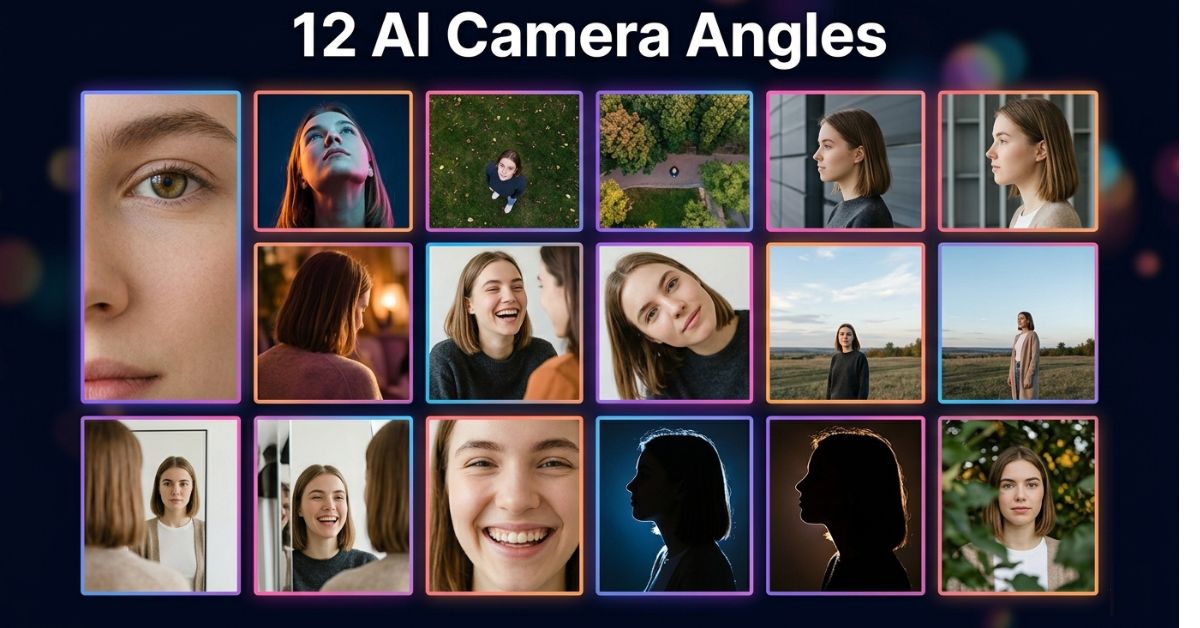
How to Get 12 Different Camera Angles of Your Photo Using Gemini AI
Most people use AI image tools the same way; upload a photo, ask for one result and move on. But what if you could get 12 completely different perspectives of the same face, all from a single photo, in just one prompt?
That is exactly what this guide will show you.
Using Gemini AI Google’s powerful multimodal AI, you can generate a grid of 12 distinct camera angles from one uploaded image. Whether you want a close-up portrait, a dramatic drone shot, a candid laugh or a cinematic over-the-shoulder angle, Gemini can produce them all in a single output.
This technique is popular among content creators, social media enthusiasts, and anyone who wants to experiment with AI photography. And the best part? You do not need any design skills, paid software, or professional camera equipment. All you need is one photo and the right prompt.
Let us walk through exactly how to do it.
What Is Gemini AI?
Gemini is Google’s AI model, available at gemini.google.com. It is multimodal, meaning it can understand and work with both text and images at the same time. You can upload a photo, give it a written instruction and it will generate a new image based on your input.
Unlike older AI tools that required complex settings or paid subscriptions for image generation, Gemini offers free access with a Google account. The image generation quality has improved significantly in 2025 and 2026, making it one of the best free tools available for creative AI photography.
Once you have the grid of images, free AI photo editing apps give you options for cropping, enhancing or adjusting individual frames before using them.
What You Will Generate
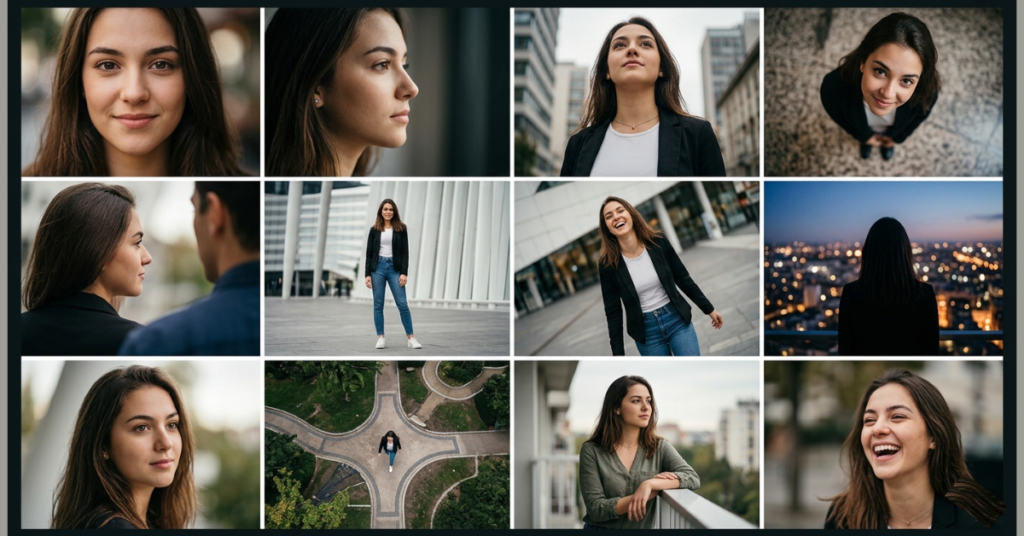
When you follow this guide, Gemini will create a single image that contains a 12-frame grid. Each frame shows the same face, your face or any uploaded photo from a completely different camera angle.
Here are the 12 angles included in the prompt:
- Close-up portrait: tight framing on the face, showing details and expression
- Side profile: a clean left or right profile view
- Low angle looking up: camera positioned below, looking upward at the subject
- High angle looking down: bird’s eye perspective looking down at the subject
- Over-the-shoulder: the subject facing away, camera behind one shoulder
- Wide full-body shot: full figure visible with environment in the background
- Dutch angle: camera tilted diagonally for a dramatic, cinematic effect
- Back view looking at city lights: subject facing away toward a city backdrop
- Three-quarter view: face turned slightly, between a front-on and profile shot
- Drone shot: aerial perspective from directly above or at a high angle
- Mid-shot leaning on a railing: casual, lifestyle-style framing
- Candid laughing angle: natural, unposed expression captured mid-laugh
Together, these 12 frames give you a professional-looking photo grid that would normally require a full photography session.
What You Need Before You Start
Before using this prompt, make sure you have the following ready:
- A Google account (free)
- Access to Gemini AI at gemini.google.com
- A clear photo of a face, ideally front-facing, well-lit and with a simple background
- A few minutes of time
That is it. No additional apps, subscriptions or downloads are required.
Step-by-Step Guide
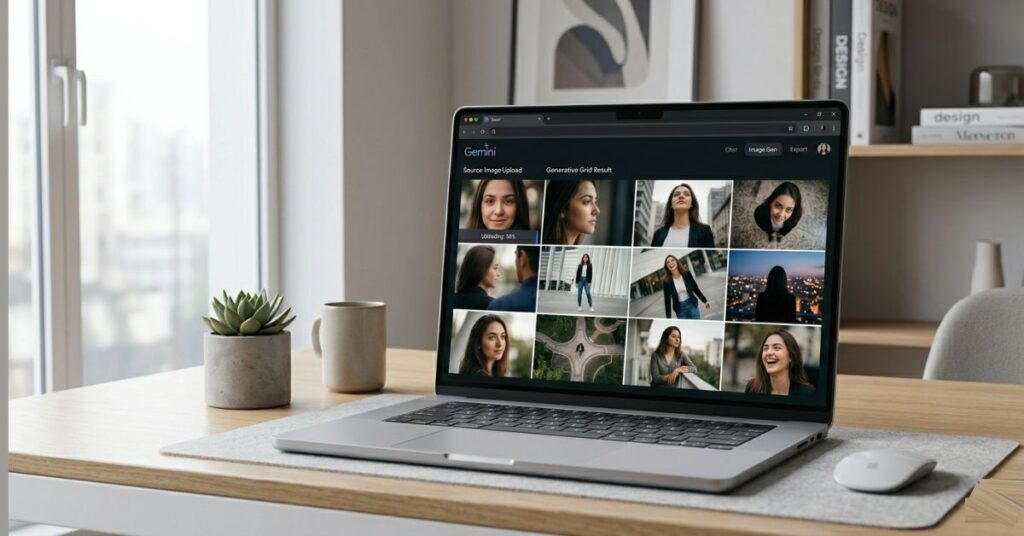
Step 1: Open Gemini AI
Go to gemini.google.com in your browser. Sign in with your Google account if you have not already. You will land on the main chat interface.
Step 2: Upload Your Photo
Look for the image upload icon (a small photo or attachment icon) in the chat input area at the bottom of the screen. Click it and select the photo you want to use. Wait for it to upload fully before moving to the next step.
For best results, use a photo where:
- The face is clearly visible and front-facing
- The lighting is even and not too dark
- The background is clean and not too busy
Step 3: Copy and Paste the Prompt
Once your photo is uploaded, paste the following prompt into the chat box exactly as written:
The 12-frame grid includes:

Close-up portrait

Side profile

Low angle looking up

High angle looking down

Over-the-shoulder

Wide full-body shot

Dutch angle

Back view looking at city lights

Three-quarter view

Drone shot

Mid-shot leaning on a railing

Candid laughing angle

I have shared this photo with you. Please create one single image that includes the same face shown from 12 different angles, based on the angles listed above. The face must remain the same in all angles.
Step 4: Generate and Review
Press Enter or click the send button. Gemini will take a few seconds to process your request and generate the 12-angle grid image. Once it appears, review the result to see how each angle looks.
Step 5: Download the Result
To save the image, right-click on it (on desktop) or long-press on it (on mobile) and select Save image. You now have a 12-angle AI photo grid ready to use.
Tips for Better Results
Getting a great result on the first try depends a lot on the photo you upload. Here are some practical tips:
Use a high-quality photo. Blurry or low-resolution images often lead to inconsistent face generation across the angles. The clearer your original photo, the better Gemini can preserve the likeness.
Try a neutral expression. A relaxed, neutral face in the original photo allows Gemini more flexibility to generate different expressions in the angles, including the candid laugh.
Regenerate if needed. If the first result does not look right, for example, if the face changes across frames or some angles look distorted, simply click regenerate or paste the prompt again. AI results vary between attempts.
Use natural lighting in your source photo. Photos taken in natural daylight or near a window tend to produce the cleanest results in AI-generated outputs.
Common Issues and How to Fix Them
The face looks different in each frame. This is a known limitation of AI image generation. Gemini does its best to preserve facial features but is not always consistent. Try using a sharper, higher-quality source photo and regenerate.
Some angles are missing or replaced. Gemini sometimes interprets the prompt slightly differently. You can rephrase the prompt or list only the specific angles you want if you prefer a more controlled output.
The grid layout looks uneven. This is a cosmetic issue in the AI output and is normal. The content of the frames is what matters most for creative use.
Gemini says it cannot generate the image. This occasionally happens due to safety filters or platform limitations. Try simplifying the prompt slightly or using a different source photo.
Why This Technique Is Useful
Beyond the novelty, this prompt has several practical uses. Content creators can use it to visualize how they would look in different photography styles before booking a shoot. Social media users can generate creative profile content. Designers and photographers can use it as a mood board reference for styling shoots.
It also demonstrates the power of prompt engineering, the skill of writing clear, specific instructions to get better results from AI tools. The more precisely you describe what you want, the better the output.
Final Thoughts
Gemini AI continues to improve as a creative tool, and techniques like this one show how much is possible with a single well-written prompt. You do not need expensive software or a professional studio just a clear photo, the right instructions and a few seconds of patience.
Try this prompt with different photos and see what results you get. Experimenting is part of the process and each attempt teaches you a little more about how to work effectively with AI image tools.
Gemini handles more than images using it to plan a week of meals is a completely different use case that shows how far the same tool stretches.

Pingback: How to Use Gemini AI to Plan a Full Week of Meals (Prompt Included)