
Why Your Wi-Fi Never Hits the Speed You’re Paying For
I upgraded my internet plan last year convinced that was the fix. Paid for something faster, waited for it to kick in, ran a speed test the next morning and got almost exactly the same number I would had before. Spent a couple of days quietly furious at my ISP before I worked out that the ISP wasn’t actually the problem. The problem was inside my flat, mostly inside the router sitting on a shelf I hadn’t touched in years and none of it had anything to do with the plan I was now paying more for.
The gap between the speed your provider promises and what you actually get is real, and nobody explains it honestly upfront. Part of it is that the up to 300 Mbps figure on your contract is a theoretical ceiling under perfect conditions and your home is not perfect conditions. Part of it is that most of what caps your real speed is fixable by you, if you know roughly where to look, which most people just never do.
I will go through this in the order I actually worked through it, free stuff first, paid stuff last, because by the time you get to the expensive options you’ve usually already fixed the problem.
Test It Wired First
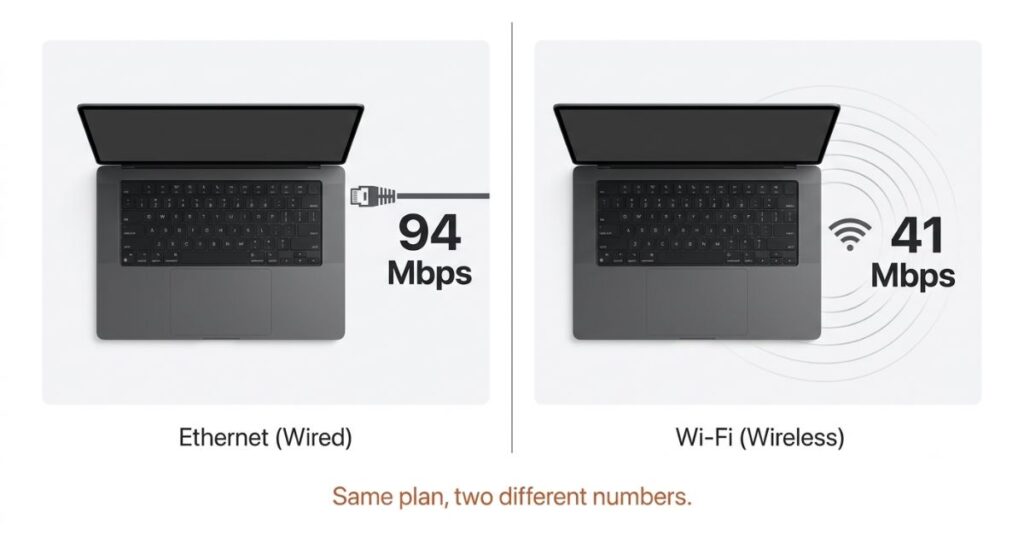
This is the step almost everyone skips and it’s the one that actually tells you anything. Plug a laptop into your router with an Ethernet cable, run a test at speedtest.net or fast.com and compare the number to what your plan promises.
If the wired number is close to your plan, your internet connection itself is fine, and whatever’s slowing you down is happening somewhere between the router and your devices. If the wired number comes in much lower, half your plan or less, the problem is your modem, the line into your home, or your ISP and no amount of fiddling with router settings is going to touch that.
I did this and got close to full speed over the cable. Which told me, in about ninety seconds, that my ISP was actually holding up their end and I would been about to waste a phone call being annoyed at the wrong people.
Where the Router Actually Sits
My router lived on a low shelf in the corner of the living room, mostly because the cable came out of the wall there and I’d never thought about it since. Corner, low down, partly blocked by the TV. About the worst spot in the flat, as it turned out, and I had no idea until I read that signals lose strength fast through walls and floors, and that bad placement alone can cut your effective speed in half before you’ve touched a single setting.
Moving it higher and more central made a difference I could feel within a day, no settings changed at all. If yours is in a cabinet, on the floor, tucked in a corner or sitting in a basement, that’s worth fixing before anything else on this list. It costs nothing and it’s the single biggest free win most people never bother with.
Which Band You’re Actually On
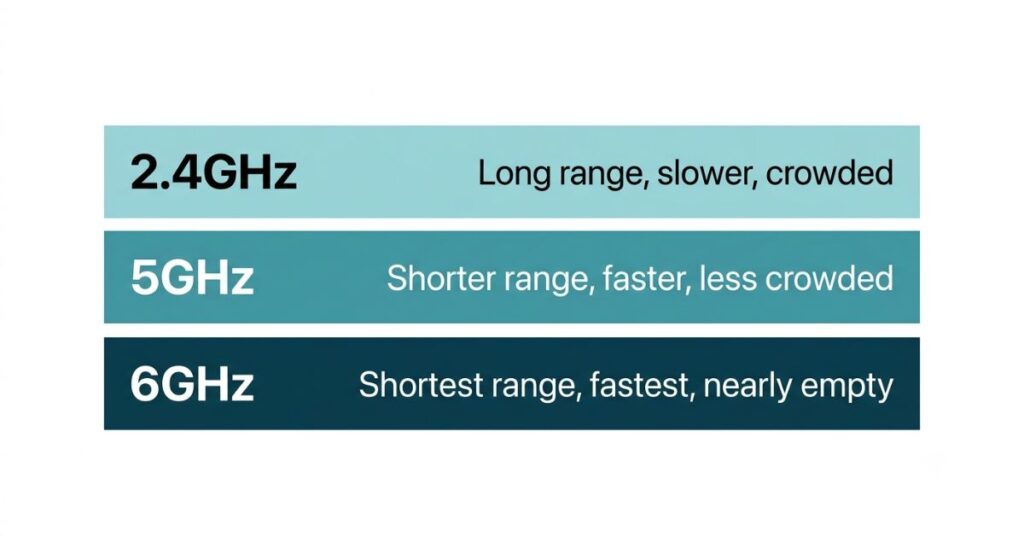
Most routers broadcast two networks at once, 2.4GHz and 5GHz, and a lot of people connect to whichever one their phone grabbed first and never think about it again. I was one of them for longer than I want to admit.
The 2.4GHz band travels further through walls but is noticeably slower and more crowded. 5GHz is faster and less congested but doesn’t reach as far. If you’re sitting in the same room as the router on a video call and it’s still choppy, check which band you’re on, because switching from 2.4 to 5 in that situation is often a real, noticeable jump.
What works in most homes: phones, laptops, and anything streaming heavily stays on 5GHz when it’s close to the router. Smart plugs, sensors, and anything further away or barely using bandwidth can sit on 2.4GHz without it mattering. If your router supports Wi-Fi 6E or 7, there’s also a 6GHz band, which right now is practically empty since so few devices use it yet, so it’s worth trying if your laptop or phone is compatible and you’re near the router.
The Router Your ISP Gave You Is Probably Not Great
I resisted this one for a while because it felt like something a router company would say to sell you a router. Turns out it’s just true. The box your ISP hands over with your plan tends to use cheaper processors, less memory, and weaker antennas than something you’d buy yourself, because it’s built to a cost target, not a performance one.
Mine had been fine on my old plan. It was never going to be fine on the faster one, no matter what speed I paid for, because the hardware itself was the actual ceiling the whole time. A Wi-Fi 6 router in the eighty to a hundred and fifty dollar range will generally outperform whatever your ISP sent you and handle most homes without trouble. You don’t need to spend more than that for most setups. Wi-Fi 7 only really earns its premium if you’ve got a gigabit-plus plan and a lot of devices hammering the network at once.
Too Much Going On in the Background
Every device sitting on your network is taking a share of the bandwidth, even the ones you’re not actively using. I didn’t appreciate how much this mattered until I noticed a video call kept degrading at the same time every evening, and eventually worked out it was a cloud backup quietly running on two devices simultaneously, neither of which I was using, both of which were happily eating bandwidth in the background.
Dropbox, Google Drive, iCloud, anything that syncs, all of it grabs whatever it can whenever it’s running. So does an old phone left connected in a drawer, a smart TV nobody’s watching, a games console on standby. None of that costs anything to fix. It just takes actually looking at what’s connected and turning off or disconnecting what you’re not using.
If the slowdown seems tied to one specific device rather than the whole network, the issue might be the device itself, a few Android settings are known to cause exactly this kind of background drain.
Somebody Else Is Probably on Your Channel
If you live somewhere with other Wi-Fi networks nearby, a flat, a terraced street, anywhere dense, there’s a decent chance your channel is shared with several neighbours at once, which causes congestion that has nothing to do with your own setup. This shows up most on 2.4GHz.
A free Wi-Fi analyser app, Wi-Fi Analyzer on Android or NetSpot if you’re on a Mac, will show you what’s congested around you. On 2.4GHz, channels 1, 6, and 11 are the ones that don’t overlap with each other, so they’re usually the best bet. You change this from your router’s admin page, typically at 192.168.1.1 or 192.168.0.1 in a browser, under wireless settings. Takes a few minutes and can genuinely help in a crowded building.
It’s also worth checking whether anyone has connected to your network without permission, someone using your Wi-Fi adds congestion you can’t fix by changing channels.
The Settings Page You’ve Never Opened
Firmware updates are the thing almost nobody does, mostly because almost nobody knows their router even has a settings page beyond the one screen they used during setup. Manufacturers push updates that fix bugs and improve how the router handles multiple devices and traffic generally. Most people set the thing up once and never go back.
Log into the admin page, look for a firmware section, and install whatever’s waiting if anything is. It won’t transform a genuinely slow connection into a fast one, but it tends to smooth out stability issues that build up quietly over months of being left alone, which is most routers most of the time.
Restarting It Properly, Not Just Quickly
Everyone’s heard “turn it off and on again,” and most people do it slightly wrong by rushing the gap. Unplug the modem and router both, wait the full thirty seconds, then plug the modem back in first and let it fully reconnect before powering the router back on. Skipping that wait is the main reason a restart sometimes doesn’t seem to fix anything, because the modem never properly re-establishes its connection before the router comes back online and starts working with stale information.
Doing this once a month, even when nothing seems wrong, clears out small accumulated issues before they become noticeable ones.
When It’s Genuinely Not You
If you’ve gone through all of that and the wired test is still well below your plan, the problem sits outside your home. Old coaxial cabling, damaged phone line wiring, poorly shielded connections, any of these can degrade the signal before it even reaches your router, and no setting you change inside your flat will fix something broken on the line itself.
Test at a few different points in the day, including late evening when everyone’s online at once. Consistently low numbers regardless of time point to a line problem worth raising with your ISP. Numbers that are fine in the morning and collapse in the evening usually point to congestion on their end during peak hours, which is a different conversation but still one worth having.
Bring actual numbers when you call. Screenshots with timestamps work better than “it feels slow,” and customer support is far more likely to escalate to an engineer when you can show them a pattern rather than a feeling. It’s also worth checking, separately, whether your ISP now offers a better plan at the same price you’re already paying. Providers update their offerings constantly without automatically moving long-standing customers onto the improved version, so you might be paying full price for last year’s tier.
I did this after writing most of this article, almost as an afterthought, expecting nothing. Turned out my provider had quietly doubled the speed on my exact plan eighteen months earlier and never told existing customers. One short call and a five minute wait got me onto the current version of what I was already paying for. It’s an easy thing to forget about because nothing prompts you to check, and providers have no real incentive to remind you.
If the Problem Is Coverage, Not Speed
Everything so far assumes one router can physically reach every room you care about. In a larger home, multiple floors, or anywhere with genuinely thick walls, that assumption breaks down regardless of how good the router is. A mesh system, the Google, Eero, or TP-Link kind, uses several connected nodes rather than one broadcasting point, and generally holds up better than a single router straining to cover too much ground.
A cheap extender will technically push the signal further, but it usually does that by halving the bandwidth, since it’s receiving and rebroadcasting on the same channel. Fine for a single low-demand device sitting in one dead corner. Not great if you’re actually moving around the house needing consistent speed, in which case you’ll probably end up buying the mesh system eventually anyway, just after a few more weeks of being annoyed by the extender first.
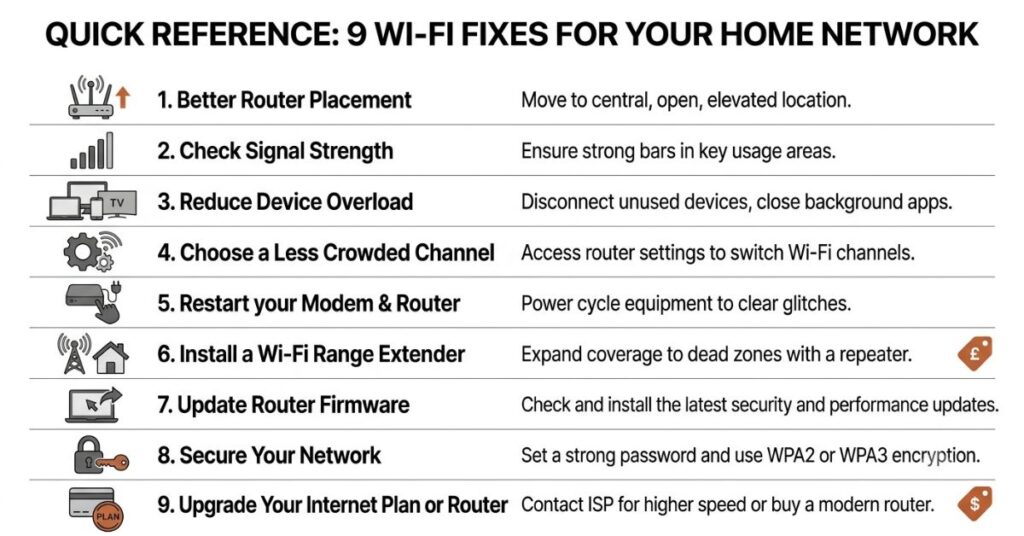
Comparison Table
| Problem | Free Fix | If You Need to Spend Money |
|---|---|---|
| Slow wired speed | Document it, call ISP | New modem if theirs is faulty |
| Router in a bad spot | Move it central and elevated | Nothing |
| Wrong frequency band | Switch to 5GHz | Nothing |
| Weak ISP-provided router | Confirm it’s the bottleneck | Wi-Fi 6 router, roughly $80 to $150 |
| Too many devices competing | Disconnect what you’re not using | Nothing |
| Crowded channel | Switch channels in admin settings | Free analyser app, no hardware |
| Outdated firmware | Update in admin page | Nothing |
| Large home, dead zones | Reposition router first | Mesh Wi-Fi system |
| Line issue from the ISP | Document and escalate | Nothing on your end |
Where People Usually Go Wrong
Testing speed over Wi-Fi and treating that number as what your plan delivers is probably the single most common mistake here. They’re not the same measurement. Wi-Fi speed depends on distance, walls, router quality, and how many devices are competing for it. Your actual internet speed is whatever the ISP delivers to the router itself, and you only see that clearly with a wired test.
Paying for a faster plan before fixing the router is the other one, and I’ve made this exact mistake myself, which is part of why this whole article exists. If the router is the actual bottleneck, a faster plan just means you’re paying more to hit the same ceiling. Sort the hardware and placement first. Look at the plan after, not before.
There’s also a quieter mistake worth mentioning, which is forgetting that microwave ovens run on the same 2.4GHz frequency as one of your Wi-Fi bands. If devices near the kitchen drop out or slow down specifically while something’s heating up, that’s almost certainly the cause and the fix is just moving those devices to 5GHz. It sounds like a strange coincidence the first time you notice it, but it isn’t one.
And one I only worked out by accident: blaming the router for a problem that was actually a single overloaded device. I spent a frustrating week assuming my whole network had slowed down, moving the router, checking channels, getting nowhere, before realizing it was one ageing laptop with a failing Wi-Fi card dragging down everything connected through it during file transfers. Once that laptop was off the network, everything else went back to normal immediately. If only one device seems affected or the slowdown coincides with one specific device being active, it’s worth checking that device in isolation before assuming the whole setup needs fixing.
When You Will Actually Notice This Matters
This stops being theoretical the moment it’s a video call dropping at a bad time, a download crawling when it should take minutes, a game lagging at exactly the wrong second. None of that usually needs more money thrown at your ISP. Most of it needs a router moved six feet, a frequency switched or a settings page opened for the first time since you bought the thing.
A Reasonable Place to Start
Run the wired test first, always. It tells you in under two minutes whether you’re chasing a problem inside your home or one that genuinely belongs to your provider, and skips a lot of wasted effort either way.
If the wired number is fine: move the router if it needs moving, switch your main devices to 5GHz, and check what’s actually connected and using bandwidth you don’t need it to use. Roughly in that order, though none of it takes long regardless of sequence.
If the wired number is low: document it across a couple of different times of day and take that to your ISP directly, with actual numbers in hand.
Most people sort this out somewhere in that process, well before they need to spend any money at all.
FAQ
Final Thoughts
The gap between what you’re paying for and what you’re actually getting is almost always explainable once you look, and fixing it rarely costs anything. Most of it comes down to where the router sits, what it actually is, and what’s quietly competing with it for attention you didn’t know it needed. The wired test tells you where to start looking. Everything else here follows from whatever that test tells you.

Pingback: How to Tell If Someone Is Using Your Wi-Fi and How to Remove Them