
How to Recover Deleted Photos from Android Without a Computer: What Actually Works in 2026
Accidentally deleting a photo that actually mattered is one of the most specific kinds of bad feeling in modern phone use. Not catastrophic or trivial. Just that sinking moment when you realize what you just did and cannot immediately undo it. The good news is that on Android in 2026, a surprising number of those situations have a straightforward fix and most of them are free.
Whether your photo is recoverable depends on one thing: where it was stored when you deleted it. That question has a different answer depending on your phone, your backup settings and how long ago it happened.
Understanding What Deletion Actually Does on Android
Not all deletions work the same way and knowing which type you are dealing with changes what you do next.
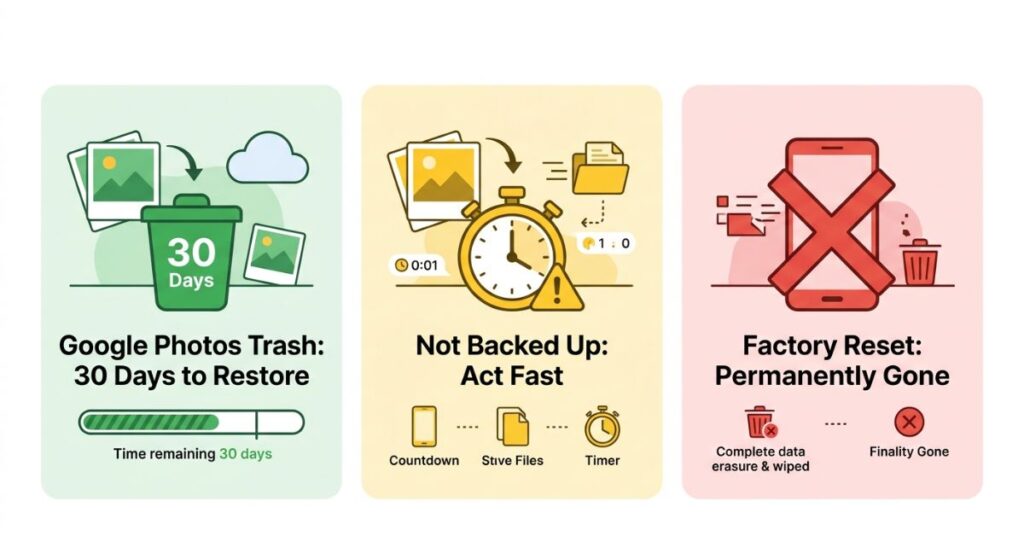
Photos deleted from Google Photos go to a Trash folder and sit there for 30 days before Google permanently removes them. This applies whether you deleted from the Google Photos. app directly or from the phone’s built-in Gallery while Google Photos was active in the background. For the large majority of Android users who have Google Photos installed and backup running, this is the scenario they are actually in, which means recovery is a few taps away.
Photos that were never backed up anywhere and were deleted from local device storage work differently. The file itself is not wiped immediately, the phone marks that storage space as available and leaves the file in place until new data gets written on top of it. This is why recovery apps exist and why speed matters so much. Every photo taken, app updated, file downloaded after the deletion potentially writes over the space the deleted photo occupied. The file may still be there, partially intact, or it may already be gone.
Photos that arrived through WhatsApp, Telegram or other messaging apps that auto-save media sit in a third category. Deleting them from the Gallery often leaves a copy in the messaging app’s own media folder. That copy survives independently.
Google Photos Trash
Open Google Photos. Tap the Library icon at the bottom right of the screen. Look for a folder called Trash or Bin and open it.
If your photo is there, tap and hold to select it, then tap Restore. It comes back to your main library immediately, at the same quality it had when you backed it up. No computer needed, no paid software, no complicated process.
Most people who think they have lost a photo permanently are in this situation. They deleted it, it went to Trash, and they did not know the Trash existed. Check here before doing anything else. If the photo is there, everything after this section is irrelevant to you.
Archive and Albums in Google Photos
A photo can disappear from your main timeline without being deleted. Archiving is one way this happens. Archived photos are hidden from the main view but are still in your account, still backed up, still fully intact. Tap Library in Google Photos and look for Archive. If your photo is there, tap it and select Unarchive to bring it back.
The other way photos seem to vanish is by being moved into an album. Check the Albums section in Library. If someone shared an album with you and later removed it, photos that came through that album may look missing. Worth a quick look before moving further down the checklist.
Check Every Other Backup That Might Have It
Before writing off a photo entirely, run through the less obvious places it might have ended up.
Google Drive. If you or a previous phone owner set up backups to Drive rather than Photos, check your Drive account. Look in the Photos section and in any folder that might have been created during a device backup.
Samsung Gallery Cloud / Samsung Cloud. Samsung phones maintain their own separate backup system alongside Google. If you have a Samsung phone and Samsung Cloud was ever active, open the Gallery app and look for a Recycle Bin option in the menu. Samsung’s trash holds deleted photos for 30 days independently of Google Photos Trash. These are two different bins and many Samsung users do not realise both exist.
WhatsApp Media. If the photo came from a WhatsApp message or was taken and shared through WhatsApp, it may still be in the WhatsApp media folder on your device even if the Gallery copy was deleted. Open your Files app, navigate to Internal Storage, then WhatsApp, then Media, then WhatsApp Images. Everything WhatsApp ever downloaded to your phone is in there unless it was cleared separately.
Telegram. Same idea. The Telegram folder in Internal Storage has a media subfolder with everything the app downloaded.
Other cloud services you may have set up and forgotten. Dropbox, OneDrive, Amazon Photos (included with Prime), iCloud if you ever used an iPhone linked to the same email. Any of these might have a copy if you set them up at some point and never turned them off.
Recovery Apps for Unbacked-up Photos
If the photo was never backed up anywhere and was deleted from device storage, a dedicated recovery app is the next option. Two things are worth knowing before you start.
First, these apps work on a simple principle: they scan the storage for deleted file data that has not yet been overwritten. The sooner you run a scan after deletion, the better the result. Stop using the phone as much as possible once you realise the photo is missing. No new photos, no app updates, no large downloads. All of those write data to storage and reduce what the scanner can find.
Second, installing a recovery app itself writes data to storage, which is a minor irony. For this reason, install one app rather than downloading several to compare. Pick the best option and run it.
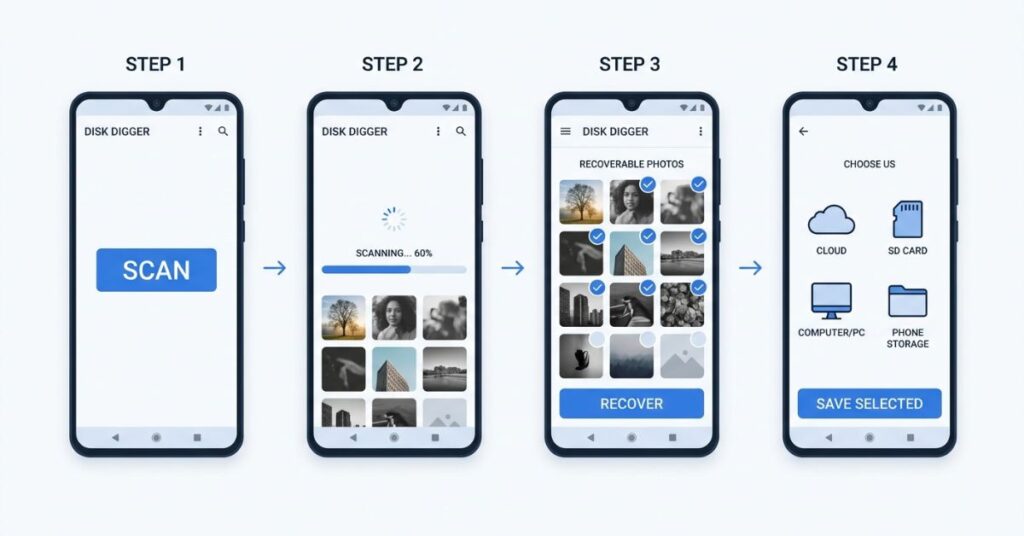
DiskDigger Photo Recovery is the most widely used free option on Android and the one most likely to find recently deleted photos without needing root access. Install it from the Play Store, open it, tap Start Basic Photo Scan, select internal storage, and let it run. The results show as thumbnails of potentially recoverable files. Select the ones you want and save them to cloud storage or an SD card, not back to the same internal storage where they currently exist as deleted data.
PhotoRec is open source and handles a broader range of file situations. It is more involved to use than DiskDigger and better suited to people who are comfortable following technical instructions. If DiskDigger comes back empty or shows only corrupted fragments, PhotoRec is worth trying as a second pass.
Search Google Photos by Date
This step helps users who are not sure whether their photo was backed up before it was deleted.
Open Google Photos and search for the approximate date the photo was taken. The search handles plain language well: “photos from June 2024” or “beach photos from last summer” both return useful results. If Google Photos backup ran between the time the photo was taken and the time it was deleted, the cloud copy exists here even if the device copy is gone.
The way to check whether backup had actually run: tap your profile picture in Google Photos, go to Photos Settings, then Backup. The status line shows the date and time of the last backup. If the last backup happened before the photo was taken, the backup never captured it.
What Kills Recovery Before You Even Start
Using the phone actively after realizing a photo is gone is the main thing that reduces recovery success for unbacked-up files. Taking new photos writes to storage. App updates write to storage. WhatsApp downloading new media writes to storage. Any of those operations can land precisely on top of where the deleted file was sitting, and once that happens the file is gone in a much more final sense.
A factory reset after the deletion makes recovery effectively impossible regardless of timing. The reset process writes over the entire storage in a way that recovery tools cannot work around. If a reset has already happened, an unbackedup photo from before that reset is gone.
Similarly, photos that sat in Google Photos Trash for more than 30 days are permanently gone from Google’s servers. There is no escalation path, no customer support recovery option, and no third-party tool that retrieves them from the cloud once the 30-day window has passed.
The Part Worth More Attention Than the Recovery Steps
Recovery from accidental deletion is a solved problem for backed-up photos and a stressful, uncertain gamble for unbacked-up ones. That gap is entirely addressable before the next deletion happens.
Google Photos backup at Storage Saver quality is free, covers an effectively unlimited number of photos and produces images that look identical to originals on every screen and in every standard print size most people ever use. With it active and current, deleting a photo by accident becomes a thirty-second inconvenience rather than a potential permanent loss.
The check takes less than a minute. Open Google Photos, tap the profile picture, go to Photos Settings, go to Backup, and confirm it is on and showing as up to date. If it shows pending uploads, connect to Wi-Fi and leave the app open until the count clears. That is it. One setting, confirmed once and accidental deletion stops being something to worry about.
If your phone has been running slowly or filling up storage at the same time, a few quick Android settings can sort both issues without a factory reset.
Mistakes That Make Things Worse
Continuing to use the phone before running a scan. Every action on the phone after deletion potentially writes over the deleted file. If recovery matters, do the scan before anything else. Taking even a few new photos can be the thing that makes the deleted file unrecoverable.
Installing multiple recovery apps before running any of them. Each installation writes data. Install one app, run it, see what it finds. Add a second only if the first comes back empty.
Assuming Google Photos backup was running when it was not. This is a genuinely common situation. Backup gets disrupted by Google account storage filling up, permission resets after app updates, or simply being on a phone that was never configured for it. Many people believe their photos are backing up because they set it up once on a different phone. The thirty-second check described above is worth doing before you need to rely on backup, not after.
Paying for recovery software without trying free options first. DiskDigger and PhotoRec handle the vast majority of standard deletion recovery scenarios. Paid professional data recovery services make sense in extreme situations: a water-damaged phone with irreplaceable content, a device with significant professional or legal importance to the data. For a standard accidental deletion, free tools are the right starting point.
Waiting before acting. Every hour the phone is in active use after an unbackedup photo was deleted reduces the odds of finding anything intact. Act the same day, ideally the same hour, if the photo matters.
When the Photo Is Genuinely Gone
Some scenarios produce permanent loss regardless of timing or tools. Knowing which they are is useful even when the answer is not what you wanted.
Photos that were never backed up and were deleted on a phone that has since been factory reset are not recoverable. The reset process specifically overwrites storage in a way designed to prevent data recovery.
Photos that have been in Google Photos Trash for over 30 days are permanently removed from Google’s infrastructure. No third-party tool has access to that data once Google deletes it.
Photos deleted using a secure deletion feature in a file manager app were deliberately designed to be unrecoverable. Standard Android deletion is not secure deletion, but some apps add this as an explicit option.
WHAT TO DO
Step 1: Open Google Photos, go to Library, check Trash. If the photo is there, restore it. Done.
Step 2: If not in Trash, check Archive and Albums in the Library tab.
Step 3: Check Samsung Gallery Recycle Bin if you have a Samsung phone. Check WhatsApp and Telegram media folders in the Files app if the photo came through a messaging app.
Step 4: If the photo was never backed up and was deleted recently, stop using the phone. Install DiskDigger from the Play Store. Run a basic photo scan on internal storage. Save recoverable files to cloud storage or SD card.
Step 5: If DiskDigger returns nothing useful, try PhotoRec as a second pass.
Step 6: Search Google Photos by the date the photo was taken to check whether backup had run before the deletion.
Step 7: Once the immediate situation is resolved, open Google Photos, check that backup is active and up to date, and leave it that way. This is the step that makes the whole situation irrelevant next time.
Frequently Asked Questions
Final Thoughts
The process of recovering deleted Android photos is less dramatic than most people expect going in. For the majority of users with Google Photos backup running, it is a Trash folder and a Restore button. For photos that were never backed up, it depends on how quickly a scan can run before storage gets written over.
What the process almost always surfaces, one way or another, is the backup question. Either backup saved the photo, or backup not running is what made the situation stressful in the first place. That question has a simple answer and it is worth settling before the next accidental deletion rather than after.
Check the backup status now. Thirty seconds, once, and the worst case for every future deletion changes from potential permanent loss to a quick trip to the Trash folder.

Yss
Pingback: How to Back Up Your Phone to Google Drive (Complete Guide)
jjvmpqkkxsvtfxqmnptwiodfsnyxhv