
How to Back Up Your Phone to Google Drive
Nobody thinks about phone backup until the moment they desperately need it. That moment comes without warning. A screen that shatters on a tile floor. A phone that slides out of a pocket and into water. A theft that happens in thirty seconds. And in that moment, the question is not did I turn on backup? Most people believe they did. The question is what did that backup actually save? The answer is almost never what they expected.
Google Drive Backup Doesn’t Do What Most People Think It Does
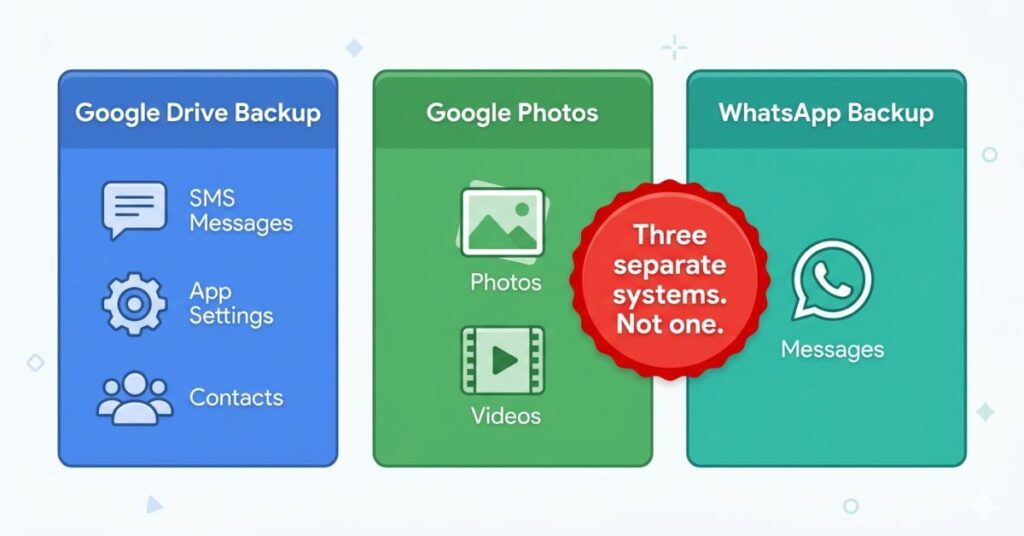
The single most dangerous thing about Google Drive backup is not that it fails. It is that it succeeds at backing up a specific category of data while leaving other critical categories completely untouched and nothing in the interface tells you which category your most important content falls into.
Here is the actual scope of what Google Drive backup covers: app settings and data for apps that have explicitly enabled Android backup support, call history logs, device settings including Wi-Fi passwords and display preferences, SMS and MMS messages sent through your default message app and contacts that are synced to your Google account.
Here is what it does not cover, and this is where almost every backup failure story lives. Photos and videos are not included. They require a completely separate service with a separate backup toggle and that service does not activate automatically when you turn on Drive backup. WhatsApp messages are not included. Neither are Telegram, Signal, or any other messaging platform that operates through its own system rather than Android’s SMS layer. Files you have manually saved to your phone’s Downloads folder or internal storage are not included. The backup that most people believe protects their phone protects a useful but incomplete slice of what is actually on it.
The gap between what users assume Drive backup covers and what it actually covers is not a bug or an oversight in the design. It is a consequence of how Android’s backup architecture was built, with different data types handled by different systems for technical and security reasons. Understanding this does not make the gap less frustrating. It does make it possible to close the gap deliberately rather than discovering it at the worst possible time.
Step One: Find Out Whether Backup Is Actually Running Right Now
There is a specific failure mode that catches people who set up backup a long time ago and have not thought about it since. Backup can be turned on and still be months out of date. System updates reset permissions. Account changes interrupt backup schedules. Storage limits fill silently and stop new backups from running. The toggle says on. The last backup date tells the real story.
Go to Settings click on Google then Backup on your Android device. The date shown next to the last backup is what matters. If that date is more than two weeks ago, the backup is not protecting anything that has happened since. In case the screen shows no backup has ever run, backup was toggled on but never actually completed a full cycle.
In a situation where the date is recent and the backup size looks proportionate to how much content is on your device, that is a good sign for this category of data. Assuming that the backup size shows something like 40MB on a phone with years of apps and data, that number is telling you the backup is not capturing what you think it is.
One thing worth understanding about the Back up now button: tapping it starts the backup process, but it does not guarantee the backup completes before you lock the phone and put it down. Backup completes most reliably when the device is on Wi-Fi, connected to a charger and the screen is off. The combination of all three allows the process to run fully in the background without competing with active use for battery and processing resources. Start a backup before bed and check the result in the morning rather than watching a progress indicator and assuming it finished because the percentage reached 100% on screen.
Step Two: Know What Each Part of the Backup Is Actually Doing
Google Drive backup is not a single operation. It is several different backup processes running under one label, and each of them can fail or succeed independently of the others. Understanding what each one does changes how you interpret what the backup status is actually telling you.
App data is the most variable category and the most misunderstood. Some apps support Android’s backup system fully and their data is recovered exactly on a new device. Others support it partially. Many do not support it at all, including most messaging apps, many games, and apps that handle financial or sensitive data and deliberately exclude themselves from third-party backup systems for security reasons. If an app’s data matters to you, the only reliable way to know whether it is backed up by Drive is to check that app’s own settings for an independent backup option, not to assume the Android backup covers it.
Call history is backed up fully and is probably the least irreplaceable category on the list. Most people can reconstruct the calls they need to know about from other records if necessary.
Device settings, including Wi-Fi network passwords, display brightness preferences, accessibility configurations, and keyboard settings, are backed up and are genuinely useful on restoration. They are not irreplaceable but losing them adds an hour of manual reconfiguration to setting up a new device. Having them backed up removes that friction entirely.
SMS messages sent through your phone’s default messaging app are covered. This is important for people who receive two-factor authentication codes, bank notifications, or other critical system messages through SMS rather than through an app. However, this coverage does not extend to any message that travels through an app with its own messaging system. WhatsApp messages, Telegram messages, Instagram DMs, and iMessage equivalents are all outside this category entirely.
Contacts synced to your Google account are already stored in Google’s cloud independently of the device. They are not at risk the way local data is and would survive any device failure as long as the Google account remains accessible. Contacts stored on a SIM card rather than synced to Google are a different situation and are not automatically protected by any of the backup services discussed here.
Step Three: Set Up Google Photos Backup as a Completely Separate Task
The most common and most emotionally devastating backup failure is losing photos. It is not because backup was never turned on, but because the user turned on Google Drive backup and reasonably assumed that photographs, which live on their phone, would be included in a phone backup. They are not. And there is nothing in the Drive backup interface that mentions this clearly.
Photos require Google Photos, with its own backup toggle, its own settings, and its own status indicator. These are separate from Drive in every meaningful way except that they share the same Google account.
Open Google Photos. Tap the profile icon in the top right corner. Go to Photos settings, then Backup. What you need to see here is both a green backup indicator and the line Backup is on and up to date. A status that says Waiting for Wi-Fi means photos are sitting on your device without a cloud copy. A count showing items pending means the same. Neither of these is the same as “not backed up, but both mean you are not currently protected.
The backup quality choice here is worth making deliberately rather than accepting the default without thinking about it. Storage saver compresses photos slightly and does not count against your Google account’s 15GB free storage. For the overwhelming majority of users, storage saver produces results that are visually identical to the original at every practical viewing size including phone, laptop, and standard print. Original quality preserves the exact camera file and counts against your storage quota. It is worth choosing if you shoot RAW format files, work in professional photography, or produce large-format prints that would show compression differences. It is not worth choosing simply because it sounds like the better option.
Once Google Photos backup shows up to date and you can confirm a specific recent photo appears when you open photos.google.com in a browser on any other device, your photo library is protected.
Step Four: Configure WhatsApp Backup Independently and Understand Why Local Backup Is Essentially Useless
WhatsApp is the most consistently misunderstood backup category among Android users because it appears in two places and only one of them actually protects your data in any scenario that matters.
WhatsApp creates automatic local backups to your phone’s storage by default. These appear in WhatsApp’s backup screen and look like they are working. For the specific scenario of switching to a new phone while the old one is still functional, they are working. For every other scenario where backup actually matters, including a stolen device, a phone dropped in water, a cracked screen with no touchscreen access, or a factory reset on a device you no longer have, the backup file is on the device you cannot access. It is not protecting anything.
The backup that matters is the Google Drive option within WhatsApp. Go to WhatsApp, open Settings, tap Chats, then Chat Backup. The line that reads Back up to Google Drive should be set to Daily for anyone who uses WhatsApp as a meaningful communication channel. Weekly is acceptable but introduces a window of potential loss. Monthly means a message history disaster waiting to happen for anyone with active conversations.
Tap Back Up immediately and watch the confirmation. The last backup date and size shown after completion are the numbers worth noting. If the backup size seems small relative to how long you have been using WhatsApp and how many groups and chats you are active in, something is not capturing correctly. Check that the correct Google account is selected in the backup settings and that WhatsApp has permission to access Google Drive.
For Telegram, Signal, and any other messaging app in regular use, locate the backup settings within each app and configure cloud backup before assuming the Android system backup covers it. It does not cover any of them.
Step Five: Verify the Backup Before You Ever Need It
Most backup configurations that fail do not fail visibly. The toggle stays on. The status screen shows no errors. The backup appears to have run. The failure is in what the backup contained, not in whether it ran. And the only way to discover what the backup contains before you need it is to check it from outside the device.
Verification takes five minutes and it is the step that transforms a backup from an assumption into a confirmed fact.
For Google Photos: open photos.google.com in a browser on a laptop or a different device using your Google account. Confirm that your most recent photos appear. If photos from yesterday are visible in the browser, the backup is working. If the most recent photo in the browser is from two months ago, the backup is not current regardless of what the status screen shows on your phone.
For Google Drive backup: open drive.google.com in a browser, go to Storage, and look for an entry labeled with your device name. The size and date shown here confirm when the last backup ran and approximately how much data it captured.
For WhatsApp: go back to the Chat Backup screen and confirm the last backup date is recent and the size makes sense for your usage history.
These three checks done once a month take less time than a single WhatsApp scroll session. They are the difference between knowing your data is safe and hoping it is.
If photos have already been deleted before a backup was set up, there are still recovery options for Android worth trying before assuming they’re gone permanently.
What Actually Matters More Than Backup Settings
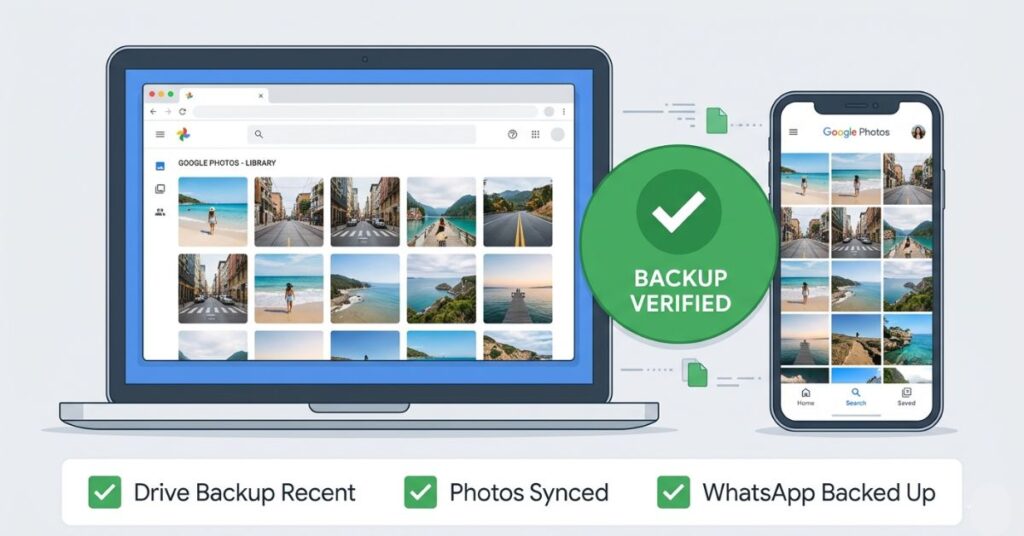
The setting is not what protects your data. The combination of correct configuration across all three systems, active verification that each is working and enough Google account storage for new backups to run is what protects your data. Any one of those three elements failing silently undoes the protection of the other two.
The most common silent failure is Google account storage. Google provides 15GB of free storage shared across Gmail, Google Drive, and Google Photos original-quality backups. When that fills, new backups stop. Not with a notification, not with a visible alert in normal app use, just a quiet stop. The backup date freezes. The photos stop uploading. The WhatsApp backup fails to write. And the phone continues to work normally in every other way, giving no indication that months of data are now accumulating with no backup running.
Checking account storage takes thirty seconds. Go to myaccount.google.com/storage. If the storage bar is near full, either clear space by removing old Drive files and Gmail attachments, or purchase a Google One plan. The entry-level plan starts at 100GB for a modest monthly fee and eliminates this failure mode entirely for most users.
If storage is tight before you start, freeing up space on your Android without deleting photos is worth doing first so the backup runs cleanly.”
Anchor: “freeing up space on your Android
The second silent failure worth knowing about is backup stopping after account changes. If you recently changed your Google account password, performed a security review, or linked a new device, backup permissions sometimes require reconfirmation. Go to Settings, click on Google then Backup and check that your Google account is still correctly associated and that the backup toggle is still active.
What Each Service Actually Covers
| Data Type | Google Drive Backup | Google Photos | WhatsApp Backup | Notes |
|---|---|---|---|---|
| Photos and videos | No | Yes | No | Requires Google Photos backup separately |
| WhatsApp messages and media | No | No | Yes | Must be configured inside WhatsApp |
| SMS text messages | Yes | No | No | Default message app only |
| App data (supported apps) | Partial | No | No | Many apps opt out of Android backup |
| Device settings and Wi-Fi passwords | Yes | No | No | Restored automatically on new device |
| Contacts synced to Google | Already in cloud | No | No | Safe independently of backup |
| Telegram and Signal messages | No | No | Own backup | Each app has independent backup settings |
| Downloaded files and documents | No | No | No | Manual backup required |
| Play Store app purchases | Play account | No | No | Re-downloads automatically |
Common Mistakes That Leave Critical Data Exposed
Trusting the toggle without checking the date. Backup being on and backup being current are two different things. A toggle that has been on for three years with a last backup date from four months ago is protecting data from four months ago. The date is the truth. The toggle is just intent.
Using WhatsApp local backup as a safety net. WhatsApp’s local backup file is stored on the same device that needs backing up. In any scenario involving physical loss or damage, local backup is inaccessible. Only the Google Drive option within WhatsApp’s own settings provides protection against device loss.
Running out of Google account storage and not noticing. When the 15GB free limit is reached, backups stop silently across all services. No notification reaches the user in a visible way during normal phone use. This is the most common reason a backup appears to be running when it stopped months ago.
Never testing the backup from a different device. A backup you have never verified from outside the device is a process that ran without any confirmation it produced a usable result. Photos.google.com in a browser is the simplest verification test available. It takes ninety seconds and either confirms protection or reveals a problem while there is still time to fix it.
Configuring backup once and never revisiting it. Software updates, account changes, permission resets, and storage exhaustion all interrupt backup without announcing themselves. A quarterly check of all three backup systems takes five minutes and surfaces any of these interruptions while they are still fixable rather than after they have caused data loss.
When This Becomes a Real Problem
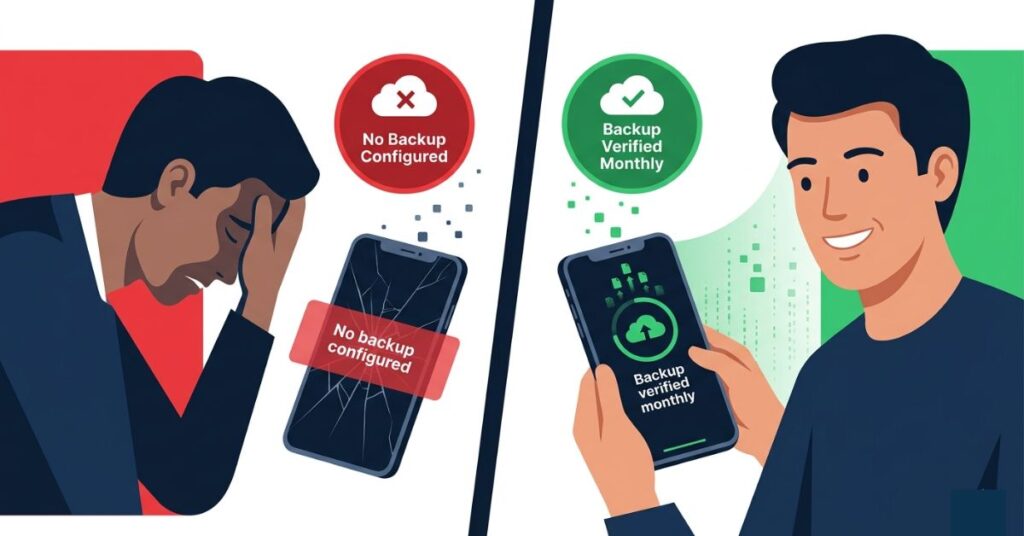
Phone loss is rarely gradual. It happens in a moment: dropped from a pocket in a taxi, sliding off a table onto a hard floor at an angle that kills the screen completely, a bag that does not come back from wherever it went. The data recovery window from these events is typically zero. You have what was in the cloud. Everything else is gone.
The specific losses that are genuinely painful rather than merely inconvenient have a pattern. They are not the apps, which reinstall, or the device settings, which reconfigure. They are the irreproducible things: five years of photos including the ones from before a child learned to walk, two years of WhatsApp conversations with a person no longer alive, business conversations that existed entirely within a messaging thread and never made it to email. None of these survive a device loss without a current cloud backup. None of them can be recovered after the fact.
There is a specific cruelty in partial backups that is worth naming directly. A user who had Drive backup on but not Google Photos backup may recover their contacts, their SMS messages, and their device settings. They lose every photo and video. A user who had Drive backup and Google Photos but never configured WhatsApp’s own backup recovers everything except their message history. The partial backup creates a result that is somehow worse than no backup for certain users, because the recovery confirms that a backup was running while the most important thing was not included in it.
Complete backup means three services, each confirmed, each current. Anything less means some category of data is unprotected and the only question is which one.
What You Should Do. Step by Step.
Step 1: Settings, click on Google then Backup. Check the toggle is on. Check the last backup date. If the date is more than two weeks ago or the size seems too small, tap Back Up Now on Wi-Fi while charging, then leave the device overnight.
Step 2: Check Google account storage at myaccount.google.com/storage. If the bar shows more than 80% used, clear space before running any backup. A full account produces a silent backup failure every time.
Step 3: Google Photos, go to Profile, click on Photos, go to settings then Backup. Confirm Backup is on and up to date. If pending items are shown, leave the app running on Wi-Fi and charging until the count reaches zero.
Step 4: Verify Google Photos backup is real. Open photos.google.com in a browser on any other device using your Google account. Confirm your most recent photos are visible.
Step 5: WhatsApp, go to Settings, click on Chats then Chat Backup. Set Back up to Google Drive to Daily. Tap Back Up immediately. Confirm the completion date and backup size look correct.
Step 6: Check Telegram, Signal or any other messaging app you rely on. Locate the backup settings in each and configure cloud backup.
Step 7: Set a monthly reminder. First Sunday of the month. Check the last backup date in each of the three systems. Three minutes of checking is the maintenance routine that makes the fifteen minutes of setup actually worth something.
Frequently Asked Questions
Final Thoughts
The phone backup conversation almost always starts too late. After the loss, after the screen breaks, after the realisation that years of photos were living on a device that is now in several pieces or at the bottom of a body of water. At that point, the backup settings on the old device are no longer accessible and the outcome is already determined by decisions made months or years earlier.
The actual work of backing up a phone correctly takes fifteen minutes the first time and three minutes a month after that. What makes it feel harder than it is is the gap between the simplicity of the task and the magnitude of what it protects. Three services, each covering a different category, each requiring its own configuration, each requiring its own occasional verification. This is not complicated. It is just specific, and most guides skip the specifics in favor of turn on backup and you are done.
You are not done when the toggle is on. You are done when you can open a browser on a different device, navigate to your backed-up photos and messages, and confirm that the things you would most regret losing are actually there. That confirmation is the step that turns backup from a feature into actual protection. Everything before it is setup. That moment is the thing itself.

Pingback: Google Maps Hidden Features You Need to Know in 2026
Pingback: How to Recover Deleted Photos from Android Without a Computer (2026)
Pingback: How to Free Up Storage on Android Without Deleting Your Photos