
What Is Two-Factor Authentication and How to Set It Up on Every Device
The accounts that get broken into are not usually the ones with weak passwords. They are the ones with only passwords. That is a different problem and most of what people know about online security. They was taught in a world where the password was the whole defense. But that world no longer exists and the gap between what most users believe protects them. what actually does has been quietly widening for years.
Two-factor authentication closes that gap. What follows is the plainest possible explanation of why it works, followed by the exact steps to set it up on every device and platform that matters.
Why Your Password Is No Longer Enough
The mental model most people carry about password security is approximately ten years out of date. The dominant threat to online accounts in 2026 is not someone sitting at a keyboard trying to guess your password one attempt at a time. It is automated systems running billions of credential combinations per hour across thousands of services simultaneously and the raw material they use is not guesses. It is real passwords, obtained from real breaches, that you or someone at a service you used created years ago.
Here is the specific sequence that produces most account compromises. A small online service you signed up for at some point experiences a data breach. Your email address and password are part of the exposed data. Within days, automated tools test those credentials against your email provider, your bank, your social media accounts, your cloud storage, and dozens of other services associated with that email address. If you have reused that password anywhere, which statistically most people have, the breach of one obscure service produces access to multiple important ones.
A strong, unique password for every account addresses the reuse problem. It does not address the breach exposure problem. If the service holding your password is compromised, the strength of that password becomes irrelevant because the attacker has it. What two-factor authentication does is add a second requirement the attacker cannot meet: a code generated in real time on a device in your possession. Even with your password they cannot get in without it.
This is not a theoretical protection. It is a consistently documented finding that accounts with 2FA enabled are dramatically less likely to be successfully taken over in credential-based attacks, regardless of how the password was obtained.
What Two-Factor Authentication Actually Means
The phrase “two-factor authentication” sounds more technical than the reality of using it. In practice, it means this: to get into your account from an unfamiliar device, you need two things instead of one. Your password is the first. A short code that only you can produce right now is the second.
The three categories of second factor are: something you know (a password or PIN), something you have (a phone that generates a code, or a physical security key), and something you are (a fingerprint or face scan). Two-factor authentication requires that your two factors come from two different categories. A password plus a security question is not two-factor authentication, because both are things you know. A password plus a code from your phone is, because one is something you know and the other is something you have.
In daily use, this usually plays out as you enter your password, the site sends a six-digit code to your phone or your authenticator app generates one, you enter it and you are in. On devices you use regularly, the second factor is typically only required once or when something about the login looks unusual. It is genuinely less disruptive than most people expect before they try it.
2FA is the second layer, the first is using a unique strong password for every account, which is where a free password manager removes most of the friction.
The Three Types of 2FA and Why They Are Not Equally Secure
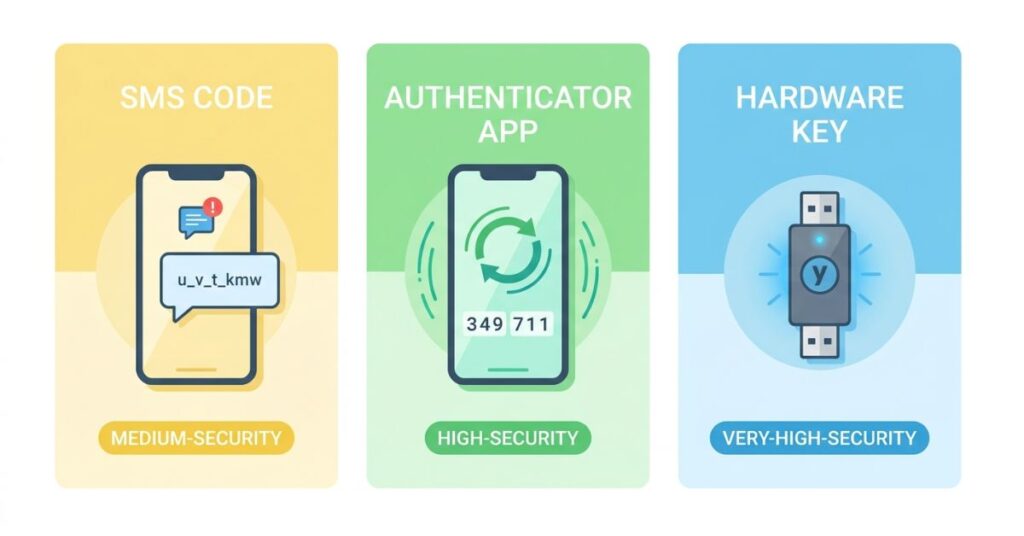
Most guides present the three common forms of 2FA as comparable options and let you choose based on convenience. They are not comparable, and the difference between them is significant enough to be worth understanding before you decide which to use.
SMS 2FA sends a six-digit code to your phone via text message. It is the most widely supported and the most commonly used, and it is also the one most vulnerable to a specific attack called SIM swapping. A SIM swap happens when an attacker contacts your mobile carrier, impersonates you using personal information gathered from social media or previous breaches, and convinces the carrier to transfer your phone number to a SIM card they control. Once that transfer goes through, every SMS intended for your number goes to them instead of you.
Your 2FA codes, your bank verification messages, your password reset texts, all of it arrives on their device. The attack requires more effort than automated credential stuffing but has been used successfully against people with significant financial accounts, high-profile social media profiles, and valuable email addresses. SMS 2FA is still meaningfully better than no 2FA. For high-value accounts, it is the floor, not the ceiling.
Authenticator app 2FA generates codes directly on your phone using a time-based algorithm. The codes change every thirty seconds and are produced without any network connection once the app is configured. Nothing travels through the mobile network, which means SIM swapping cannot intercept them. Nothing is sent to you by a server that could be spoofed, which means certain phishing techniques that work against SMS codes do not work here. Google Authenticator, Microsoft Authenticator, and Authy are the three most widely used options. For almost every account that matters, this is the right choice.
Hardware security keys are physical devices, roughly the size of a house key, that plug into your device via USB or connect via NFC. They generate cryptographic responses that are tied to the specific domain of the service you are logging into, which means they are immune to phishing in a way that no other 2FA method is.
A fake login page that tricks you into entering your password and your authenticator code cannot trick a hardware key because the key recognises that the domain is wrong and refuses to authenticate. They are used by security professionals, journalists covering sensitive topics, corporate executives, and anyone whose accounts are a specific, targeted threat. For everyday users, an authenticator app is sufficient. For anyone who has reason to believe they are a deliberate target, a hardware key is worth the investment.
The 2FA Comparison at a Glance
| Type | Security Level | Phishing Resistant | SIM Swap Resistant | Best For |
|---|---|---|---|---|
| No 2FA | None | No | No | Nobody |
| SMS code | Low to Medium | No | No | Better than nothing |
| Authenticator app | High | Partially | Yes | Most users |
| Hardware security key | Very High | Yes | Yes | High-value accounts |
| Biometric only | Medium | Partial | Yes | Device-level access |
Which Accounts Need 2FA First
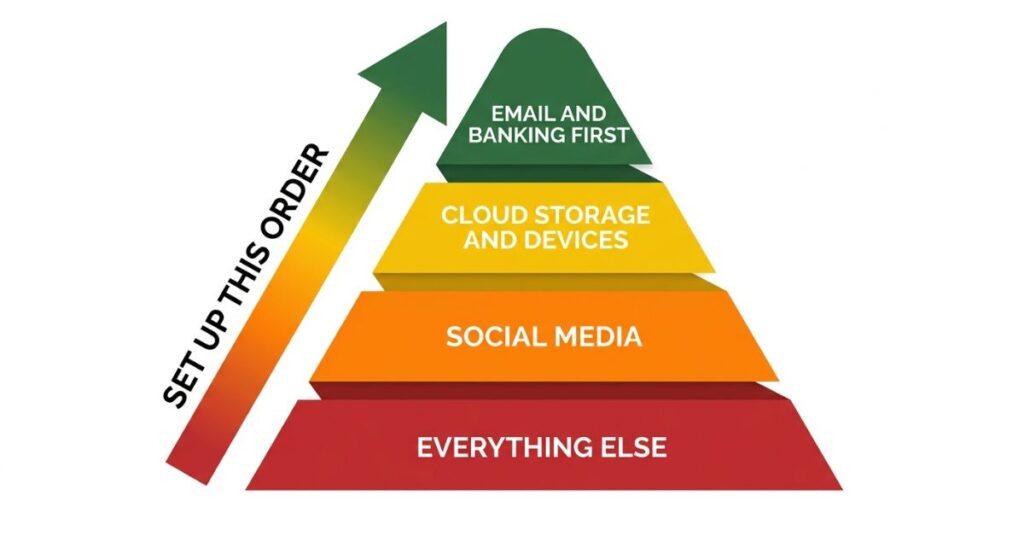
The account most people set up 2FA on first is Instagram. The account they should set up 2FA on first is email. The order matters more than most security guides acknowledge, because not all accounts are equally consequential if compromised, and the time investment in 2FA setup is finite enough that prioritising correctly makes a real difference.
Your email account is the administrative backbone of your entire digital identity. Almost every online service you use has a password reset option that sends a link to your email address. This means whoever controls your email controls the ability to reset your bank password, your cloud storage, your social media, your streaming services, and any other account associated with that address. An attacker who gets into your email can execute a systematic lockout of everything else you own online within minutes. They do not need to know your other passwords. They just need to keep clicking “forgot password” and changing each one before you notice.
Enable 2FA on email before anything else. One step, highest return.
After email, the priority order is financial services first, then cloud storage accounts including Google, Apple ID, and Microsoft, then social media, then shopping accounts with saved payment information, then everything else. Social media feels like the priority because it is the most visible and personal. It is not where the most serious damage happens. A hacked Instagram is frustrating and recoverable. A hacked email followed by a hacked bank account is neither.
How to Set It Up on Every Platform That Matters
Google Account
Go to myaccount.google.com. Select Security from the left sidebar. Under the section labeled “How you sign in to Google,” select 2-Step Verification. Google will verify your identity and present the available second factor options.
The options Google offers are: Google Prompts (a tap-to-approve notification on your phone), authenticator app, SMS, physical security key, and backup codes. The recommended setup is an authenticator app as the primary method with backup codes saved immediately after setup.
Google Prompts are the most convenient option and work seamlessly for most sign-ins, but they depend entirely on having your phone accessible and signed in to the Google account. If the phone is lost or unavailable, prompts stop working and you need backup access. An authenticator app generates codes independently of network access and continues working regardless of what happens to the Google app on your device. Set up both if possible and use the authenticator app as your primary.
Once 2FA is active, Google will ask for a second factor when you sign in from a device it does not recognise. Devices you use regularly can be marked as trusted. The friction in daily use is minimal.
Apple ID
Apple’s two-factor authentication is tightly integrated into its device ecosystem and is required for most Apple services including iCloud backup, App Store purchases, and Apple Pay.
On iPhone or iPad, go to Settings, tap your name at the top, select Sign-In and Security, and turn on Two-Factor Authentication. On a Mac, go to System Settings, click your Apple ID, and enable Two-Factor Authentication under Sign-In and Security.
Apple’s system works differently from other platforms. Rather than using a third-party authenticator app, Apple sends verification codes to your other trusted Apple devices or to a trusted phone number. When you sign in from a new device, a notification appears on your other Apple devices with a map showing the approximate sign-in location and a code to enter. This is genuinely useful because the location notification often reveals unauthorised access attempts in real time.
One setup detail that matters more than it appears: register at least two trusted phone numbers in your Apple ID security settings. If your primary number changes, becomes unavailable, or is transferred in a SIM swap, having a secondary number prevents a lockout scenario. Apple’s account recovery process for inaccessible 2FA accounts is thorough but can take days.
Facebook and Instagram
On Facebook, go to Settings and Privacy, then Settings, then Security and Login, and select Two-Factor Authentication. On Instagram, go to your profile, open the menu, go to Settings, select Accounts Center, then Password and Security, then Two-Factor Authentication.
Both platforms support authenticator app and SMS as primary methods. Use the authenticator app option on both. Meta allows you to connect the same authenticator app to both Facebook and Instagram through Accounts Center, which means you manage both from one place rather than maintaining separate configurations.
One thing worth knowing: Facebook and Instagram accounts are frequently targeted for takeover specifically because they are used for business pages, advertising, and monetised content. An account with a large following or connected ad spend is more attractive to attackers than most users assume. Authenticator app 2FA significantly raises the bar for these accounts.
WhatsApp’s 2FA is called Two-Step Verification and it behaves differently from every other platform on this list. Instead of generating a time-based code at each login, it creates a six-digit PIN that is required whenever your phone number is registered with WhatsApp on a new device.
Go to WhatsApp, open Settings, tap Account, then Two-Step Verification, then Enable. Set a six-digit PIN and optionally add a recovery email address.
This specific protection matters because of how WhatsApp account takeovers typically happen. In a SIM swap attack, the attacker transfers your number to their device and installs WhatsApp. Without Two-Step Verification, WhatsApp registers to their device without any barrier because the phone number match is sufficient. With the PIN set, the registration cannot complete without it. The attacker has your number but not your PIN, and the takeover fails at that step.
Add a recovery email address when setting this up. If you forget the PIN, the recovery email is your path back in.
Banking and Financial Apps
Banks approach 2FA inconsistently, which is frustrating but worth navigating. Most major banks offer 2FA but limit it to SMS codes rather than authenticator apps. Some offer in-app push notifications. A smaller number support hardware keys.
The advice here is direct: enable whatever your bank offers, even if it is only SMS. The argument made earlier about SMS being weaker than an authenticator app is true at a technical level. At a practical level, the credential stuffing attacks that represent the most common threat to financial accounts are fully blocked by SMS 2FA. SIM swap attacks are real but targeted, and unless you have a specific reason to believe you are a deliberate target, SMS 2FA on a bank account produces meaningful protection.
Check under Security Settings or Account Settings in your bank’s app or website. If 2FA is not visible there, check the support documentation or contact the bank directly. If your bank does not offer any form of 2FA for online access, that is a genuine security limitation worth considering in your overall relationship with that institution.
Device-level security is worth covering at the same time checking which apps have been granted microphone and camera access is a five-minute audit most people have never done.
Microsoft Account
Go to account.microsoft.com. Select Security from the top navigation, then Advanced Security Options, then Two-Step Verification. Microsoft supports authenticator apps, SMS, email codes, and hardware keys.
Microsoft Authenticator is the recommended option. It integrates with Windows Hello passwordless sign-in on supported hardware, which means on a compatible Windows device you can sign in to your Microsoft account without typing a password at all, using only the authenticator app as the verification method. This is genuinely more secure than a password plus SMS combination because it removes the password from the equation entirely on the local device.
If you use Microsoft 365 for work or personal productivity, securing this account should rank alongside Google and Apple in your priority order. Microsoft account controls OneDrive files, Outlook email, and on Windows devices, the ability to sign in to the operating system itself.
The Recovery Code Problem Nobody Handles Correctly
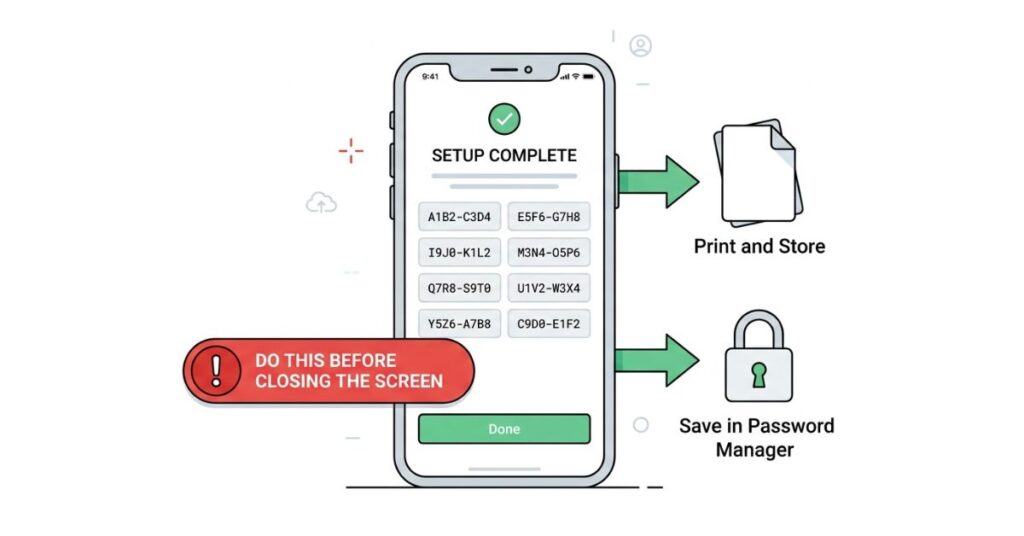
Two-factor authentication introduces a protection that works exactly as intended against attackers and, if you do not handle one specific step correctly, also works exactly as intended against you. The setup takes ten minutes. The scenario where it locks you out of your own account indefinitely is avoidable with a single two-minute step that most guides mention once in passing and then move on from.
Every platform that offers 2FA also generates backup or recovery codes at the time of setup. These are single-use codes, typically eight to twelve digits, that bypass the normal second factor and let you access the account if you lose your phone, replace it without transferring the authenticator app, or otherwise lose access to your normal verification method. The window in which these codes are shown is the setup screen. Many platforms show them once and never again without a manual regeneration process.
The behaviour pattern that leads to permanent lockouts is consistent: the user sees the recovery codes screen, reads “save these somewhere safe,” thinks “I will do that later,” closes the screen, and never finds the codes again. Three months later, a new phone without the authenticator app means a recovery code is the only path back in. The codes are gone. The account is inaccessible.
Save recovery codes in at least two locations before you close the setup screen. Useful options are a password manager, a printed sheet stored with other important documents, a note in a separate secure cloud document not connected to the account being protected, or a secondary email address used specifically for security recovery. The format does not matter. Having them in two places matters. Doing it before closing the screen matters. Every account, every time.
What Actually Matters More Than Having 2FA Enabled
2FA is the most important single security improvement most people can make to their accounts. It is not a complete security posture by itself, and treating it as one creates a specific kind of false confidence where the presence of a second factor makes users less careful about other vulnerabilities.
A strong, unique password is still required for every account. If an attacker can access your second factor through malware installed on your phone, the 2FA codes are visible before you even enter them. Physical security of the device holding your authenticator app matters in a way that most people do not think about: an unlocked phone with an open authenticator app is a second factor that anyone nearby can read. Biometric lock on the authenticator app itself adds a layer that makes the device’s physical possession insufficient without your face or fingerprint.
The setup that covers the realistic threat landscape for most people looks like this: unique passwords stored in a password manager, authenticator app 2FA on all high-value accounts, biometric lock on both the password manager and the authenticator app, and recovery codes saved for every account. This is not a complex technical project. It is about thirty minutes the first time and produces a security configuration that is dramatically harder to penetrate than the average compromised account in any documented breach dataset.
The goal is not perfect security. Perfect security does not exist. The goal is being sufficiently more protected than the average target that automated attacks move on to easier accounts, which is exactly what the available evidence shows 2FA accomplishes.
Common Mistakes That Undermine 2FA
Using SMS on high-value accounts when an authenticator app is available. For email and financial accounts specifically, choosing SMS when the platform also supports an authenticator app is leaving a meaningful security upgrade unused. The setup time difference is approximately two minutes. The security difference, specifically the SIM swap vulnerability that SMS leaves open and an authenticator app closes, is not trivial for accounts worth targeting.
Enabling multi-device sync in an authenticator app without securing all synced devices. Apps like Authy allow codes to sync across multiple devices, which is useful when changing phones. It also means a compromised secondary device gives an attacker access to every 2FA code you have set up. If you use multi-device sync, every device with access needs biometric protection or a strong PIN.
Skipping recovery codes. This point cannot be stated too directly. Not saving recovery codes is how people end up permanently locked out of accounts they correctly secured. The codes are shown once at setup. Save them before closing the screen.
Securing new accounts going forward but never auditing existing ones. Setting up 2FA on accounts you create from now on takes care of the future. Securing the accounts you already have, the email address you have used for ten years, the bank account opened before you thought about this, requires a deliberate session to go back through your existing accounts. An hour spent on this audit closes more existing vulnerabilities than months of careful new account setup.
Trusting 2FA to compensate for a reused or weak password. Two-factor authentication adds a second barrier. It does not replace the first. An attacker who somehow bypasses or captures your 2FA code gains access if your password is known. The two layers are intended to work together, not substitute for each other.
When This Becomes a Real Problem
Account takeovers do not usually announce themselves dramatically. They show up as a charge on a credit card statement you almost did not check, a password reset email for an account you did not request, a message from a friend asking why you sent them a strange link, or a notification that your email address was used to create an account somewhere you have never heard of. By the time any of these appears, the access has already been used for something.
What comes next is the part that changes how people feel about the ten minutes they spent, or did not spend, on 2FA. Email account recovery from a provider when the attacker has changed the recovery information can take days of identity verification. Financial fraud recovery involves filing disputes, waiting for investigation outcomes, and dealing with the cascading effect of any automatic payments that failed during the period the account was compromised. Social media recovery varies by platform and can be genuinely difficult when the attacker has changed the associated email address and phone number.
None of this is catastrophic in most cases. All of it is significantly more time-consuming and stressful than the setup it replaces. The exchange is not balanced in favour of skipping 2FA.
What You Should Do. Step by Step.
Step 1: Download an authenticator app first. Google Authenticator, Microsoft Authenticator, and Authy are all solid. Authy’s encrypted cloud backup makes device changes smoother. Get familiar with how it looks and how codes work before linking any account.
Step 2: Enable 2FA on your primary email account. Choose authenticator app over SMS if the option exists. Save recovery codes before leaving the setup screen.
Step 3: Enable 2FA on all financial accounts: banking apps, investment platforms, PayPal, and anything with stored payment methods. Use authenticator app where supported, SMS where it is the only option.
Step 4: Enable 2FA on Google Account, Apple ID, and Microsoft Account. These three control large amounts of data and downstream account access. Use authenticator app where supported for all three.
Step 5: Enable 2FA on social media: Facebook, Instagram, Twitter/X, LinkedIn, TikTok. Prioritise any account connected to professional activity, advertising, or with a substantial following.
Step 6: Enable Two-Step Verification in WhatsApp specifically. This is a separate setup within the WhatsApp app and requires its own PIN. Add a recovery email address during setup.
Step 7: Save all recovery codes. Check that you have saved codes for every account where 2FA is now active, in at least two places.
Step 8: Set aside one additional session to audit existing accounts you already had before starting this process. Go through your password manager or email inbox, identify active accounts, and enable 2FA on any that support it.
Frequently Asked Questions
Final Thoughts
The reason most accounts that get compromised had passwords is that a password is the entire security model most people are running. The password era of online security was built when the primary threat was someone manually trying to guess credentials. That threat still exists. It is now the smallest part of the problem.
Credential stuffing at industrial scale, phishing kits that replicate login pages convincingly enough to fool careful users, and breaches that expose millions of passwords at once have collectively made the password, even a strong one, a single point of failure in a threat environment that has learned exactly how to exploit single points of failure.
Two-factor authentication does not make your accounts impenetrable. It makes them require effort that automated attacks are not designed to spend. The overwhelming majority of credential-based account compromises rely on the absence of a second factor. Adding one puts your accounts outside the scope of the most common attacks, not because it is undefeatable, but because there are millions of accounts without it that are easier targets.
The setup takes about thirty minutes done properly, including recovery codes. The daily experience after setup is entering a six-digit code a few times a month on new devices. The alternative to that thirty minutes and those occasional six-digit codes is discovering at the worst possible moment that a password was never the protection you thought it was.
