
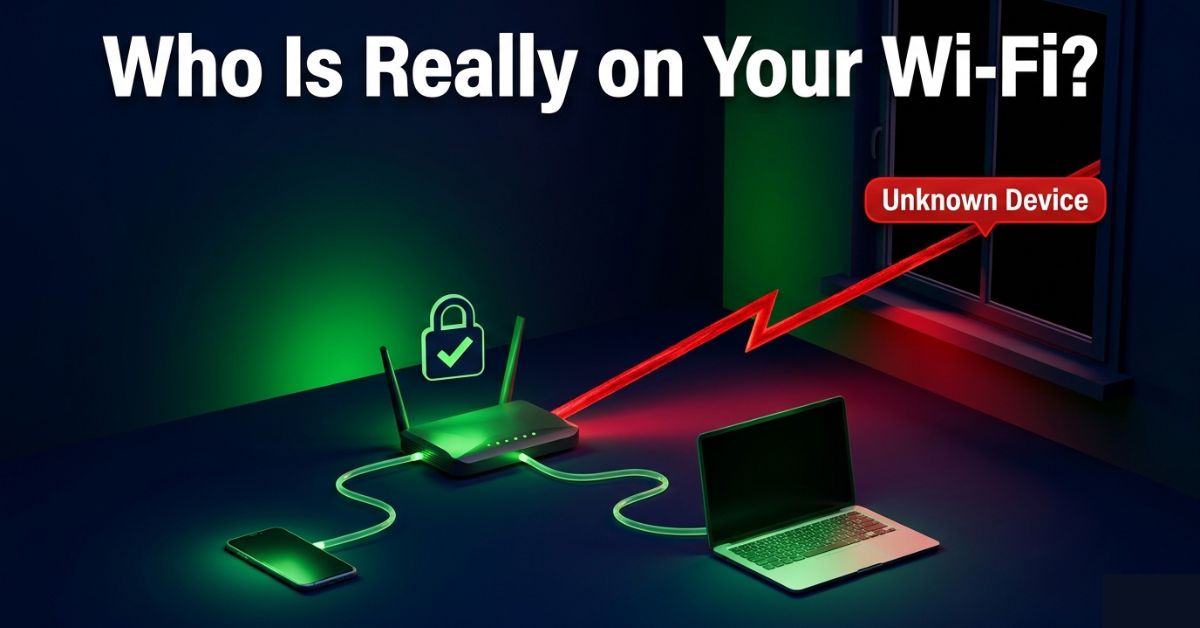
How to Tell If Someone Is Using Your Wi-Fi and How to Remove Them
Slow internet is irritating but if your speeds have dropped for no obvious reason, restarting the router gives you thirty minutes of relief and if you have not added any new devices lately, the problem might not be your ISP. It might be your neighbor.
Checking takes five minutes, if you find something, fixing it takes twenty. Here is how to do both.
The Part Nobody Thinks About Until It Is Too Late
Most people who discover an unknown device on their Wi-Fi treat it as a bandwidth problem. Someone is getting free internet which is annoying. But that framing misses the part that actually matters.
A device on your home network is inside your network perimeter. Not outside knocking, that device can see traffic flowing between your other devices and the router. On a typical home setup without additional security, a technically capable user in that position can observe unencrypted communications, see which websites you are visiting and potentially access shared files on other devices. They do not have to be doing any of that for the risk to exist, just being in there is enough.
The part that genuinely catches people off guard is in most jurisdictions, the broadband account holder is legally responsible for what happens on their connection. Every download, communication and each very search, If an unauthorized user on your network does something illegal, the investigation does not start with them, it will start with the account, that is, the name on the bill is the first address on the paperwork.
Slow Wi-Fi has a lot of causes beyond uninvited users, if removing them doesn’t fix your speeds, there are several other things worth checking on your router and network.
Slow Netflix is the least of the problems here.
Step One: See Who Is Actually on Your Network
How to Use the Router Admin Panel
Every home router has a built-in web interface that shows you every connected device in real time. Most people have never opened it, although It’s not complicated.
Type 192.168.1.1 into a browser address bar on any device that is connected to your Wi-Fi. If that does not load, try 192.168.0.1. If neither works, find the right address in your device’s network settings under the Default Gateway value.
You will get a login screen. The username and password are almost always printed on a sticker on the back or bottom of the router. Usually something like admin and admin or admin and password. While you’re changing your Wi-Fi password, it’s a good moment to review your other account passwords too a free password manager makes that manageable without having to remember everything.
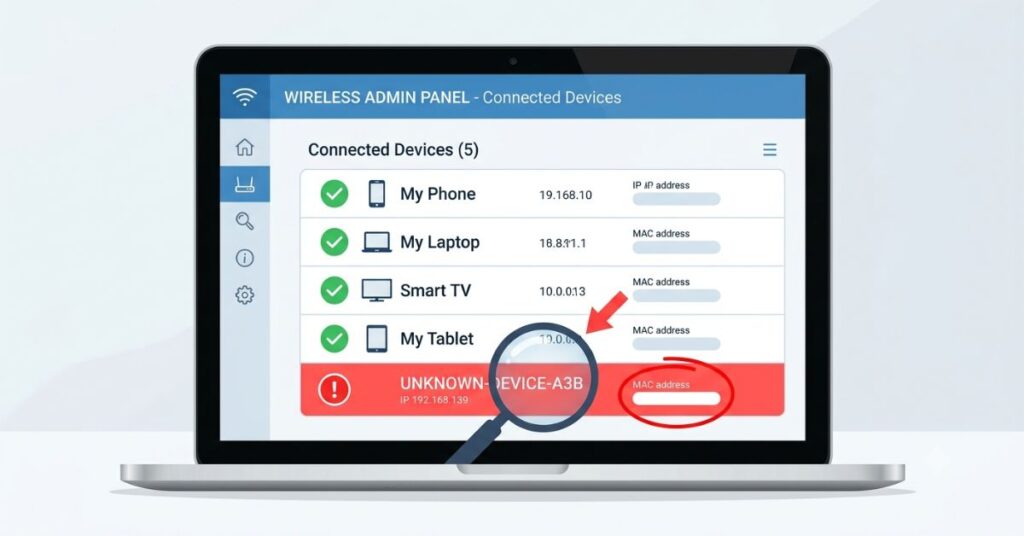
Once you are in, look for a section called Connected Devices, Attached Devices, DHCP Client List, or Device List. Every router labels this slightly differently. What you will find is a list of every device currently on your network, showing the device name, MAC address and IP address.
Reading the List
Your home has a known number of connected devices. Work through the list, your phone, laptop and your partner’s phone. The smart TV, games console, streaming stick, smart speaker, printer, any smart plugs or thermostats. Count them and name them.
Anything you cannot place, write down its MAC address before you do anything else, you will need it.
Using an App Instead
If the router admin panel feels unfamiliar, Fing is a free app available on Android and iOS that scans your network and shows every connected device with the manufacturer name included. That last part matters. A Samsung device in a household with no Samsung products, or a manufacturer name you have never heard of, stands out immediately without requiring any router navigation at all.
Step Two: Work Out What You Do Not Recognise
Device Names Cannot Be Fully Trusted
The names that appear in the connected devices list are set by the devices themselves. They can say anything. A neighbor’s phone might show up as iPhone, as Android, or as a random alphanumeric string. A shared accommodation resident’s laptop might appear as DESKTOP-K8T7F or as nothing recognizable. Names are a starting point, not a verdict.
MAC addresses are more useful. Every network device has one, baked in during manufacturing, and the first six characters identify who made the hardware. Paste any MAC prefix into a free MAC address lookup tool and it tells you the manufacturer. That alone usually tells you whether the device could plausibly be yours.
The Honest Problem With This Process
Identifying every device on a modern home network is harder than it sounds. A typical connected household has somewhere between fifteen and thirty Wi-Fi devices when you add up every smart device, old phone, tablet nobody uses anymore, smart plug, thermostat, baby monitor, and IoT product. A lot of these have names that mean nothing to the average person looking at a device list.
The most reliable approach is systematic elimination. Disconnect your known devices temporarily, one category at a time, and watch the router’s list for which entries disappear. Whatever stays connected after all your devices are offline is either genuinely unknown or something you forgot you had. It is usually one or the other and both are worth knowing about.
Step Three: Remove Them
MAC Address Blocking: Works Immediately, not Permanently
Every router admin panel has a MAC address filtering section, usually under Wireless Settings, Security, or Advanced Settings. Add the unknown device’s MAC address to the block list and it disconnects immediately. It cannot reconnect using that MAC address.
The catch: MAC addresses can be changed. It is called MAC spoofing and it is not particularly difficult on a modern device. Anyone who realises their MAC has been blocked can assign themselves a new one and reconnect within a few minutes if they know what they are doing. MAC blocking is a useful immediate step. It is not a permanent barrier against anyone who is deliberately trying to stay on your network.
Changing the Wi-Fi Password
When you change the Wi-Fi password, every device on the network gets disconnected. All of them. Nobody can reconnect without the new password. This is the only action that clears the board completely, including devices you may not have identified.
Go to the router admin panel, find Wireless Settings or Wi-Fi Settings, change the password field, save. The whole network drops within seconds. Then reconnect each of your own devices with the new password. For most households that takes fifteen to twenty minutes.
One thing worth getting right: the new password needs to actually be better than the old one. A password that substitutes a different year into the same format, or swaps one pet name for another, is not a meaningful security improvement. Twelve characters minimum, mixing letters, numbers and symbols, nothing tied to personal information that someone who knows you could guess.
Step Four: Make Sure It Cannot Happen Again the Same Way
The Admin Password Almost Nobody Changes
When people find an unknown device on their network, almost everyone changes the Wi-Fi password. Almost nobody changes the router admin panel password. That is the more significant oversight.
The admin panel is the control point for the entire network. Someone with access to it can see every device connected, read DNS query logs showing every website visited on the network, change security settings, and in some configurations redirect traffic entirely. It is a more serious access point than simply being connected as a regular Wi-Fi user.
Most routers ship with factory default admin credentials, and those credentials are publicly documented for every router model. A person close enough to see your router’s brand, or one who knows what model your ISP typically provides, has a reasonable chance of knowing your admin login if you have never changed it. They do not even need to be on your Wi-Fi network to try it.
Change the admin password under Administration or Management in the admin panel. Use something different from the Wi-Fi password. Write it on a piece of paper and tape it to the back of the router, because forgetting it is much worse than someone seeing it there.
Check What Encryption You Are Using
Go into your router’s wireless security settings and check what protocol is showing as active. WPA3 is the current standard. WPA2 is the minimum you should accept. WEP and the original WPA (without a number) have documented weaknesses that make password cracking viable in hours. If your router is showing either of those, change the setting to WPA2 now. Your devices will still connect, and the network will actually be protected rather than just appearing to be.
Turn Off WPS
Wi-Fi Protected Setup (WPS) was added to routers to make connecting devices easier: push a button or enter an eight-digit PIN instead of typing a password. The eight-digit PIN turns out to have only a few thousand realistically testable combinations because of how the authentication protocol was designed, which means a determined person can run through all of them automatically in a matter of hours. The convenience works equally well for someone who has no business on your network. Find WPS in your wireless settings and disable it. Every device you own can connect by entering the password instead.
Use a Guest Network for Everyone Else
Most modern routers can create a second Wi-Fi network with its own password, isolated from the main one. Devices on the guest network can access the internet but cannot communicate with devices on your main network.
This is not just for guests. Smart home devices, IoT products, and anything you did not manufacture and cannot inspect belong on a network that is separated from your laptop, your phone, your cloud storage. If a cheap smart plug gets compromised, the damage stays contained on the guest network rather than spreading to everything else. Visitors get internet access without ever touching your actual network. It takes ten minutes to set up and makes future incidents significantly less consequential.
Why Blocking the Device Is Only Half the Answer
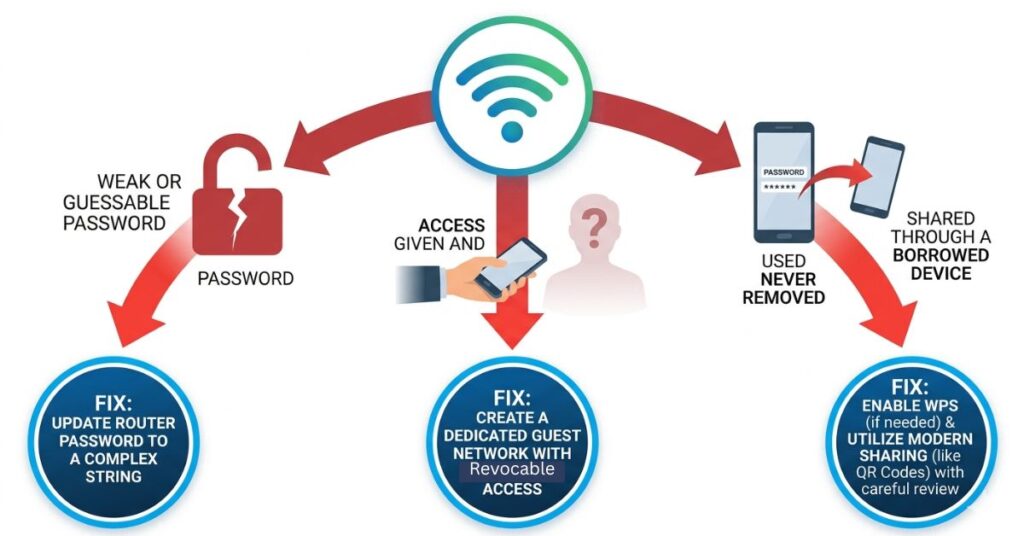
The most common response when someone finds an unknown device is to block it, change the Wi-Fi password, and consider the situation closed. The follow-up question that determines whether it stays closed is the one most people do not ask: how did that device get the password?
There are three ways an unauthorised device ends up on a home network. First, a weak or guessable password. Street name, family surname with a year, a pet’s name, the router’s default password that was never changed. Second, someone was given the password legitimately at some point and never lost access. A contractor, a guest, someone who used to live there, someone who helped set up the router. Third, the password was obtained through a borrowed device that had it stored or visible.
Each of these needs a different fix. A weak password needs a genuinely strong replacement and a security protocol check. Past access that was never revoked needs a password change and an honest look at who else has been given it over the years. A borrowed device points to a password change and a review of what else may have been accessible.
Blocking a MAC address does not address any of those three routes. The device is gone. The door it came through is still unlocked.
What Each Fix Actually Does
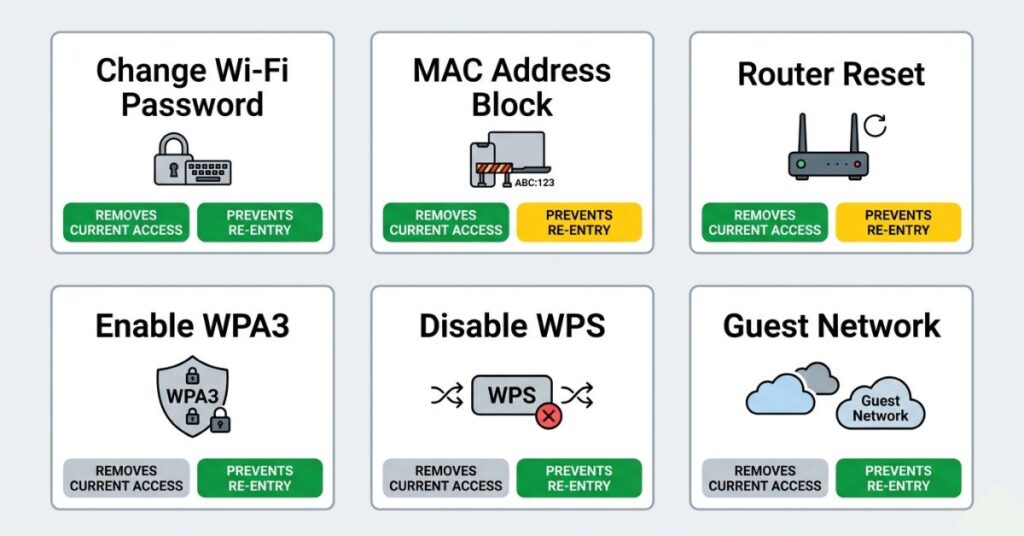
| Method | Removes Current Access | Prevents Re-entry | Time Required | Technical Difficulty |
|---|---|---|---|---|
| Change Wi-Fi password | Yes | Yes (until shared again) | 20 minutes | Low |
| MAC address blocking | Yes | Partially (can be spoofed) | 5 minutes | Low to Medium |
| Router factory reset | Yes | Temporarily | 30 minutes | Low |
| Enable WPA3 encryption | No (alone) | Helps significantly | 5 minutes | Low |
| Disable WPS | No (alone) | Helps significantly | 2 minutes | Low |
| Guest network setup | No | Isolates future guests | 10 minutes | Low |
Mistakes That Leave the Network Exposed After Discovery
Only changing the Wi-Fi password. The admin panel password is the more critical one. If the admin credentials were the factory default when the intruder was present, they may have already accessed the panel. Changing the Wi-Fi password does not close that door. Both passwords need to change.
Swapping to a password that follows the same pattern. A different year, a different pet’s name, a different family member, a different street. These are guessable by the same person who guessed the first one. The replacement needs to follow a completely different logic.
Reconnecting all devices before reviewing the list. After the password change, the device list is briefly clean. Only devices you reconnect appear in it. Waiting forty-eight hours before doing the final review gives you a clear moment to confirm that everything reconnected was genuinely yours. Miss that window and the list becomes crowded again before you have had a chance to verify it.
Assuming one unknown device is the whole problem. The same access that brought one device onto the network may have brought others that you have not spotted yet. After making the changes, check the list again in two to three days rather than treating the first clean check as a conclusion.
Leaving the admin password at the factory default. This applies whether or not you have had an intrusion. The factory default credentials for almost every router model are publicly searchable. Changing the admin password is not optional security hygiene.
When This Goes Beyond Inconvenience
Finding an unfamiliar device in the router’s list sits somewhere between unsettling and alarming. It does not quite feel like a break-in, but it does not feel insignificant either. Most of the time the explanation is low-stakes: a nearby device connected automatically because the network was familiar, a forgotten device from someone who visited months ago, an IoT product that registered itself under a name nobody recognizes. These all need the same response and the response resolves them.
In shared accommodation and rental properties, the problem looks different. Wi-Fi passwords circulate through buildings in ways the account holder has no control over once they have been shared once. Unknown devices showing up periodically are routine in these environments rather than exceptional. A regular password change every two to three months, combined with a guest network for anyone not in the immediate household, is the only realistic mitigation.
In situations involving a recently ended relationship or domestic conflict, an unknown device on the home network warrants more careful attention. Network access combined with physical familiarity with the home environment is associated with certain forms of digital monitoring. The steps in this guide, specifically changing both passwords, reviewing which accounts have access to smart home devices, and checking what else is connected to the network, are the appropriate starting point. If the concern goes beyond technical reassurance, speaking to a professional or contacting relevant authorities is a reasonable next step.
For any business running through a home or small office network, the presence of an unknown device means potential exposure of business communications and client data. The steps here address the immediate situation. A review of what was accessible on the network during the period the device was present, and whether that exposure has implications for clients or regulatory compliance, is worth carrying out separately.
What You Should Do
Step 1: Open a browser and go to 192.168.1.1 or 192.168.0.1. Log in with the credentials from the sticker on your router.
Step 2: Find the connected devices section and write down every device shown, including the MAC address of anything unfamiliar.
Step 3: If the router panel is inaccessible, download Fing on your phone and run a scan.
Step 4: Disconnect your known devices one category at a time and watch which entries disappear from the list. Whatever stays connected is your unknown.
Step 5: Change the Wi-Fi password. Twelve characters minimum, no personal information, no pattern from the previous password.
Step 6: Immediately change the router admin panel password under Administration or Management. Different from the Wi-Fi password. Write it down and keep it somewhere physical.
Step 7: Check the security protocol in wireless settings. Confirm WPA2 or WPA3. Disable WPS.
Step 8: Set up a guest network and move visitors and smart home devices onto it.
Step 9: Come back forty-eight to seventy-two hours later and review the connected devices list again. Verify every entry.
Step 10: Work out how the access happened. That answer determines whether the situation is genuinely resolved or whether the same problem will return on a slightly longer timeline.
Frequently Asked Questions
Final Thoughts
The fix for an unknown device on your Wi-Fi is genuinely not complicated. Two password changes, two security settings, one new network for guests. An afternoon’s work at most and probably less.
What makes people delay is the uncertainty. Not knowing what the unknown device means, not knowing whether addressing it will be a bigger deal than ignoring it, not being sure the whole thing is even real. That uncertainty tends to resolve quickly once you open the router admin panel for the first time and see the list. Either you find something that explains the slow speeds and needs to be addressed or you find that everything is accounted for and the problem is elsewhere.
Both outcomes are useful, neither requires technical expertise. And the security improvements in this guide make it significantly harder for the situation to repeat itself, whether the original cause was a guessed password, a shared one or something you still have not figured out.
The same habit of auditing what has access to your network applies to your phone, it’s worth checking which apps have been using your microphone while you’re in a security mindset.

Pingback: Which Apps Are Using Your Mic? Check This Setting Now
Pingback: Why Your Wi-Fi Never Hits the Speed You Pay For