
Best Free PDF Tools Online: Edit, Compress and Convert Without Installing Anything
There is a specific frustration that many people have experienced such as receiving a PDF that needs a minor change, a corrected date, a different name in a field, one wrong word and the only solution the internet seems to offer is a paid application you do not own or a fourteen-day trial for software you will never use again. The PDF format has always been slightly adversarial toward casual editing and Adobe built a substantial business on that adversarial relationship lasting as long as possible.
It does not need to last any longer. In 2026, every significant PDF operation is available in a browser, for free, without installing anything. The challenge is not finding tools, it is knowing which tool is genuinely right for each specific task and which ones are wasting your time with quality that looks adequate until you open the output.
The Assumption That Is Costing People Money Right Now
The assumption that professional PDF work requires professional PDF software is approximately five years out of date, and it continues to cost people money specifically because the tools that replaced it are not marketed with the same intensity as the ones they replaced.
Adobe Acrobat is a genuine piece of professional software. It is also the reference point against which every free alternative is measured, which creates a perceptual problem for tools that are not trying to do everything Acrobat does but are better than Acrobat at the specific things most users actually need.
Here is the shift that changed the category. PDF manipulation, specifically compression, conversion, merging, and signing, does not require the local processing power it once did. These operations run efficiently on remote servers. When cloud infrastructure became cheap enough to offer them at scale without charging the user, the quality of browser-based PDF tools improved to match what desktop software produced, because the hardware limitation was gone.
The result is that free online tools now handle the tasks that represent 90 percent of most users’ PDF work like compressing before sending, converting to Word for editing, merging documents, splitting a large file and signing. The remaining 10 percent, advanced fillable form creation, professional print prepress and legal-grade document certification, still requires dedicated software. For most people that 10 percent never comes up. Understanding this changes whether a PDF software subscription feels necessary or simply habitual.
For PDFs that need their content rewritten rather than just reformatted, AI rewriting tools can convert dense or formal language into something more readable before you redistribute the document.
The One Thing to Know Before Choosing Any PDF Tool
Before any tool recommendation is useful, there is a single piece of knowledge that determines whether a chosen tool will work or produce confusing output on the first attempt.
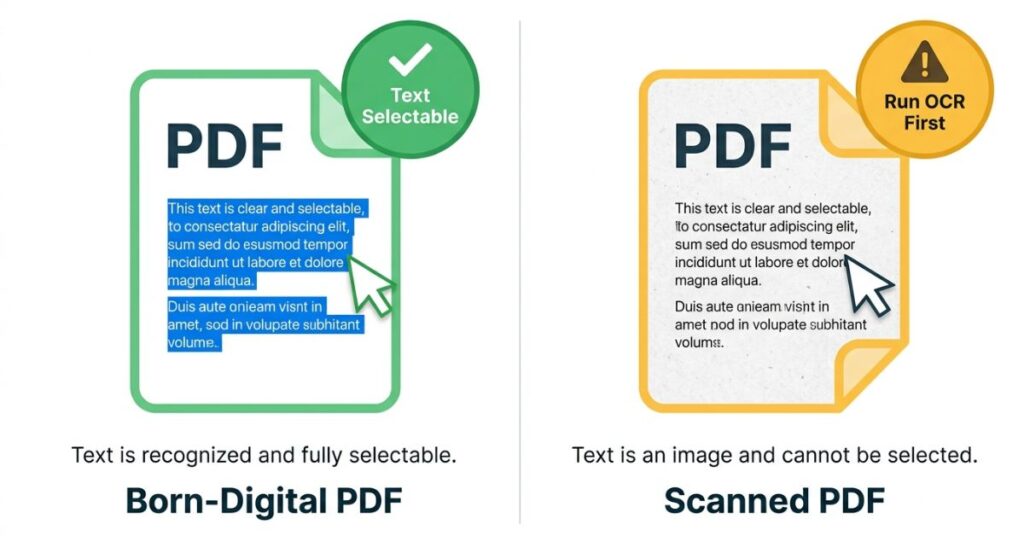
A PDF can be one of two fundamentally different things, and they look identical from the outside. A born-digital PDF was created by exporting from Word, Excel, InDesign, or any other digital application. It contains actual text data. You can click on any word and it highlights. You can search it, copy from it, and every free tool will process it accurately.
A scanned PDF is a series of photographs of pages. Every visible element is an image. You cannot highlight text because there is no text. Trying to convert a scanned PDF to Word using any tool produces a Word document containing images of pages, which looks right on screen and is completely uneditable. Trying to compress it removes image quality rather than text data. To edit a word in it is like trying to edit a photograph.
Five seconds before you do anything else with a PDF: click on a word. If it highlights blue, it is born-digital and every operation in this guide works as expected. If nothing happens, or if you can see slight page tilt, shadow at the edges, or paper texture, it is a scanned image PDF. In that case, run OCR first and everything becomes possible. Skip OCR and no tool will give you what you are expecting.
This distinction explains the overwhelming majority of disappointed results people report with free PDF tools. The tools worked correctly, the user sent scanned content to an operation that required digital text and the output reflected that mismatch.
The Best Free Online PDF Tools in 2026
Smallpdf. The Highest Quality Per Operation, With a Limit You Need to Know About
Smallpdf has been in this category long enough that its quality is established rather than claimed, which is the specific reason it leads this list rather than a newer tool with a longer feature inventory.
The trade-off is concrete cause two PDF operations per hour on the free tier not even per day, per hour. For someone who needs to compress a file once a week, this is irrelevant. For someone who arrives on a Monday morning with a stack of PDFs to process before a deadline, this limit ends the session after the second file.
Within those two operations, the quality is the best available from any free tool. Smallpdf’s compression consistently produces the smallest output files at equivalent visual quality. Its PDF to Word conversion on born-digital files is the most accurate in the category, handling tables, headers, and inline formatting better than the alternatives. The interface is the most polished of any free PDF tool and works properly on mobile browsers, which matters when you are trying to do this on a phone in transit.
The honest summary: Smallpdf is the tool to use when quality matters more than volume. If you need the cleanest compression or the most accurate conversion and you are doing it once or twice, nothing free does it better.
ILovePDF. The One to Bookmark for Regular PDF Work
ILovePDF’s primary advantage over Smallpdf is the absence of hourly limits on the free tier. For anyone who regularly works with PDFs in any professional context, this difference is practical rather than theoretical. Merging ten documents for a report, splitting a large manual into chapter files, compressing a batch of scanned forms before uploading to a portal, none of these hit a wall at operation two.
The quality across standard operations is close enough to Smallpdf’s that on most documents the difference in output is not visible. Where the gap shows is in compression aggressiveness, where ILovePDF produces slightly larger output files for equivalent quality, and in OCR accuracy, where it handles scanned documents less reliably. For born-digital PDFs going through standard operations, the practical difference is small.
What makes ILovePDF the right daily tool for most users is the combination of broad capability and no friction. Everything you need for routine PDF work is available in one interface, processing is fast, and you do not need to track usage or wait for a reset. It is the tool you keep open in a browser tab rather than returning to only when you need something.
PDF24. The Most Genuinely Free Product in This Category
PDF24 is consistently underrepresented in PDF tool comparisons, which is a strange oversight given that it offers the most unrestricted free access of any tool in this list. No operation limits of any kind, no account required for any feature, no file size restrictions that affect practical use, and a feature set that includes several operations competitors reserve for paid tiers.
The tools available at the free tier without sign-in include compression, merging, splitting, conversion to and from multiple formats, rotation, watermarking, password protection and removal, signing, side-by-side PDF comparison, image extraction, OCR, and file repair. This is a more complete set of PDF capabilities than most professional tools offer as standard.
The trade-offs are real but narrow. PDF24’s interface is functional rather than polished. The compression is effective but not as aggressive as Smallpdf’s, meaning files come out slightly larger for equivalent visual quality. These are meaningful differences for users who specifically need maximum compression or who are doing this on a mobile device where a less polished interface creates friction.
For a user who values unrestricted access over maximum compression quality, or who wants to try an operation without signing up for anything, PDF24 is the most practical option available. Its free desktop app for Windows is also the cleanest answer for users who need to process confidential documents without uploading them anywhere.
Adobe Acrobat Online (Free Tier). Useful for Two Specific Things, Misleading for Everything Else
Adobe’s own browser-based tool deserves honest treatment because the Adobe brand creates an expectation that the free tier does not meet, and the gap between what users expect and what they find is wide enough that it shapes how people feel about the broader category.
The free tier covers PDF compression, basic text and image editing, PDF to JPG conversion, and electronic signatures. Quality on these operations is good, as you would expect from Adobe. The limitation is that the operations most people actually come to an online PDF tool for, converting to Word, merging documents, OCR on scanned files, are gated behind Acrobat Standard or Pro subscriptions. What looks like a free PDF suite is, in practice, a demonstration of four features and a visible invitation to subscribe for everything else.
Where the free tier is genuinely the right choice is signatures. Adobe’s signature tool is backed by Adobe Sign, which produces electronically signed documents that meet legal standards in most jurisdictions at a level that drawn or typed signatures from other tools do not reliably match. For a contract, an agreement, or any document where the signature may need to be evidentially authenticated, Adobe Acrobat Online is the only tool in this list where the free tier produces output with established legal standing.
Sejda. The Tool That Solves the Problem Every Other Tool Works Around
Every other tool in this guide approaches direct PDF text editing the same way: convert the PDF to Word, make changes, convert back. This works and produces acceptable results on simple documents. It also introduces formatting errors, changes visual layout, and adds a multi-step process to what is sometimes a thirty-second fix.
Sejda does the thing the others work around. It lets you click directly on text in a born-digital PDF and change it, in place, without any conversion. You click on the wrong date, type the right one, and download the corrected file. You find the one word that needs updating in page twelve of a formatted document, change it, and export. The layout stays intact because nothing was converted. The surrounding formatting is undisturbed because you only touched what you touched.
The free tier allows three tasks per hour on files up to 50MB. For the use case Sejda is designed for, minor corrections and specific field updates in existing PDFs, three operations per hour is typically more than enough. For someone who needs to make one correction in a contract before sending it, or update a date in a formatted report, Sejda is the fastest and cleanest tool available, and it is not particularly close.
Its limitation is the reverse of its strength. For significant content restructuring, adding new sections, or working with scanned PDFs, the convert-to-Word approach is more appropriate. Sejda is a precision instrument. Use it precisely.
Which Tool Is Best for Each Task
| Task | Best Tool | Second Choice | Key Note |
|---|---|---|---|
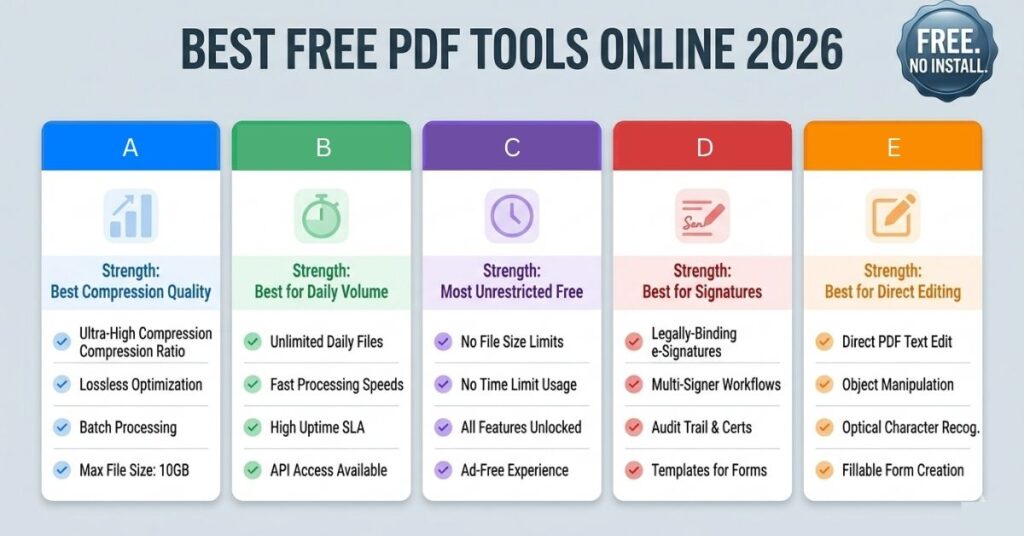
| Compression | Smallpdf | ILovePDF | Smallpdf produces smaller files at equivalent quality |
| PDF to Word conversion | Smallpdf | Sejda | Born-digital PDFs only; scanned PDFs need OCR first |
| Merging PDFs | ILovePDF | PDF24 | No hourly limit makes ILovePDF more practical |
| Splitting PDFs | ILovePDF | PDF24 | Both perform equally well |
| Direct text editing | Sejda | Adobe Acrobat Online | Sejda edits within the PDF without converting |
| OCR on scanned PDFs | Smallpdf | PDF24 | Quality varies on complex scans; always verify output |
| High-volume daily work | PDF24 | ILovePDF | PDF24 has no limits of any kind |
| Confidential documents | PDF24 (desktop) | Adobe Acrobat | Local processing, no upload required |
| Electronic signatures | Adobe Acrobat Online | Smallpdf | Adobe Sign produces legally recognised output |
What Actually Matters More Than Tool Quality
Tool quality is the last variable in the quality equation for PDF work, not the first. The variable that produces the most consistent difference in output is what the user understands about the file before they start.
The born-digital versus scanned distinction, already covered, is part of this. The other part is having realistic expectations for what format conversion can and cannot preserve.
PDF to Word conversion in any tool, free or paid, preserves text content with high accuracy. It does not preserve layout. A document with text in two columns, images positioned at specific coordinates, custom table formatting, and precise spacing between elements will emerge from conversion with the text intact and the visual structure partially or significantly disrupted. This is not a failure of the tool. It is a consequence of how the PDF and Word formats represent documents differently at a structural level.
For documents with simple linear layouts, conversion is clean and the output needs minimal adjustment. For documents with complex designed layouts, converting and then fixing the formatting is faster than rebuilding from scratch but requires a realistic budget of time. Knowing this before converting, rather than being surprised after, changes how users approach the output.
The second expectation worth calibrating is compression limits. A PDF that is already small relative to its page count has already been compressed, either by the tool that created it or by a previous compression pass. Compressing it again will produce a smaller file at visibly lower quality without meaningful practical benefit. The right mental test before compressing is not “can I make this smaller” but “is there room to make this smaller without degrading quality I need?”
The Privacy Question That Deserves More Attention
Insight moment 3: Browser-based PDF processing requires uploading your document to a third-party server. This is the mechanism that makes these tools possible and it is also the fact that most comparison guides mention in a single sentence before moving on.
The upload is not inherently problematic. For the large majority of PDFs that most people need to process, a product brochure, a public form, a non-sensitive report, uploading to Smallpdf or ILovePDF for processing carries no meaningful risk. Smallpdf deletes uploaded files within a few hours. ILovePDF follows the same policy. PDF24’s processing also follows documented deletion practices.
Where the question becomes relevant is the moment you are about to upload a document that contains your passport details, a bank statement, a signed legal agreement, medical test results, or confidential business information. These are the PDFs that arrive most frequently with an urgent processing need, and they are also the ones where a moment of thought before clicking upload is appropriate.
The practical resolution: PDF24’s free desktop application for Windows processes files locally on your own machine. Nothing is uploaded and nothing leaves your device. For sensitive documents this is the right tool regardless of whether the quality is marginally below the online alternatives. Adobe Acrobat, if you have access to it, processes locally by default.
The framework worth keeping: would you hand a physical copy of this document to someone you do not know and trust them to handle it responsibly before returning it? If yes, upload freely. If not, use local processing.
For the meeting notes and transcripts that often need to become PDF documents, AI meeting transcription apps handle the capture end of that workflow.
Common Mistakes That Produce Poor Results
Compressing a file that is already compressed.
Compression removes information to reduce file size. A PDF that is already compact relative to its page count has little information left to remove without degrading visible quality. Running a second compression pass on such a file makes it smaller in a way that shows. Before compressing, check the file size against the page count and content type. A ten-page text-heavy born-digital PDF at 500KB is already small. A five-page scan at 12MB has genuine headroom.
Expecting Word-quality layout after PDF to Word conversion.
As covered above: text transfers accurately, layout does not. If the source document has a complex visual layout, plan for formatting repair after conversion rather than treating the converted output as complete. For documents with simple linear text, conversion is clean. For designed documents, it is a starting point.
Attempting to edit a scanned PDF without OCR.
The text editing interface accepts the upload and lets you click around. The content is an image. The output looks like it worked. Open it and the text is still an image underneath any apparent edits. Run OCR first, always, on any PDF that does not respond to text selection.
Closing the browser before checking output.
Free online tools process well most of the time. On documents with unusual formatting, embedded fonts or complex structure, they occasionally produce output with errors that are not visible until opened in the correct application. Open every converted, compressed or merged output before closing the tool or deleting the source. Keeping the original until the output is verified costs nothing.
Using a typed or drawn signature where a certified electronic signature is required.
Typing your name in a signature box creates a representation of your intent but not the cryptographic chain of evidence that a certified electronic signature provides. For informal acknowledgements and internal documents, a typed signature is typically sufficient. For contracts, regulated industry documents, or anything where the signature may need to be audited or authenticated later, use Adobe Acrobat Online’s signature tool, which provides the certified standard.
When Free Online Tools Are Not Enough
Being honest about limits is what makes a recommendation credible. The tools above handle the PDF operations that most users encounter in everyday and professional contexts. There are situations where they stop being the right answer.
Batch processing at scale is the clearest one. Uploading, processing, and downloading files one at a time through a browser is workable at low volumes and impractical at high ones. A hundred files that need the same compression setting applied would take an hour through any browser interface and would take minutes through a command-line tool or API. For high-volume repetitive PDF operations, programmatic tools are the appropriate choice.
High-precision OCR on difficult documents is another. Free OCR performs well on cleanly scanned documents in major languages with standard fonts. It performs inconsistently on documents with poor scan quality, handwriting, rotated text, non-Latin scripts, or dense technical notation. If the OCR output needs to be precisely correct and the source is difficult, professional OCR software produces substantially better accuracy.
Legal-grade digital certification, meaning a PDF with a certificate authority-backed digital signature that cryptographically proves the document has not been modified after signing, is beyond what any free online tool provides. This is a specific requirement in certain regulatory, notarial, and financial contexts and should not be confused with standard electronic signatures, which most tools handle.
What You Should Do Step by Step.
Step 1: Click on text in your PDF. Selectable text means born-digital. No selection means scanned. This determines everything about which operations will work accurately.
Step 2: For scanned PDFs that need editing or conversion, run OCR first. Use Smallpdf’s OCR tool or PDF24’s OCR and verify the output text accuracy before any further operation.
Step 3: For compression, use Smallpdf for the best quality-to-size ratio. Use ILovePDF if you have multiple files or hit Smallpdf’s hourly limit. Visually verify the output before using.
Step 4: For conversion to Word or Excel from a born-digital PDF, use Smallpdf. Budget time for formatting cleanup on complex documents.
Step 5: For merging, splitting, or any routine operation on multiple files without limits, use ILovePDF or PDF24.
Step 6: For direct text editing within an existing born-digital PDF without conversion, use Sejda.
Step 7: For electronic signatures where legal standing matters, use Adobe Acrobat Online’s free signature tool.
Step 8: For confidential documents requiring processing, use PDF24’s free desktop app for local processing without uploading.
Frequently Asked Questions
Final Thoughts
Adobe’s most successful product was never Acrobat, it was the belief that Acrobat was necessary. That belief generated more subscription revenue than the software’s capabilities alone ever would have, because the capabilities required for most PDF work were always modest and eventually became accessible for free.
The tools in this guide are not workarounds or compromises. They are what the market looks like when server infrastructure becomes cheap enough that processing PDFs at scale costs almost nothing. The result is genuine quality at zero cost for operations that most users run once a week at most.
What changed is not that free tools got slightly better than they were. It is that they got better than the paid alternatives for the specific operations most people actually use. Smallpdf’s compression beats Acrobat’s free tier in file size reduction. Sejda’s direct editing is faster for minor corrections than Acrobat’s workflow. PDF24’s unrestricted access removes the subscription calculation entirely for users who just need things to work without thinking about it.
The decision left to make is which tool fits each task. That is a five-minute read. The decision that was never worth making was paying for software to handle operations that have been free for years.
