
Best Free Password Managers in 2026 Which You Can Actually Trust
Most password manager comparisons answer the wrong question. They run through features: sync quality, autofill accuracy, browser extension design, form filling and secure notes. These are fine distinctions between apps that are all broadly competent at their basic job. None of them tell you anything about the thing that actually matters when you are deciding where to store your email password, bank login and work credentials.
Which of these companies do you actually trust with all of that?
Because that is the decision to make before putting everything into one place. The quality of that place is not measured by how well the interface looks or how smoothly autofill works. It is measured by the company’s security practices, that is their history, business model and in some cases the legal jurisdiction they operate under. That evaluation is harder than comparing features. This is also the only one worth doing.
Password manager version for personal use.
Password managers have a consistent business model. A genuinely capable free tier and a paid tier with advanced features that most individual users will never need. Family plans, emergency access, encrypted file attachments, hardware key support are useful things but not the things that determine whether your passwords are secure.
Most comparison articles prioritize the paid tiers because the affiliate commissions are higher there. The honest answer for the majority of people reading this is that the free tiers of the three best options below are entirely sufficient for personal use indefinitely. If you hit a specific limitation, such as wanting proper vault sharing across more than two people or needing real time breach monitoring, the upgrade cost is low and the reason will be obvious.
Start free and upgrade only when a real constraint forces it.
What Security Researchers Actually Use.
Ask people who evaluate security products for a living which password manager they personally use and Bitwarden comes up more than any other name. Not in sponsored content but in casual conversation, in forum threads, in the answers to questions on security communities where nobody has any reason to promote anything. That pattern of unprompted trust is worth more than any feature comparison.
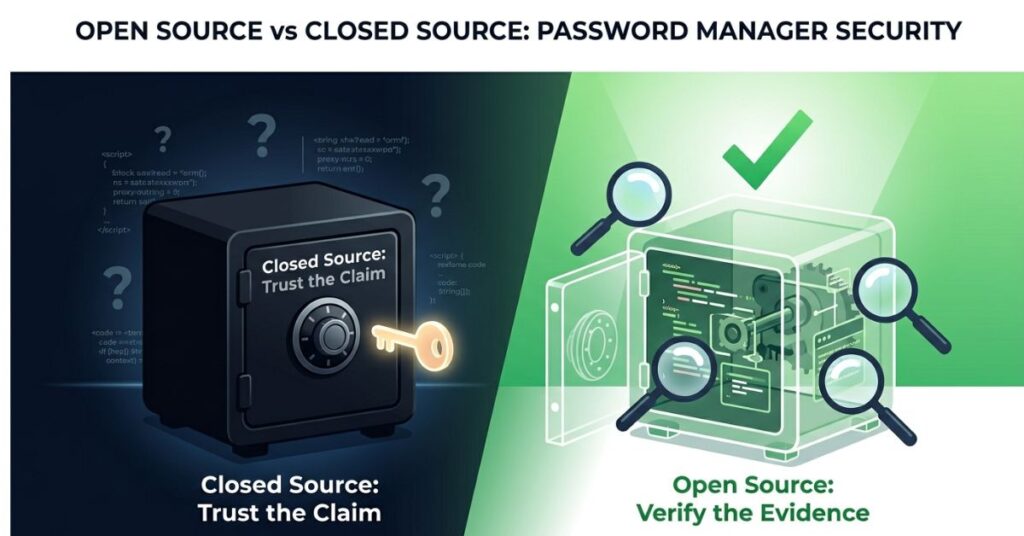
The reason is simple. Bitwarden is open source, which means every line of its code is publicly available and has been reviewed by independent security firms. When a company says their product is secure, that is a claim. When independent auditors have reviewed the code and published their findings, that is evidence. The distinction matters enormously for software that holds everything.
Account security is one layer of this, checking which apps have access to your microphone and camera is the device-level version of the same habit.
The free tier handles everything a personal user actually needs. Unlimited passwords, synced across all your devices. Browser extensions that work with Chrome, Firefox, Safari, Edge and most others. Mobile apps for Android and iOS. Autofill that is reliable across the overwhelming majority of sites. Password health reports that identify weak, reused, and potentially compromised credentials. Basic vault sharing with one other person.
The paid tier costs around $10 a year, among the lowest in the category, and adds encrypted file attachments, advanced two-factor options, and emergency access features. Most users will look at that list and feel nothing. That is fine.
For the small number of technically minded users who want complete control over where their vault data lives, Bitwarden also supports self-hosting: you run the server yourself, on your own hardware, with no third-party involvement. Almost nobody needs this. The option exists, which says something about the kind of product this is.
If you are choosing a password manager for the first time and you do not have a specific reason to pick something else, Bitwarden is the answer.
Advantages of using KeePassXC.
KeePassXC is not a cloud service, it is a desktop application that stores your passwords as an encrypted file on your computer. No server is involved and no company holds your data. The vault exists on your device and nowhere else unless you deliberately put it somewhere.
For anyone whose concern is specifically about trusting a company with credentials even in encrypted form, this approach is the only logically consistent answer. The attack surface for your vault is your device and your master password.
You are also responsible for backing up the vault file. Lose the file and the master password at the same time and the passwords are gone permanently without a recovery path. Syncing across multiple devices requires setting up file synchronization separately. Dropbox, Google Drive, iCloud, a USB drive, whatever you prefer because KeePassXC handles the encryption but not the transport.
KeePassXC has a browser which is integrated with Chrome and Firefox. It works well once it is configured. Getting to that point takes more effort than setting up any cloud-based option. For someone comfortable with that setup process, KeePassXC gives you something no other option on this list does. A vault that no external party can access, compel, breach or shutdown.
For someone who wants to open an app, create an account and have everything work across their phone and laptop immediately, KeePassXC is the wrong choice.
Swiss Protections and the Trust Factor
Proton Pass comes from the same company that makes Proton Mail and Proton VPN. Those products have genuine reputations in the privacy space, built over years of operating under Swiss privacy law, a jurisdiction that provides meaningfully stronger protections against government data access requests than most alternatives. Whether that specific detail matters depends entirely on your threat model. For most people it is background noise while for some users it is the main reason they choose anything from Proton.
The free tier is competitive, it has unlimited passwords, unlimited devices, autofill and something that Bitwarden does not include such as email alias creation through SimpleLogin (which Proton acquired). Instead of giving your real email address to every website you sign up to, you generate an alias that forwards to your inbox. If a site leaks your data and you start getting spam, you know which one it was. You disable that alias and the problem is resolved without any effect on your actual email account. It is a small feature that saves a surprising amount of frustration over time.
Where Proton Pass is genuinely behind Bitwarden is audit depth. Proton’s security reputation is solid and the underlying cryptography is sound, but Bitwarden has years of independent security reviews that Proton Pass has not accumulated yet. For users who are already in the Proton ecosystem, using Proton Mail or already paying for a Proton subscription, Pass integrates naturally and the trust relationship is already established. For users starting completely fresh, the audit gap is worth factoring in.
The Best Browser Password Managers.
Chrome, Firefox, Safari and Edge all save passwords, sync them across devices, generate new ones and autofill on the websites you visit. They work, they cost nothing and a significant number of people never use anything else.
They are a meaningful improvement over no password management at all. They are not equivalent to a dedicated app and the reasons are specific enough to be worth naming.
Your browser password vault is tied to your browser account. If your Google account is compromised, so is your Chrome password vault. The encryption models are less transparent and less independently audited than dedicated tools. And when your browser is open, which is most of the time you are using your computer, any malicious browser extension or script running in a tab potentially has access to credentials the browser would autofill. Dedicated password managers isolate their extension from the browser more robustly than the browser’s own built-in system manages.
Use the browser’s built-in manager as a starting point or a fallback. Do not treat it as the finished solution for credentials that actually matter.
LastPass, Dashlane and 1Password
LastPass had a significant security breach in 2022. Encrypted vault data was stolen. The company’s communication about what happened and when it happened was widely criticised by security professionals. Its free tier now restricts access to one device type, either mobile or desktop but not both, which makes it considerably less useful than the alternatives above at the same price of nothing. It is difficult to recommend.
Dashlane’s free tier allows fifty passwords on one device. Fine for a trial but not useful as a permanent solution.
1Password has no free tier, it is a well-built paid product at around $36 a year and if cost genuinely is not a factor for you it is worth looking at. This guide covers free options, so it stops here.
What “Encrypted” and “Zero-Knowledge” Actually Mean
These phrases appear in every password manager’s marketing copy often enough that they have started to sound like the word “premium” on food packaging. Worth unpacking once, because they are not empty claims.
Zero-knowledge architecture means the company storing your vault cannot read it. Your master password never goes to their servers. The encryption and decryption happen on your device using a key that is derived from your master password and never transmitted. When Bitwarden says it cannot access your passwords, the technical mechanism that makes that true is this architecture.
The practical upshot: if the servers were breached, an attacker would get encrypted data that cannot be meaningfully decrypted without individual master passwords. That is a very different outcome from a breach of a system that stored readable credentials.
What zero-knowledge does not protect against is your master password being obtained directly, through phishing, a keylogger, or someone looking over your shoulder. Every password in your vault is only as protected as that one thing. It needs to be genuinely strong, never reused anywhere and backed by two-factor authentication on the password manager account.
Free Password Managers in 2026
| App | Unlimited Passwords | Unlimited Devices | Open Source | Cloud Storage | Self-Host Option | Audited | Best For |
|---|---|---|---|---|---|---|---|
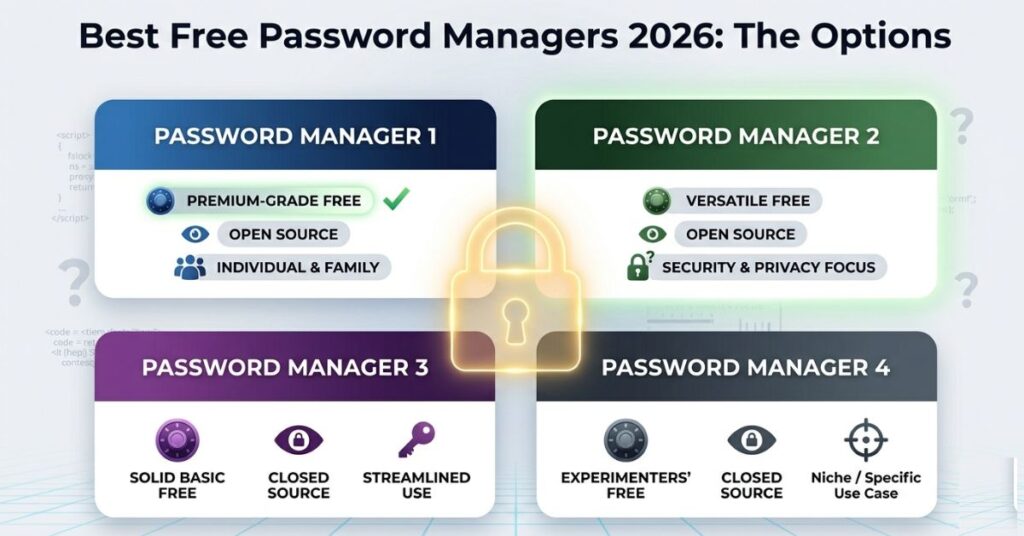
| Bitwarden | Yes | Yes | Yes | Yes | Yes | Yes | Most users |
| KeePassXC | Yes | Yes (local) | Yes | No (by design) | N/A | Yes | Privacy-first users |
| Proton Pass | Yes | Yes | Partially | Yes | No | Partially | Proton users |
| Chrome/Firefox/Safari | Yes | Within browser | No | Yes (browser account) | No | No | Low-stakes use |
| LastPass | Limited | One type only | No | Yes | No | No | Not recommended |
| Dashlane | 50 max | One device | No | Yes | No | No | Trial only |
The Mistakes That Undermine a Password Manager’s Usefulness
Making the master password memorable rather than strong. The master password is not stored anywhere. It is not protected by the password manager. It is the thing that unlocks the password manager. A short, familiar, personally meaningful master password turns the whole security model into a key that can be guessed, social-engineered, or found in a data breach if you have used it anywhere before. Write a genuinely random passphrase on paper, store it physically somewhere sensible, and accept that memorability was never the goal.
Setting up two-factor authentication on every account except the password manager. Most people who get two-factor authentication right have it on their email and their bank and consider themselves covered. The password manager account is the one that unlocks access to everything else. If someone gets the master password and there is no second factor on the account, every credential you own is accessible. Bitwarden and Proton Pass both support authenticator app-based two-factor authentication on the free tier.
Importing from the browser and leaving the originals there. This one catches people who think they have completed the migration but have not. After moving passwords to a dedicated manager, the browser still has its own saved copy of most of them. The browser continues to autofill from its own vault. The dedicated manager sits mostly unused because the browser keeps stepping in first. Delete the browser’s saved passwords after confirming everything transferred. It takes fifteen minutes and it is what completes the switch rather than just starting it.
Treating the password manager as finished after setup. The password health reports in Bitwarden and most other tools identify reused passwords, weak passwords, and credentials that have appeared in known data breaches. They exist to be acted on. Running one and working through the results at least once a year, changing the credentials it flags and removing accounts for services you no longer use, makes the vault a living security tool rather than a one-time filing cabinet.
Having no way back in if the master password is lost. Emergency access configuration, recovery codes, a printed note kept with important documents: the specifics matter less than having something. If the only place the master password exists is your memory and your memory fails, the vault is gone. Irretrievably. Email account access is usually the key to recovering every other account, which means the email password specifically should exist somewhere outside the password manager.
When the Free Tier Stops Being Enough
For individual personal use, the free tiers of Bitwarden and Proton Pass are sufficient indefinitely. The constraints that push users toward paid plans are specific.
Families who need multiple people sharing the same vault, or couples who want shared access to household credentials beyond the one-person sharing Bitwarden’s free tier allows, are the clearest case for a paid family plan. Prices vary but most are between $3 and $5 per month for the whole household.
Teams and small businesses need shared vault access with granular permissions and administrative oversight. The free tiers are personal products and become impractical at any team scale.
Users who want encrypted file attachments alongside their passwords, hardware security key support, or real-time automated breach alerts will find these in paid tiers. None of them are essential for the core function of keeping passwords secure. They are quality-of-life improvements for users who have specific uses for them.
What You Should Do.
Step 1: Download Bitwarden or sign up for Proton Pass. If you want local-only storage and are comfortable with the additional setup, download KeePassXC.
Step 2: Create the master password. Long, random, nothing personal. Minimum fifteen characters. Write it on paper and store it physically somewhere you will not lose it.
Step 3: Enable two-factor authentication on the password manager account immediately. Use an authenticator app. Do not skip this step.
Step 4: Import existing passwords. Most password managers detect the browser you use and offer a direct import. Anything not in a browser, add manually.
Step 5: Run the password health audit. Start with the worst ones: reused passwords on email, banking, and cloud storage accounts first.
Step 6: Delete the saved passwords from your browser. Settings, Passwords, remove all. This is what makes the new manager your actual primary tool rather than a backup to what the browser keeps doing automatically.
Step 7: Keep the master password and recovery codes somewhere physical and separate from the devices you use. A printed sheet with that information, stored with important documents, is all that stands between a forgotten master password and a complete loss of the vault.
Frequently Asked Questions
Final Thoughts
Password management is one of those decisions that feels technical but is not. The hard part is not configuring an app. It is accepting that the passwords you have been using for years are probably weaker than you think, more reused than you would like to admit and sitting in places that are less protected than you assumed.
A good password manager does not solve that history automatically. It gives you the tools to work through it, a vault that holds strong unique passwords without requiring you to remember them, health reports that show you where the weak spots are and a single well-protected place to keep credentials that matters.
Bitwarden is the right starting point for most people. It is free, it is audited and the community that uses it is the community that takes this seriously. KeePassXC is right for people who want nothing in the cloud. Proton Pass is right for people already in the Proton ecosystem or with a specific interest in Swiss jurisdiction.
The one that is not right is continuing with the same approach that got you here. A handful of memorable passwords reused across dozens of accounts, saved in a browser vault that nobody has audited, with no recovery plan if anything goes wrong.
A password manager handles the first layer. The second layer is two-factor authentication, which takes ten minutes to set up and makes a stolen password almost useless.

Pingback: What Is Two-Factor Authentication and How to Set It Up on Every Device
pvgonwusynuzswtlfywghiuuqlgnvr
wnklyyomgehxziyvoihlpjkwnkgixv