
Best TV and PS5/Xbox Settings for GTA 6: HDR, 120 Hz, VRR and Game Mode
Quick answer: On your TV, turn on Game Mode (or ALLM), use the HDMI 2.1 / 4K 120 Hz port if it has one, enable the TV’s enhanced HDMI format for that port, and turn motion smoothing off. On PS5, set Video Output to HDR: On When Supported, run Adjust HDR, and set 120 Hz output and VRR to Automatic if your TV supports them. On Xbox, run the HDR Game Calibration app. Then pick the game’s performance or quality mode based on whether you prefer smoothness or detail.
GTA 6 is built to show off current consoles, and most people play on TVs set up for movies, not games. A few settings changes, most of them in menus you’ve never opened, make a visible difference to sharpness, colour and how responsive the controls feel.
TV Settings
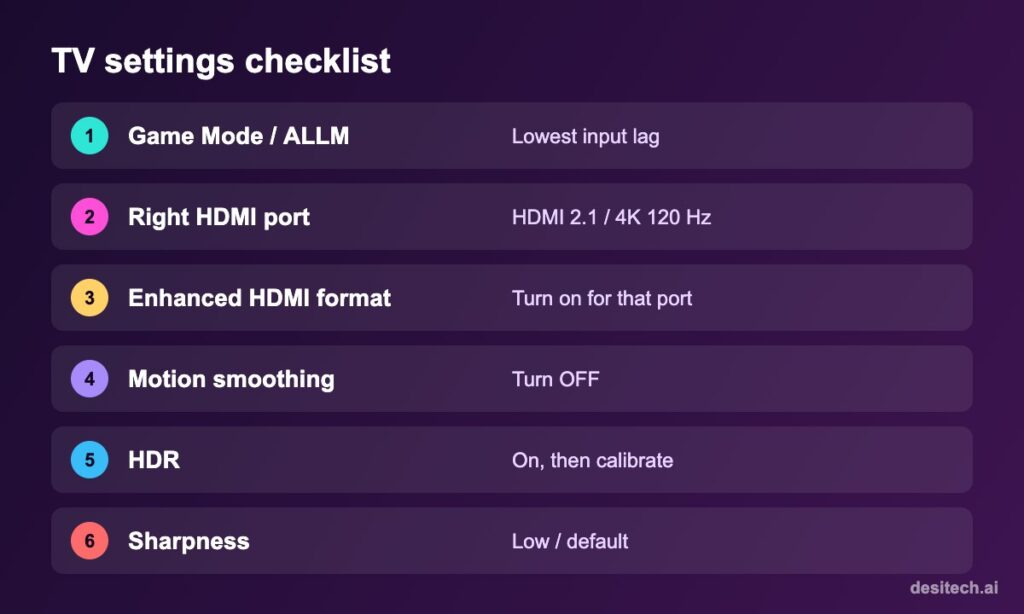
1. Game Mode (or ALLM)
Game Mode turns off heavy picture processing that adds input lag. Many TVs switch automatically when they detect a console (Auto Low Latency Mode). Check that it shows “Game” when the console is on.
2. Use the right HDMI port
On many TVs only one or two ports support HDMI 2.1 (4K at 120 Hz, VRR). They’re usually labelled “4K@120”, “eARC” or “Game”. Use the HDMI cable that came with the console.
3. Enable the enhanced HDMI format
Names vary: “Input Signal Plus” (Samsung), “HDMI Ultra HD Deep Colour” (LG), “HDMI Signal Format: Enhanced” (Sony), and similar on other brands. Without it, the TV may refuse 4K HDR or 120 Hz.
4. Turn off motion smoothing
Settings like Motion Plus, TruMotion or MotionFlow make games feel laggy. Turn them off in Game Mode.
5. Picture settings
- Sharpness: low or default. Extra sharpening adds halos.
- Brightness / contrast: leave near defaults; use the console’s HDR calibration instead.
- Eco / energy saving: off while gaming, as it dims the picture.
PS5 Settings
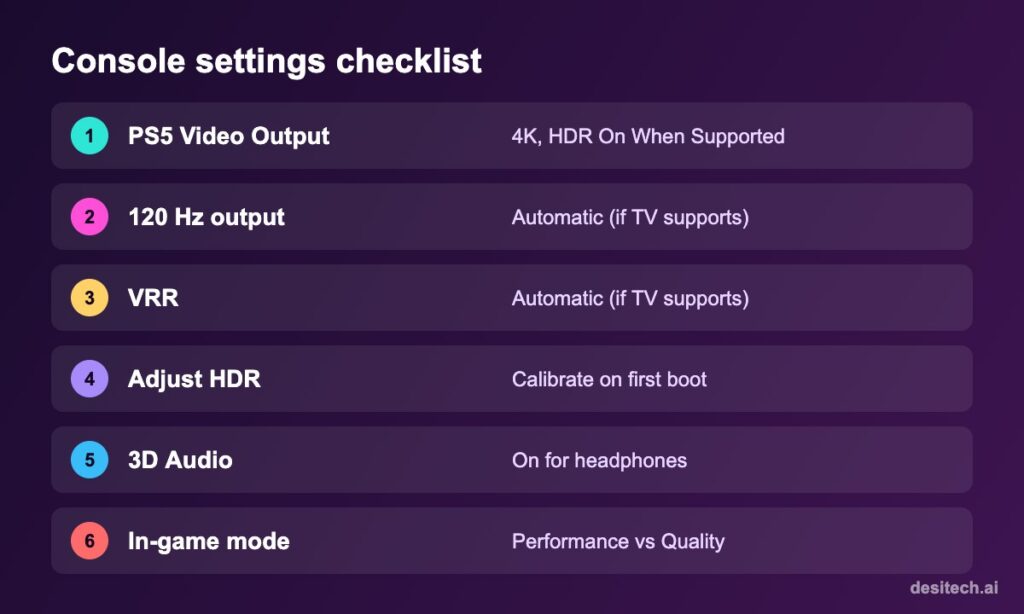
- Settings → Screen and Video → Video Output: Resolution Automatic, 4K Video Transfer Rate Automatic, HDR: On When Supported.
- Enable 120 Hz Output: Automatic (only helps if your TV supports 120 Hz).
- VRR: Automatic, if your TV supports it. It reduces stutter and screen tearing.
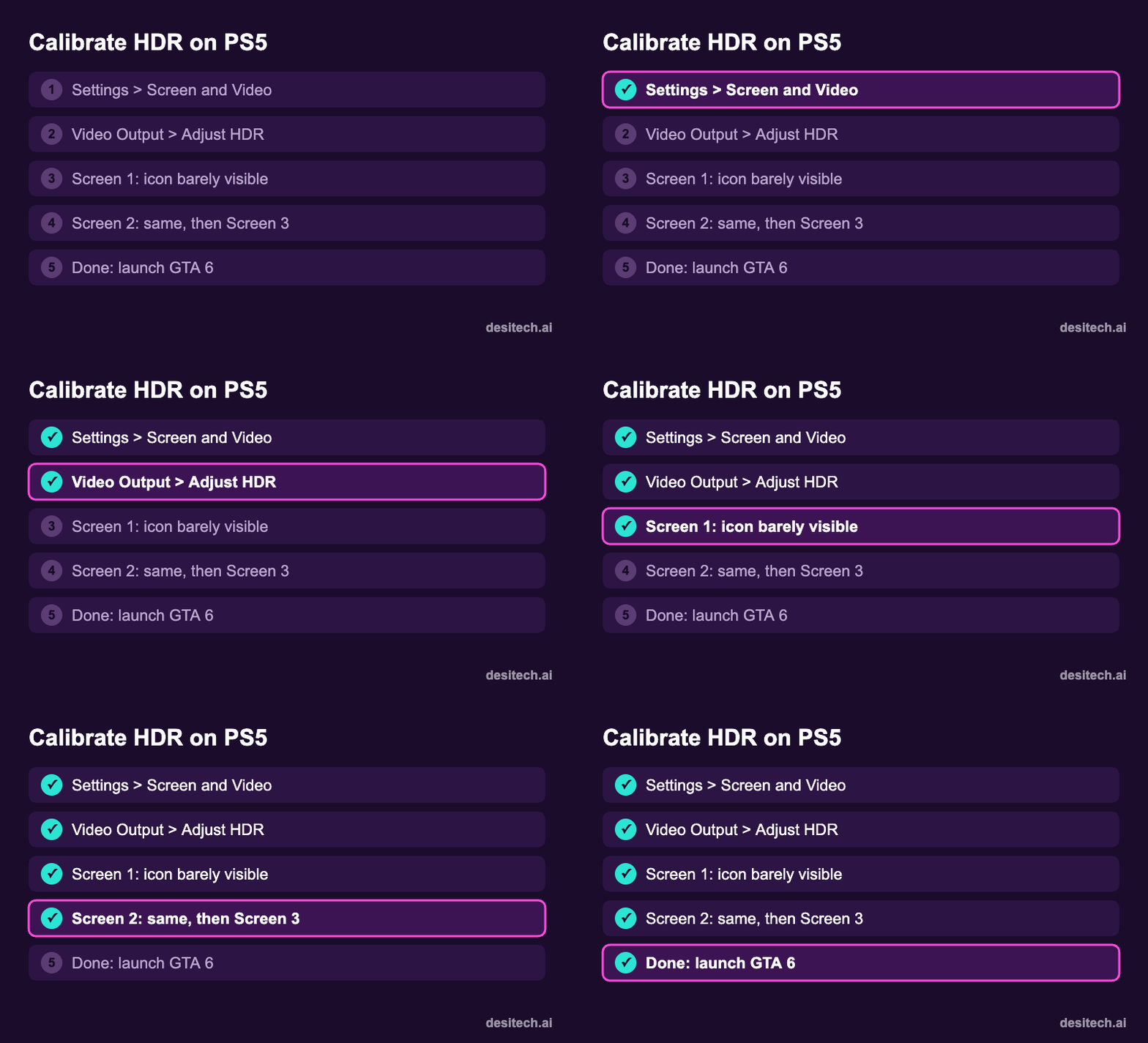
- Adjust HDR: follow the three screens so the icon is barely visible each time.
- Sound → Audio Output: enable 3D Audio for headphones.
- Saved Data and Game/App Settings → Game Presets: set your preferred Performance or Resolution mode as the default where games support it.
Xbox Series X|S Settings
- Settings → General → TV & display options: set resolution to 4K UHD (Series X) or your TV’s max, refresh rate to 120 Hz if supported, and enable Allow auto-low-latency mode and Allow variable refresh rate under Video modes.
- Run the Xbox HDR Game Calibration app.
- For headphones, try Windows Sonic or Dolby Atmos if you have it.
Performance vs Quality Mode
Many big console games offer a choice between higher frame rate (smoother, more responsive) and higher resolution or visual effects. Check GTA 6’s in-game display settings: if your TV supports 120 Hz and VRR, a performance-focused mode generally feels best for driving and shooting; on a basic 60 Hz TV, a quality mode can look sharper. Rockstar’s final options may differ, so try both for a few minutes.
Sound
- Good headphones beat TV speakers for open-world games: footsteps, police sirens and radio all sound clearer.
- With a soundbar on eARC, enable the console’s matching audio format.
- Turn on subtitles if dialogue is hard to hear over in-game radio.
| Setting | Where | Recommended |
|---|---|---|
| Game Mode / ALLM | TV | On |
| Motion smoothing | TV | Off |
| Enhanced HDMI format | TV | On for console port |
| HDR | PS5 / Xbox | On + calibrated |
| 120 Hz and VRR | PS5 / Xbox | Automatic / allowed (if TV supports) |
| 3D Audio | PS5 | On with headphones |
FAQ
Do I need a 4K TV for GTA 6?
No. It plays on any HD TV, but a 4K HDR TV shows more detail and better lighting.
Why doesn’t my PS5 show 120 Hz?
Your TV may not support 120 Hz, the port may not be HDMI 2.1, or the enhanced HDMI format isn’t enabled.
Should I turn on VRR?
Yes, if your TV supports it. It smooths out frame-rate dips.
Why does GTA 6 look washed out?
HDR may be off or uncalibrated. Turn on HDR and run the console’s HDR adjustment.
The Bottom Line
Game Mode on, motion smoothing off, right HDMI port, HDR calibrated, 120 Hz and VRR enabled if your TV supports them. Five minutes of setup makes GTA 6 look and feel much better.
Sources
- PlayStation Support: PS5 video output, HDR adjustment, 120 Hz and VRR settings.
- Xbox Support: TV & display options, HDR Game Calibration, auto low latency mode.
- TV manufacturer support pages (Samsung, LG, Sony) on enhanced HDMI signal settings.
