
How to Use NotebookLM (Gemini Notebook) to Study: Flashcards, Quizzes and Audio Revision
Quick answer: NotebookLM, renamed Gemini Notebook in July 2026, is a free Google AI tool that answers only from the material you give it. Create a notebook for a subject, upload your notes, textbook chapters or lecture videos, then use the Studio panel to generate a study guide, flashcards, quizzes, a mind map or a podcast-style Audio Overview. The free plan allows 100 notebooks with up to 50 sources each.
Most AI chatbots answer from everything they’ve ever read, which is exactly the problem when you’re studying for a specific exam. You want answers from your syllabus, your teacher’s notes and your textbook, not a confident summary of something slightly different.
That’s what makes NotebookLM, now called Gemini Notebook, so useful for students. It works only from the sources you upload, shows exactly where each answer came from, and can turn a dry chapter into flashcards, a practice quiz or a 10-minute audio discussion you can listen to on the bus. Here’s how to set it up properly and the prompts that get the most out of it.
What Is NotebookLM (Gemini Notebook)?
NotebookLM is Google’s AI research and study notebook. In July 2026 Google renamed it Gemini Notebook, so you’ll see both names around. It works in a web browser and in the Android and iPhone apps.
The key difference from a normal chatbot is source grounding: when you ask a question, it answers from the documents in your notebook and adds numbered citations you can tap to see the exact passage. If the answer isn’t in your sources, it’s much less likely to make one up.
What can it make from your notes?
- Study guides and reports: summaries, key terms and likely questions.
- Flashcards: question-and-answer cards. Cards you get wrong come back for review.
- Quizzes: multiple-choice questions with explanations and source references.
- Mind maps: a visual map of how topics in the chapter connect.
- Audio Overviews: a podcast-style conversation between two AI hosts about your material, available in many languages including Hindi.
- Video Overviews, slide decks and infographics for visual revision or presentations.
How to Study a Chapter With NotebookLM: Step by Step
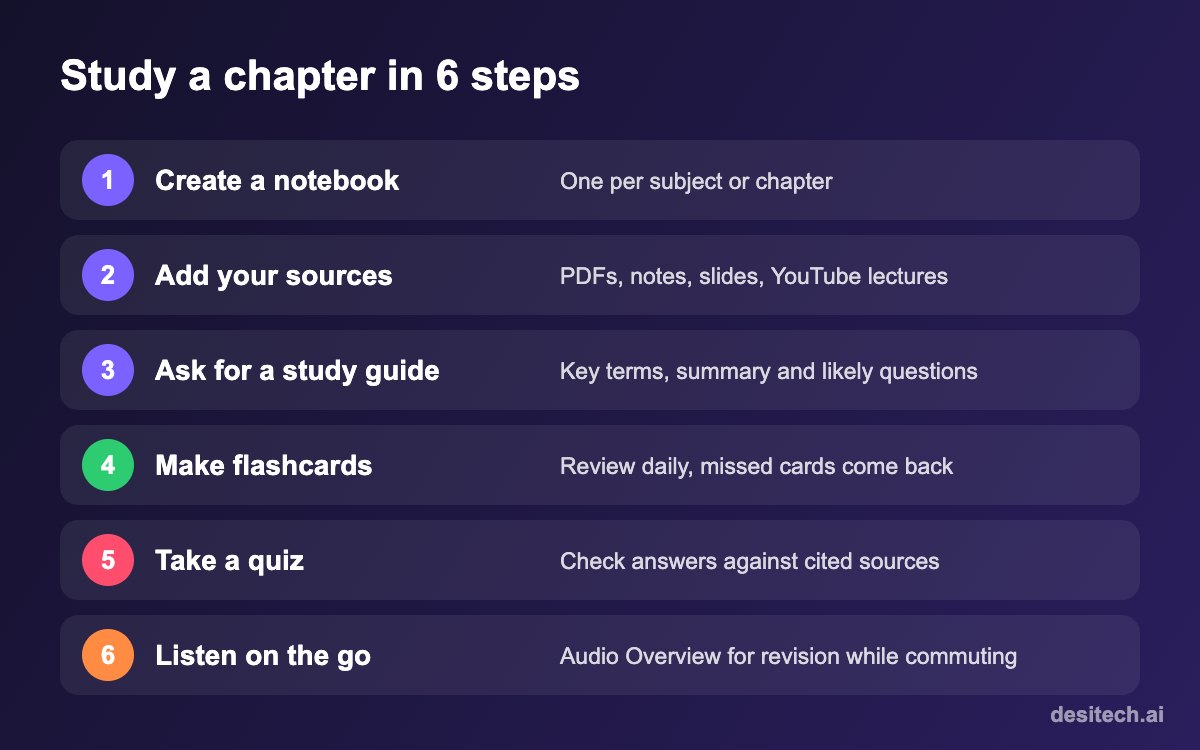
1. Create one notebook per subject or chapter
Go to NotebookLM (Gemini Notebook) in your browser or open the app, sign in with your Google account and create a new notebook. Keep notebooks focused, such as “Class 12 Physics: Optics” rather than “All of Physics”, so answers stay precise.
2. Add your sources
Upload what you’re studying from: PDFs of chapters, your own notes, Google Docs or Slides, websites and YouTube lecture links. On the phone app you can also photograph handwritten notes. The free plan allows up to 50 sources per notebook, and each source can be very long, so a whole textbook chapter fits easily.
3. Ask for a study guide first
Before you make flashcards, get an overview. Use the Studio panel to create a study guide or report, or ask in the chat:
“Create a study guide for this chapter for a Class 12 board exam. Include a one-paragraph summary, the 15 most important terms with simple definitions, the formulas I must remember, and 10 questions most likely to come in the exam. Cite the source for each point.”
4. Generate flashcards and review them daily
In Studio, choose Flashcards. Review them for 10 minutes a day rather than all at once the night before. Cards you miss come back, which is how spaced repetition is meant to work.
5. Test yourself with a quiz
Choose Quiz in Studio. When you get a question wrong, tap the explanation and open the cited passage in your source. Reading that one paragraph is far more useful than rereading the whole chapter.
6. Listen to an Audio Overview on the go
Generate an Audio Overview and listen while commuting or walking. It’s best for revision after you’ve studied the topic once, not as a replacement for reading it.
Prompts That Work Well for Indian Exams
Paste these into the chat box of a notebook containing your study material. Change the exam and subject to match yours.
| Goal | Prompt to use |
|---|---|
| Board exam answers | “Write model answers for the 5 most important 5-mark questions from these sources, in the style expected in CBSE board exams, with key points underlined.” |
| JEE / NEET concepts | “List every formula and concept in these notes that is commonly tested in JEE Main. For each, give one solved example from the sources.” |
| UPSC and state PSC | “From these sources, make a table of facts likely to be asked in prelims: dates, articles, committees and schemes, with one line each.” |
| Find your weak spots | “Ask me 10 questions one at a time from these sources. After each answer, tell me what I missed and which page to reread.” |
| Explain simply | “Explain [topic] from these notes as if I’m hearing it for the first time, using an everyday Indian example, then give me 3 quick check questions.” |
| Hindi or bilingual help | “Explain the main ideas of this chapter in simple Hindi, keeping technical terms in English.” |
For more subject-wise prompt templates, see our guide to using AI to study for any exam.
Free Plan Limits (2026)
- 100 notebooks per account.
- Up to 50 sources per notebook, with each source up to about 500,000 words or 200 MB.
- Usage is shared across chat and Studio features. Since September 2026, usage refreshes every few hours up to a weekly limit, rather than fixed daily counts. NotebookLM shows how much you have left in its settings.
- Paid Google AI plans (Plus, Pro and Ultra) raise these limits and add extras, but most students won’t need them.
Mistakes to Avoid
- Uploading everything into one notebook. Too many unrelated sources make answers vaguer. Split by chapter or unit.
- Using Audio Overviews instead of studying. Listening feels productive, but quizzes and flashcards are what build recall.
- Not checking citations. It’s much more accurate than a general chatbot, but it can still misread a table or diagram. Tap the citation for anything you’ll write in an exam.
- Uploading the wrong syllabus. Make sure your sources match your board and the current year’s syllabus.
- Sharing private material carelessly. Don’t upload documents with personal details you wouldn’t want stored in your Google account.
NotebookLM FAQ
Is NotebookLM the same as Gemini Notebook?
Yes. Google renamed NotebookLM to Gemini Notebook in July 2026. Your existing notebooks carried over, and many people still search for it as NotebookLM.
Is NotebookLM free for students?
Yes. The free plan with a personal Google account includes notebooks, chat, study guides, flashcards, quizzes and Audio Overviews, with usage limits. Some schools also provide it through Google Workspace for Education.
Can NotebookLM read handwritten notes?
It can read clear photos of handwritten notes added through the mobile app, but accuracy depends on your handwriting and lighting. Check the extracted text before relying on it.
Does NotebookLM work in Hindi?
Yes. You can chat in Hindi and generate Audio Overviews in Hindi and many other languages. Results are usually best when your sources are in the same language.
Can I trust its answers for exams?
It’s more reliable than a general chatbot because it answers from your sources and shows citations, but it can still make mistakes. Use it to study faster, and verify anything important against your textbook.
The Bottom Line
NotebookLM (Gemini Notebook) is most useful when you treat it as a study partner, not a shortcut. Give it the right sources, ask for a study guide, then spend most of your time on flashcards and quizzes. Try it this week with just one chapter you’ve been putting off.
Sources
- Google NotebookLM and Gemini Notebook help pages and plan comparison.
- Reporting on the July 2026 rename to Gemini Notebook and the September 2026 change to usage limits.
- Google for Education NotebookLM overview (flashcards, quizzes and study guides).
