
Check This One Setting to See Which Apps Have Been Using Your Mic
A few months back I was sitting on my sofa not doing anything in particular when I noticed a small orange dot at the top of my iPhone screen. Nothing was open, I hadn’t said anything, wasn’t on a call, hadn’t asked Siri anything. Just a dot, sitting there and then gone. I tapped on Control Center out of curiosity and found out an app had just accessed my microphone. An app I hadn’t opened in weeks.
That sent me down a proper rabbit hole. Not a panicked one, but a thorough one. I went through both my iPhone and my Android phone that same evening and looked at what actually had access to what, how recently things had been using the microphone I hadn’t given explicit permission to, and which apps I’d forgotten I would said yes to during some install flow two years ago and never thought about since.
What I found wasn’t dramatic. No obvious spyware, no smoking gun. But there were half a dozen apps with microphone access I couldn’t justify and two that had used it recently enough to show up in the logs without any clear reason why. I revoked the permissions, nothing stopped working, and I’ve been checking both phones every couple of months since. This is how to do that.
On iPhone: The Orange Dot Is Your Starting Point
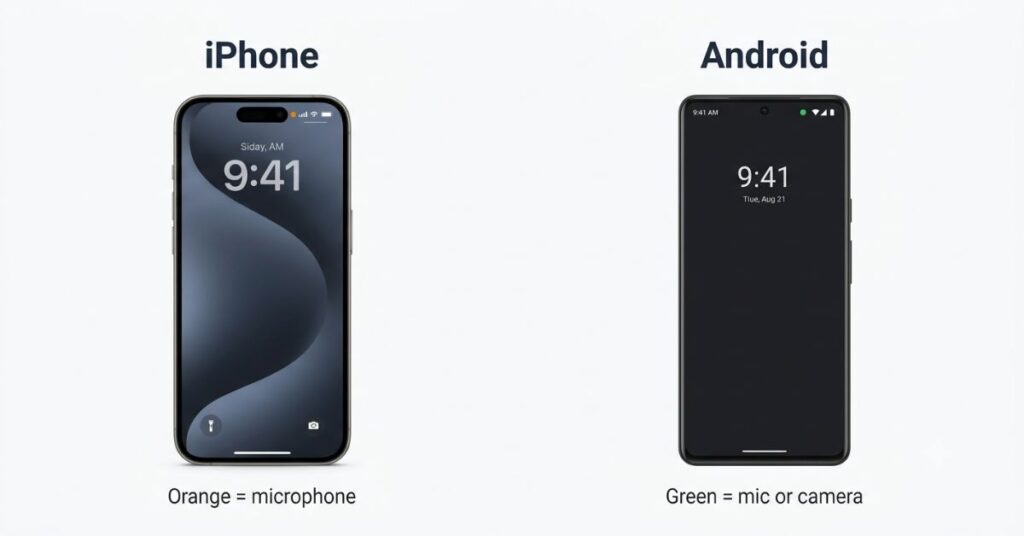
iPhone uses orange for mic and green for camera. Android uses green for both. Same idea, different color logic.
If you haven’t noticed the orange dot before, now you will. Any time an app accesses your microphone on iOS, a small orange dot appears in the top right corner of the screen. Green means the camera. If you see both or a brief flash of green followed by orange, something is using both.
The dot appearing during a voice call or a voice message is normal. The dot appearing when you haven’t done anything is not. When you see it and you’re not sure what triggered it, open Control Center by swiping down from the top right corner and you’ll see a banner at the top telling you exactly which app just used the mic, or which app used it most recently if it’s already stopped. That’s your first layer of information and it’s real time, which matters when you’re trying to catch something happening in the moment rather than after the fact.
For the fuller picture, the history of what’s had access and what’s used it recently, go to Settings, tap Privacy and Security, then tap Microphone. You’ll see every app that’s been granted microphone permission, with a toggle next to each one. This list is where I found apps I’d forgotten about entirely, a podcast app I no longer used, a scanner app from three years ago, both of which had microphone access for no reason I could recall or justify.
The deeper audit tool on iPhone is App Privacy Report, which you can turn on from Settings, then Privacy and Security, then App Privacy Report. Once enabled it logs which sensors each app has accessed, camera, microphone, location, contacts and when, over the past seven days. It doesn’t run retroactively so turn it on now even if you’re not investigating anything specific, and come back to it in a week.
On Android: The Green Dot and the Privacy Dashboard
Android works similarly but the indicators and audit tools look different depending on which phone you have. On Android 12 and above, a green dot appears in the top right corner whenever an app is actively using the camera or microphone. Unlike iPhone, Android uses the same green color for both rather than using orange for mic and green for camera. Tapping the dot opens a prompt showing which app triggered it.
The more useful tool is the Privacy Dashboard, which logs every app that’s accessed your camera, microphone, or location and when. To find it: open Settings, then tap Security and Privacy or Privacy depending on your phone, then tap Privacy Dashboard. On Samsung devices it’s usually under Security and Privacy then Privacy. If you can’t find it, search “Privacy Dashboard” in your settings search bar and it’ll surface.
Once you’re in, tap Microphone and you’ll see a timeline showing every app that accessed it and when. The default shows the last 24 hours, but you can switch to a seven day view from the three dot menu in the top right corner. That seven day history is where the useful patterns show up. A social app checking in at 3am, a keyboard that activated the mic for no obvious reason, an app you haven’t opened in a week that apparently used the microphone yesterday, those are the things you’re looking for, and you’d never see them from the dot alone.
What You Will Actually Find
Most of what shows up will be completely expected. Voice calling apps, navigation, your keyboard’s voice input feature, the assistant, your camera app. All of that is normal and can be left alone.
What’s worth paying attention to is anything that surprises you. An app that has microphone access but no obvious reason to use your voice. A social media app showing mic access at a time you weren’t using it. A game with microphone permission that has no voice chat feature you’ve ever used. None of these are guaranteed to mean something sinister, apps sometimes request broad permissions during install and never actually use them, but they’re worth revoking to see if anything breaks.
The answer, in my experience, is almost always nothing. If you revoke microphone access from a shopping app and it turns out the app needed that to work properly, it’ll tell you the next time you try to use whatever feature requires it and you can make the decision then with more context than you had before.
One thing that surprised me going through this for the first time: the sheer number of apps I’d half-forgotten I had installed. Permissions auditing ends up being a kind of phone declutter too, because you keep finding apps you installed once for a specific purpose, used twice, and left sitting there taking up space and holding permissions you never think about. Several apps came off my phone entirely that evening not because they’d done anything alarming but because I couldn’t remember why I’d installed them in the first place.
It’s also worth noting that finding an app in the mic permissions list doesn’t automatically mean it’s actively listening to your conversations. Microphone permission is what the system needs to be granted before an app can access the mic at all. Whether the app actually uses that access, and how, depends on the app. The Privacy Dashboard and App Privacy Report are more useful for that question than the permissions list alone, because they show actual access events rather than just what’s been granted.
Battery, Data and What Else to Watch
Microphone and camera access isn’t the only thing worth watching. Battery drain and mobile data usage can both suggest something running in the background that probably shouldn’t be.
Battery usage is the first place to look. On iPhone that’s Settings then Battery, scroll down past the graph and you’ll see which apps are using battery and whether it’s coming from screen time or background activity. An app burning significant battery in the background when you haven’t opened it in days is a flag. Android’s version sits in Settings then Battery then Battery Usage, and works the same way.
Data usage is the second one and I think it’s actually more telling. If you’re also seeing unexplained slowdowns on your home network, it’s worth checking whether someone else is using your Wi-Fi at the same time. If an app has no reason to transmit anything but is quietly consuming mobile data in the background, something is happening worth paying attention to. On Pixel devices that’s Settings, Network and Internet, Data Usage. On Samsung it’s Settings, Connections, Data Usage. Either way it takes under a minute and the numbers tell you a lot. An app that captured something and is sending it somewhere would show up here before it would show up anywhere else.
These aren’t microphone-specific signals but they’re useful as a second layer when something in the permissions log catches your attention and you want to know whether the app has been broadly active or just happened to access the mic once during an install.
The Android Mic Toggle Most People Don’t Know Exists
One thing Android has that iPhone doesn’t in the same form: a system-wide microphone toggle in Quick Settings. Swipe down to open Quick Settings, look for a Microphone tile, and if it’s there you can turn off microphone access for every app at once with a single tap. It stays off until you turn it back on, at which point any app that tries to access it gets blocked until the toggle is back on.
This isn’t something most people need day to day, but it’s useful in specific situations. If you’re having a conversation you’d prefer not to have any app potentially pick up, if you’re in a meeting where someone else is recording, or if you just want peace of mind for a few hours without going through individual app settings. It’s a fast, global switch, and it’s there if you know to look for it.
Apps That Commonly Have Access for No Good Reason
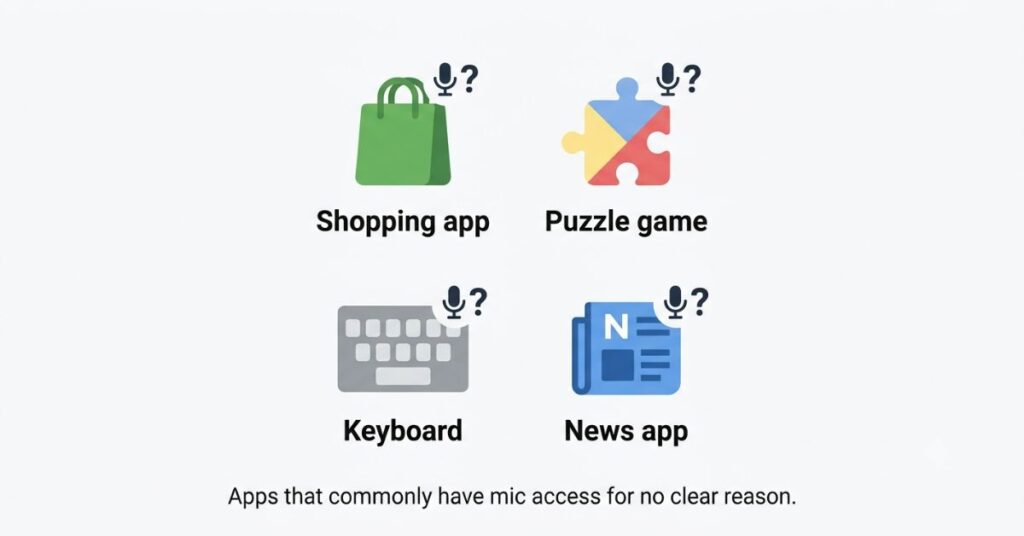
There are categories of apps that regularly end up with microphone permissions users don’t remember granting and can’t explain on reflection.
Shopping apps are common. Some request microphone access as part of their permissions bundle during install, which means if you tapped through the permissions screen quickly you may have said yes without realising it. I’ve yet to buy something from an app and have the need to speak into my phone to do it, so these are usually safe to revoke.
Games without any voice or social feature are another one. Permissions are sometimes set at the studio level across an entire portfolio of apps, which means a puzzle game might have the same permissions as a multiplayer shooter from the same developer that actually needs voice chat. If the game has no voice feature you’ve ever used, revoking microphone access there costs you nothing.
Keyboards get this one too, and it’s worth understanding why before revoking it outright. Your keyboard needs microphone access for voice typing, which is a legitimate feature. If you never use voice typing, revoking it costs you nothing. If you do use it occasionally, the keyboard will just ask again when you next try, and you can grant it specifically at that point.
News and lifestyle apps are the ones that surprise people most. A recipe app, a weather app, a news aggregator, none of these have any reason to access your microphone, but permissions requests during install are often buried in a sequence of prompts most people tap through without reading. If you find any of these in your permissions list, revoke without hesitation. They will not stop working.
The broader pattern is that permissions get granted at install, when you’re slightly distracted trying to get the app open, and then sit there unchecked indefinitely. The install flow is designed to get you through it quickly, not to make sure you’ve read everything carefully. Coming back after the fact and looking at the list with fresh eyes tends to surface things the install moment didn’t.
Comparison Table
| Platform | Real-Time Indicator | Where to Check History | How Far Back |
|---|---|---|---|
| iPhone (iOS 14+) | Orange dot = mic, Green dot = camera | Settings > Privacy and Security > Microphone | Per-app, not timestamped |
| iPhone (iOS 14+) | Same dots | Settings > Privacy and Security > App Privacy Report | 7 days with timestamps |
| Android (12+) | Green dot = mic or camera | Settings > Privacy > Privacy Dashboard > Microphone | 24 hours or 7 days |
| Android (12+) | Green dot | Tap the dot, then Quick Settings | Real time only |
Common Mistakes
Going through the permissions list and revoking everything without checking what each app actually uses is the one I’d caution against. Some permissions are obvious, a flashlight app with microphone access has no business having it. Others need a moment of thought, a translation app might legitimately use the mic if it supports spoken translation, which you might actually use and want. Revoking blindly can break features you rely on, and then you spend twenty minutes trying to figure out why something stopped working before realizing you turned it off yourself.
Checking once and then never again is just as common a mistake, though. Permissions creep back in. App updates can prompt for new permissions, and install flows during updates don’t always make it obvious what you’re agreeing to. Setting a reminder to check every couple of months takes about five minutes and keeps the list current rather than letting it drift back to whatever state it was in before you cleaned it up. I do this the same week I update my passwords, which is a prompt I already have in my calendar, so it doesn’t need its own reminder.
Keeping your accounts as secure as your device is worth doing at the same time, a free password manager removes most of the friction from that.
Something worth being honest about though, and I say this because I’ve seen people treat a clean permissions list like the end of the conversation: the permissions audit tells you what’s been granted and what’s been logged as accessed. It doesn’t tell you what an app does with audio after it’s had access, or whether a legitimately permissioned voice feature is also doing something else. For most people and most apps, that level of concern is probably disproportionate. But it’s worth knowing what the audit does and doesn’t cover rather than walking away thinking you’ve done a complete privacy review.
When This Stops Being Abstract
Most people only think about this after something feels off. An ad that seemed to reference a conversation they would just had, a notification from an app they hadn’t opened in months, a dot on their screen at a time that didn’t make sense. By that point you’re looking for a specific thing rather than doing a general audit, which is harder and less thorough.
Doing it now, when nothing is wrong, is faster, calmer and more useful than doing it when you’re already suspicious.
How to Do This Right Now
If you’re on iPhone, start in Settings, Privacy and Security, Microphone, and work through the list. Revoke anything you can’t explain. Then go back to the Privacy and Security menu and turn on App Privacy Report, which will start logging sensor access from that point forward. Come back to it in a week and see what it’s collected.
Android is slightly different depending on your phone. Go into Settings, find Security and Privacy or just Privacy depending on your manufacturer, then Privacy Dashboard, then Microphone. Switch to the seven day view from the menu in the top right. Anything that shows up and surprises you, tap it and revoke the permission from that screen directly without needing to go back into app settings separately.
The whole thing takes under ten minutes doing it thoroughly for the first time. After that it’s a five minute check every couple of months not a full audit every time.
FAQ
Final Thoughts
Neither of my phones turned out to be doing anything alarming. But I’d had a podcast app with mic access for three years that I stopped using in 2022, and a photo editing app that had apparently accessed the mic twice in the past week despite having no feature I could identify that would need it. Both permissions revoked, nothing stopped working, and I’ve had no reason to restore them.
That’s usually how this goes. Not a revelation, just a quiet cleanup of something that had drifted into a state you didn’t choose and didn’t notice.

Pingback: Best Free Password Managers in 2026: Which One Can You Actually Trust