
Best Free Video Editing Apps for Android in 2026 (No Watermark)
Here is the thing nobody puts in the headline: most free Android video editors are not actually free at the moment that matters. The editing is free, interface is free. The thirty minutes you spend getting the cuts right and the music synced and the text positioned correctly are all free. Then you tap export and the watermark appears and the app that felt like a gift reveals what it actually is.
This guide is specifically for people who have already learned that lesson once and do not want to learn it again.
The “No Watermark” Claim and What It Is Actually Covering Up
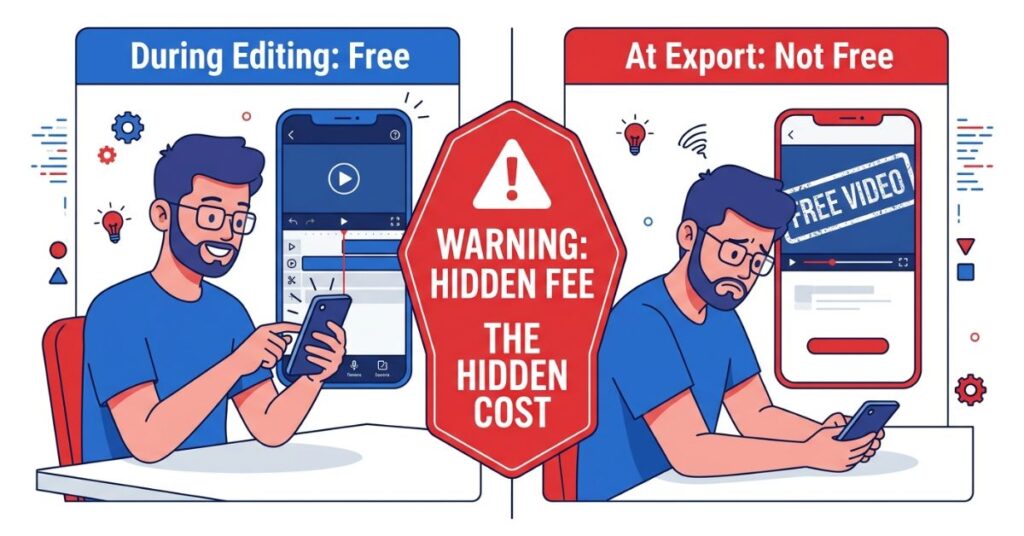
There is a specific reason the phrase “free, no watermark” dominates Android video app marketing while meaning almost nothing consistent across apps that use it. The phrase is technically deniable. Most of these apps are free, and most of them do not add a watermark in every situation. What the marketing omits is the situation in which they do.
Some apps export without a watermark on basic cuts and add their logo the moment you use a template, effect, transition pack or any designed element from their library. The raw cut is free. The thing that makes it watchable costs money to keep clean. Others cap their free export at 480p or 720p, which looks acceptable on a phone and like something filmed in 2013 on a laptop or television. Others require you to maintain an active account and stay logged in. And some just have a watermark on the free tier, no exceptions and they depend on ranking well for “free no watermark editor” to catch users before they look closely.
The test applied to every app in this guide was stricter than most comparisons use: watermark-free, full-resolution export on real editing projects using features beyond the most basic trim. Not a theoretical test. An actual export. That test removed more apps from contention than it passed.
Why This Keeps Catching the Same People
The frustration people feel when they hit a watermark at export is not a bug in the experience. It is the intended experience. The app was designed to deliver that frustration at that specific moment.
The sequence is deliberate and it is effective. A user downloads an app with strong reviews. They spend thirty to forty minutes editing, long enough to feel invested in the result and short enough that the app has been performing well throughout. They tap export. The watermark appears, or the free resolution is too low, or one specific effect turns out to carry a premium tag. The upgrade offer arrives at the precise moment when the user has the most to lose by closing the app and starting over somewhere else.
This is not predatory in a legal sense. These companies built real software and they need income to keep building it. But the design choice to withhold the limitation until after the work is done rather than surfacing it clearly at the point where the relevant feature is first used is a deliberate choice about when to inform the user. Understanding this helps you evaluate any video editing app before you open it rather than after you have tried to export from it.
The Five That Actually Deliver
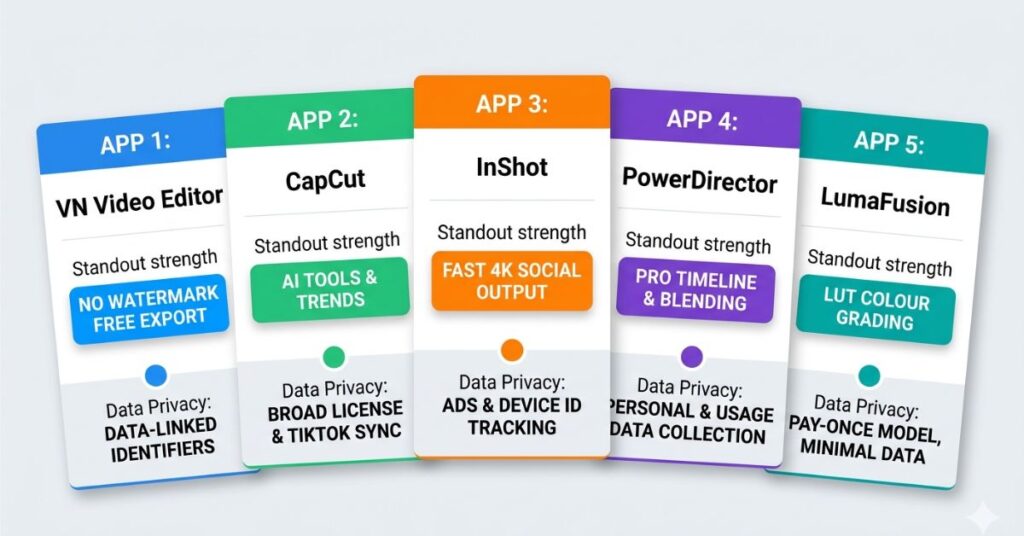
1. CapCut. The Strongest Free Mobile Editor Available, With a Question You Should Genuinely Answer Before Using It
CapCut is the most downloaded free video editor on Android, and in this particular category that popularity is earned rather than manufactured. For anyone producing short-form content for TikTok, Instagram Reels, or YouTube Shorts, the free tier in 2026 includes tools that would have required a paid app two years ago and still require payment in several competing products.
The capabilities worth understanding rather than just listing are auto-captions transcribe spoken audio and generate formatted subtitles directly in the edit without any external service. Video background removal operates on moving footage, not just stills, which is technically demanding enough that most paid competitors have not matched it cleanly. Speed ramping creates custom velocity curves for slow-motion sequences rather than forcing fixed multipliers. AI audio noise reduction cleans up dialogue recorded in imperfect conditions well enough that footage previously unusable becomes workable. These export up to 4K on compatible devices, watermark-free at no cost.
The thumbnail is the last piece of the workflow, AI prompts for YouTube thumbnails make that significantly faster than designing from scratch.
The workflow is oriented entirely around speed. Getting from a folder of clips to a finished video in the shortest possible time, with the least friction, for platforms where visual currency and trend-alignment matter more than technical precision. At that specific goal, nothing else on this list comes close.
The question that belongs in every honest CapCut review and appears in very few of them: ByteDance built this app. ByteDance is the parent company of TikTok and has faced regulatory investigations in multiple countries over data collection, storage, and access practices. What this means practically depends on what you are filming.
Public social media content that will be published anyway carries minimal incremental risk. Personal footage, client work, business presentations, or anything you would not want in an unknown data pipeline is a different calculation. This is not a technical limitation of CapCut. The app works as advertised. It is a question about what you are editing and whether the company that processes it during export is one you are comfortable with. VN Video Editor, covered next, produces comparable results for the majority of use cases without that question attached.
Some CapCut features require a Pro subscription. They are labeled clearly in the interface with a visible badge, and the line between free and paid is more transparent here than in most competitors. The upsell is present but it does not misrepresent what is free.
2. VN Video Editor. The Best Free Editor on This List That Nobody Seems to Be Talking About
VN is short for Video Nation, and its absence from most free video editor roundups is genuinely difficult to explain given what it offers. No watermark, no subscription requirement for the features that define the app’s value. No aggressive in-app pressure to pay. And a feature set that goes deeper on specific capabilities than apps that charge monthly fees for the privilege.
The timeline supports fifteen simultaneous video and audio tracks, which exceeds what some paid mobile editors offer. Keyframe animation provides precise control over position, scale, rotation, and opacity across the entire timeline, which means you can animate any element in the edit with the same control logic that professional desktop editors use, not just move clips around a single track. Speed curves allow custom velocity adjustments rather than locking you to fixed multipliers, which matters when slow-motion needs to feel like a deliberate creative choice rather than a mechanical effect. And VN supports LUT colour grading, which is the same approach professional editors use in Premiere Pro and DaVinci Resolve on desktop.
That last point deserves more attention than it typically gets in mobile editor comparisons. A Look-Up Table is a colour grade that has been pre-built, either by a professional colourist or through your own creative process, and applied to your footage in a single operation. Instead of adjusting individual colour sliders on every clip, you apply one LUT and every clip in the project shares the same visual treatment. This is how consistent visual identity is built across a series of videos, and finding it as a free feature in a mobile editor is not a minor detail.
The app assumes more editing literacy than CapCut. Someone who has never edited video before will spend longer understanding the timeline. The learning curve is real but it is moderate, and what you develop through VN transfers directly to desktop editing software if you ever make that step. The template library is also smaller, which matters if your creative process starts with a trending visual format rather than an original structure.
For anyone who has privacy concerns about CapCut, wants control over the edit rather than speed through it, or is producing content longer than sixty seconds, VN is the most honest free product on this list.
3. Vita. The Right Starting Point and the Wrong Destination
Vita is developed by Snow Corporation, and it is unusually clear about what it is. There is no pretense of competing with CapCut on feature depth or VN on editing control. Vita is trying to produce the fastest path from a folder of unedited clips to a finished video that looks good and is ready to share, for someone who does not want to learn editing to get there.
The mechanism is template-based. You select a visual style, upload your clips, and Vita applies transitions, colour grading, text animations, and background music automatically according to the template’s structure. The output is clean, the exports are full-resolution and watermark-free, and the entire process can be completed on a first attempt by someone who has never edited anything before.
For that specific user in that specific situation, Vita is the most useful tool on this list. A first video, a quick post, something that needs to look presentable rather than original. The output quality from a good Vita template is better than the output most first-time editors produce when handed a timeline they do not understand.
The ceiling arrives quickly for anyone with genuine creative instincts, though, and it is worth naming precisely rather than just noting it. Template-driven video looks like template-driven video to anyone who spends time on the same platforms. The clips fit the template’s rhythm rather than the template serving your creative intention. The moment you want to change one specific cut point, isolate a colour adjustment to a single clip, or adjust the timing of one transition without affecting the others, you will find that those controls either do not exist in Vita or require working against the template logic rather than with it.
The most useful thing Vita does for someone who outgrows it is clarify exactly what they want next. Every edit decision you found yourself wanting to make but could not make in Vita describes precisely what to look for in CapCut or VN.
4. Adobe Premiere Rush. Built for a Workflow That Most People Who Download It Do Not Have
Premiere Rush generates a particular kind of disappointment in reviews that is entirely predictable and almost entirely avoidable. Someone downloads it because Adobe is in the name, which carries an association with professional capability. They compare its feature count to CapCut, find it wanting, and leave a review reflecting that finding. The review is not inaccurate. It is measuring the wrong thing.
Rush is not a standalone mobile editor with Adobe’s design heritage. It is a mobile capture and rough-cut companion for people whose actual editing environment is Premiere Pro on a desktop. The comparison to CapCut is genuinely unfair in both directions because the two apps are solving different problems. CapCut is trying to be the whole production. Rush is trying to be the first act of a production that finishes somewhere else.
For the static graphics and title cards within videos, Canva and Adobe Express are worth comparing before committing to one for your workflow.”
For the user it was built for, that distinction resolves a genuinely frustrating workflow problem. You are at a location. Something worth filming happens and the context is available now, not later when you are back at your desk. You shoot and rough-cut in Rush while the energy is live. When you open Premiere Pro on your desktop, the project, timeline, and assets are already there through Creative Cloud sync. No manual file transfer, no reimporting, no reconstructing from memory what you intended the edit to be. The mobile session feeds directly into the desktop session in a way that no file management system replicates.
The audio tools are stronger than the free tier suggests. Automated loudness normalisation levels dialogue-heavy content, talking head videos, and interview footage without manual clip-by-clip correction. The colour tools are minimal but grounded in Premiere’s professional colour logic rather than the simplified brightness and saturation sliders most mobile editors use.
The free tier limits monthly exports, which is the constraint that matters most for how you use it. For someone editing casually or using mobile as a rough-cut stage before desktop finishing, this limit is irrelevant. For someone trying to use Rush as a primary daily editor on mobile, the cap becomes a practical problem faster than any feature comparison would suggest. Understand your editing volume before deciding whether Rush fits.
5. Splice. Clean, Honest and Better Than Its Reputation Suggests
Splice has a more complicated history than the other apps on this list. Multiple ownership changes, interface overhauls that changed its identity more than once, a period where it was unclear about who it was building for. The version that exists now has settled into a clear and defensible position: a focused mobile video editor that works best when the goal is to edit something that tells a story rather than just looks current.
The strength of Splice is in the editing feel rather than the feature count. The timeline is straightforward without being underpowered. Trim controls are precise and responsive. The transitions serve the edit rather than decorating it. Building a sequence with genuine narrative momentum, a travel video or event recap or short personal documentary, feels natural in Splice in a way that it does not quite feel in apps that were designed primarily for sixty-second social content.
The licensed music library addresses a problem that catches more mobile editors off guard than it should. Music that sounds right in an editing app is not automatically cleared for every platform you post on. Copyright detection on YouTube and Instagram is automated and indifferent to where you got the track. Music from Splice’s licensed library is a more reliable choice for cross-platform publishing than adding a popular song and discovering the copyright claim after the video has been live for two days.
Splice surfaces its paid tier more frequently than VN does. The prompts appear often enough to notice without quite crossing into the territory of interrupting the editing experience. The free tier is real, the exports are clean, but the app makes clear that paying would remove something from the experience. VN does not do that. Whether it matters depends on how much ambient commercial pressure bothers you while you work.
The user Splice most genuinely serves is someone who finds CapCut’s template orientation more overwhelming than useful, finds VN’s timeline depth more intimidating than inviting at the start and needs to edit something longer than sixty seconds into a coherent sequence. Splice handles that user without requiring them to learn a professional workflow or accept fully automated output.
Honest Comparison
| App | Watermark Free | Max Free Export | Editing Depth | Ideal User | Data Consideration |
|---|---|---|---|---|---|
| CapCut | Yes | 4K | High | Daily social media creators | ByteDance owned |
| VN Video Editor | Yes | 1080p | Very High | Anyone wanting real control | None noted |
| Vita | Yes | 1080p | Low | Beginners and quick posts | None noted |
| Adobe Premiere Rush | Yes, export limit | 1080p | Medium | Premiere Pro desktop users | Adobe account required |
| Splice | Yes | 1080p | Medium | Narrative and story editing | None noted |
What Determines Your Results More Than the App Does
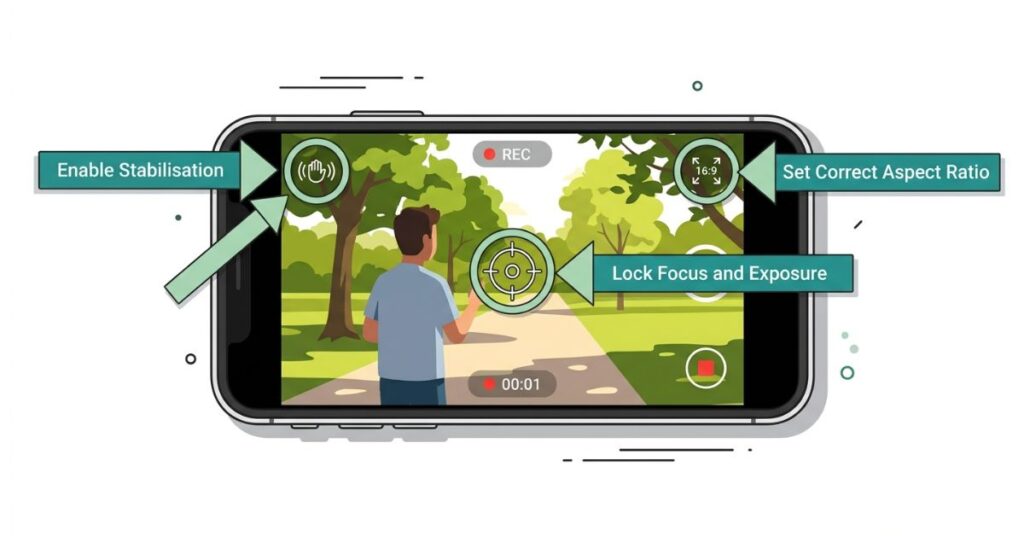
Insight moment 2: There is a pattern in mobile video editing that is consistent enough to treat as a rule: the primary reason most results look the way they do is the footage brought into the editing app, not what happens inside it. This is uncomfortable to say because it removes the app from the center of the quality conversation. It is also consistently true.
Shaky footage recorded without stabilisation enabled, clips shot in low light that produce visible grain when the exposure is lifted in post, audio recorded in a room with echo that no noise reduction tool fully removes, video shot at the wrong aspect ratio for the platform it is going to, none of these are editing problems. They are capture decisions that were already made before the app was opened, and editing software compensates for them at best.
Three adjustments in your phone’s camera settings, applied before recording rather than corrected after, produce better results from any app on this list than an hour of corrective editing in post. Turn on electronic image stabilisation before recording. Tap your subject on screen before pressing record to lock both focus and exposure independently, which prevents the gradual drift or sudden shift that viewers register as unprofessional without knowing why. Set your camera to the aspect ratio your platform uses before you start: 9:16 for TikTok and Instagram Reels, 16:9 for standard YouTube, 1:1 for Instagram grid. These take under a minute combined and they change what the edit looks like before the edit begins.
The app is the last variable in the quality equation. Footage is the first.
Common Mistakes That Consistently Produce Weak Results
Starting a project without setting the aspect ratio.
Every app on this list either asks for the aspect ratio at project creation or defaults to one. Most new editors accept the default without checking whether it matches their platform. Resetting the aspect ratio mid-edit forces manual reframing on every clip individually. Setting it correctly at the start takes five seconds.
Treating audio as a secondary concern.
Viewers stop watching imperfect audio faster than they stop watching imperfect video. This is documented, consistent, and largely ignored in mobile editing practice. Hollow echo, wind noise, music that overpowers dialogue, and volume that jumps between clips all break attention faster than soft focus or minor camera shake. Every app in this guide has audio tools. Use noise reduction. Normalise volume across clips. If the original audio is too compromised to fix, a voiceover recorded somewhere quiet is almost always a better outcome than publishing footage with bad sound and hoping people stay through it.
Using a transition between every cut.
The transition library in any mobile editing app is designed to look impressive in the interface. Using it between every clip produces a video that looks like someone discovered the transition menu recently. A clean cut landing on a beat communicates more intentionality than any spin, glitch, or zoom effect. Experienced editors treat each transition as a specific decision rather than a default gap between clips. That discipline alone changes how the output is perceived.
Skipping the test export.
Before finishing a full project, export thirty seconds of it at your intended settings. This confirms the app is performing correctly on your device at that output quality. Export failures on mobile are not always predictable from the editing experience itself. They depend on available storage, device temperature, and background processes in ways that a brief test catches before they cost you a full export’s worth of time.
Editing on a device with very little free storage.
Video editing creates render caches, preview files, and export buffers throughout a session. On a device with less than 5GB free, these demands produce slower exports, crashes mid-session, and sometimes corrupted files that cannot be recovered. Clear storage before editing. Close background apps before exporting.
Where Mobile Editing Genuinely Cannot Help
These apps cover the majority of what most people actually need. There are specific situations where they all stop being the right tool, and it is more useful to say that clearly than to imply a workaround exists.
Multi-camera editing, specifically synchronising footage from multiple cameras by timecode or audio waveform, is not practically supported in any of these apps. It is a desktop workflow and trying to replicate it on mobile creates a slow, inaccurate manual process.
Technical colour grading has a real ceiling on mobile. VN’s LUT support is genuinely useful and goes further than most mobile editors, but calibrated scopes, node-based colour management, and technical output monitoring are desktop capabilities. If the colour in your footage needs precise technical correction rather than a consistent applied grade, the phone is not the right stage for that work.
Projects over fifteen minutes become difficult to manage on a mobile timeline regardless of the app’s feature depth. Interface navigation, processing demand, and the practical experience of editing a long sequence on a small screen all degrade in ways that are not solved by a better mobile app. They are solved by desktop software.
If any of these limitations are regularly interrupting your editing process, the right response is not a different mobile app. DaVinci Resolve on desktop is free, fully professional, and more capable than any mobile editor at any price point. The learning investment is real. It is also the correct next step when mobile has started to feel like a constraint rather than a tool.
What You Should Do. Step by Step.
Step 1: Be specific about your use case before downloading anything. Short-form daily social content points to CapCut. Deep editing control points to VN. No editing experience and speed over everything points to Vita. Existing Premiere Pro desktop workflow points to Rush. Story-driven content over sixty seconds points to Splice.
Step 2: Download one app. Use it exclusively for two weeks before evaluating anything else. Familiarity with one app produces better results faster than surface knowledge of three.
Step 3: Set the aspect ratio before you add the first clip to any new project. Check it every time.
Step 4: Export thirty seconds as a test before committing to a full project export. Verify no watermark, verify the output resolution looks correct.
Step 5: If a watermark appears unexpectedly, scan the timeline for any element marked with a crown, lock, or Pro badge. Remove it and re-export before drawing any other conclusion.
Step 6: Keep at least 8-10GB of storage free on your device before editing sessions. Close background apps before exporting.
Frequently Asked Questions
Final Thoughts
The gap between “free, no watermark” as a marketing phrase and as a functional reality is where most people’s frustration in this category actually lives. Not in the apps themselves, which are more capable than they have ever been, but in the difference between what is described before you download and what you discover at the export screen.
Knowing the three ways the phrase is typically used, knowing what test to run before investing editing time in any new app and knowing which apps on this list passed that test honestly is what changes the experience from repeated frustration to a single informed decision.
The apps here are genuinely good. CapCut and VN in particular offer more at zero cost than most people realise is possible from a mobile editor. Using either well, for the right content, with footage captured correctly before the edit begins, produces results that look like they required considerably more than a free app. That is not a small thing. It is where mobile video editing has arrived in 2026, and understanding the watermark landscape clearly is all that stands between a user and actually accessing it.

Nice
I phone 15
Hamare channel per Bluetooth lag jaaye
Aniket
I phone 15 Pro
I phone 15 Pro Max
Bulu tik
𝐑𝐚𝐦 𝐳𝐢𝐢
Mere id par bulu tick laga do.
Jatav cartoon
Hamare ki per blue pic laga do
Nice
Iphone 17 5g
gaurav_1735
Hi
Poket money