
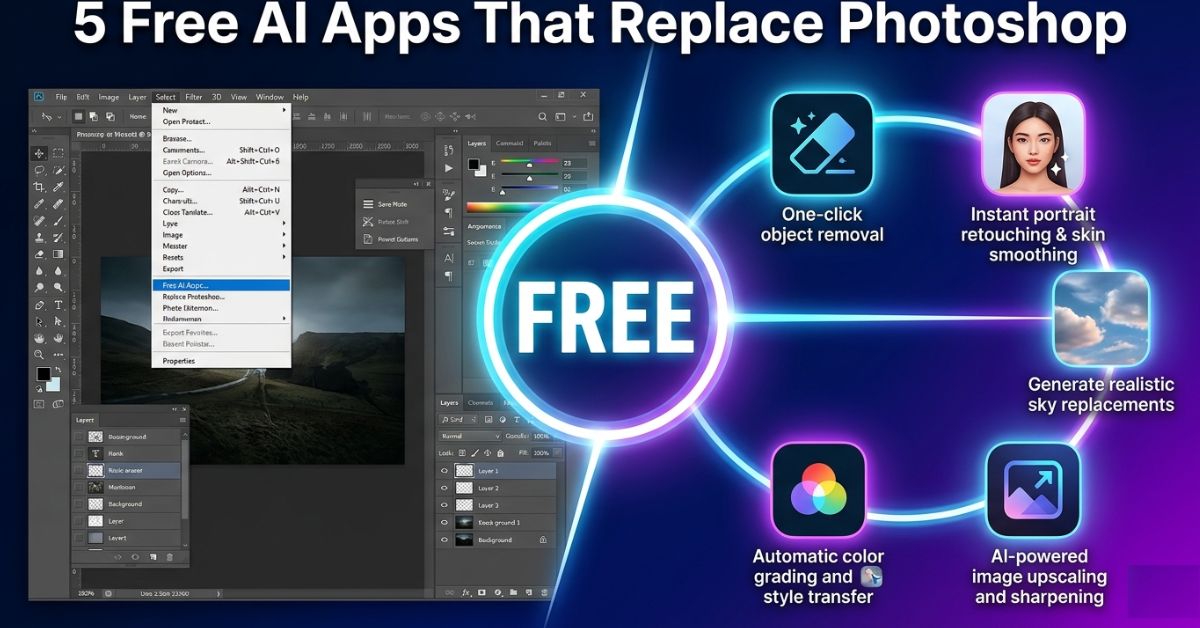
5 Free AI Photo Editing Apps That Replace Photoshop in 2026
The Photoshop Subscription Is One of the Most Successful Guilt Trips in Software History.
Here is something the creative industry does not say plainly enough: most people who pay for Photoshop do not need it. They need a handful of things that Photoshop can do but so can several free tools, and in 2026, for those specific tasks, the free tools often do them better.
The reason people keep paying is not because Photoshop is irreplaceable. It is because the alternative feels like admitting defeat. There is a decades-long cultural mythology around Photoshop being the mark of a serious creative and stepping away from it, even toward something demonstrably more efficient, feels like downgrading.
That mythology has always been good for Adobe’s revenue. It has not always been good for the people paying for software that sits mostly unused or underused.
To be clear: Photoshop is extraordinary at specific things. Complex compositing, motion graphics, print prepress, technical illustration, 3D rendering these are workflows where Photoshop earns every penny of its subscription. But these are also workflows that represent a small fraction of what most people actually do with photo editing software.
If your real editing life looks like removing backgrounds from product shots, cleaning up portraits, fixing lighting mistakes, removing unwanted objects and making photos look professional for social media or a website then Photoshop’s subscription is a premium you are paying for features you are never going to use. And the five tools in this guide will do your actual work faster, with less effort, and with results that are genuinely competitive with skilled Photoshop output.
Why People Keep Measuring Free Tools by the Wrong Standard
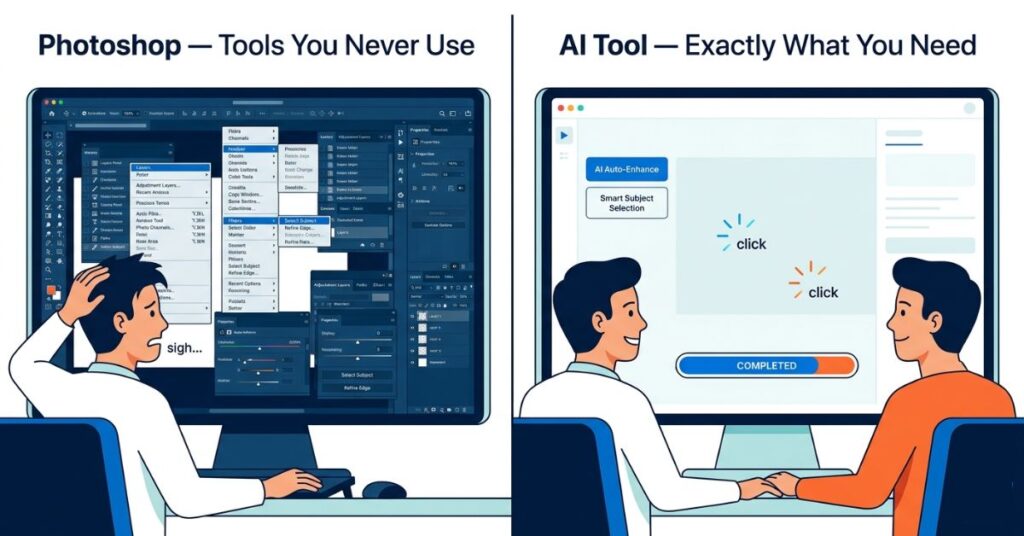
The phrase not as good as Photoshop is almost always meaningless because it never specifies which part of Photoshop, for which task, used by someone with what level of skill.
This matters more than it sounds. Photoshop has accumulated features across three decades of development. Its capabilities span professional printing, video editing, 3D modelling, web design and motion graphics. The comparison “not as good as Photoshop” often means does not have thirty years of accumulated feature bloat which, for most users, is not actually a disadvantage.
When someone with intermediate Photoshop skills removes a background manually pen tool, careful selection, refine edge, mask cleanup and compares that to a Clipdrop background removal that takes one click, the Clipdrop output on a complex subject with fine hair detail is often cleaner. Not comparable. Cleaner. The AI was trained specifically for this task. The manual Photoshop process was designed for maximum control, not maximum speed or accuracy.
The right question has never been: does this have everything Photoshop has? It is: does this produce the result I need, at the quality I need it, without requiring skills I do not have? By that standard the only standard that actually matters for most people, several free tools in 2026 win this comparison decisively.
What Separates Genuine AI Editing From Tools That Just Call Themselves AI
Before getting into the specific tools, it is worth making one distinction clearly because the term AI-powered is now on everything from professional editing suites to basic filter apps.
A tool that applies a fixed algorithm brighten this, increase saturation here, reduce noise that way is not AI editing in any meaningful sense. It is automation. The output is the same regardless of what is in your specific photo.
A tool using genuine machine learning has been trained on millions of images to understand what a subject looks like versus a background, what natural lighting looks like on human skin, what the visual content behind a removed object is likely to be. It is making decisions that are specific to your photo not applying a universal preset.
This distinction has real consequences. Genuine AI background removal works because the model has seen enough variation to understand complex edges flyaway hair, translucent fabric, fur and make accurate decisions about them. A fixed algorithm produces the same hard-cut result regardless of edge complexity. The quality gap on difficult subjects is substantial and immediately visible.
The tools below use genuine AI in this sense. Their quality on the tasks they were designed for reflects that.
The 5 Tools Worth Your Time
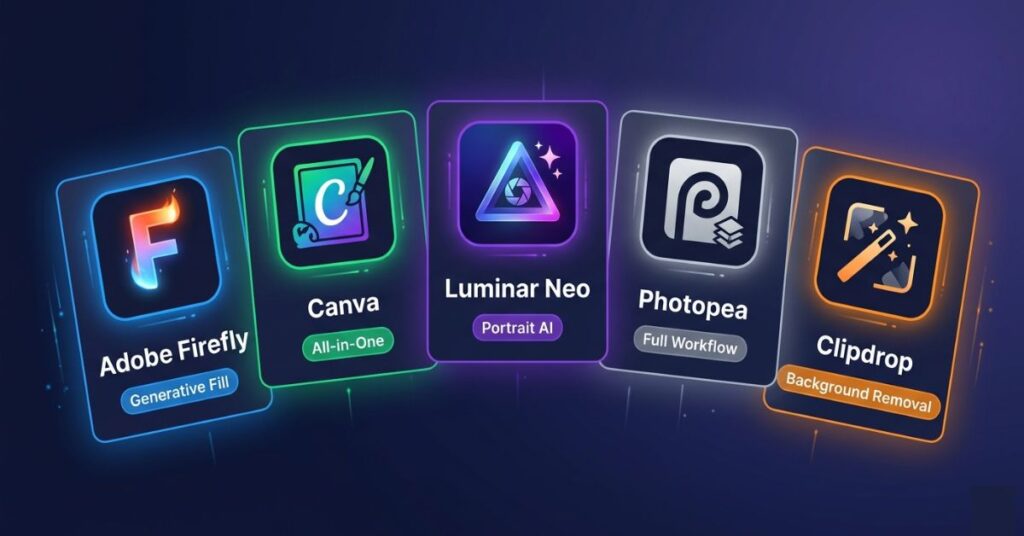
1. Adobe Firefly (Free Tier): The Most Powerful Generative Tool Available at Any Price for Typical Use
There is something quietly ironic about Adobe’s best AI product being the free one. Firefly at firefly.adobe.com is available with any free Adobe account and its Generative Fill capability is without stretching the truth the most capable generative photo editing tool available for typical creative use, free or paid.
What it actually does that nothing else matches:
The thing that separates Firefly’s Generative Fill from other AI fill tools is contextual coherence. Most generative tools paste in plausible content but miss the surrounding context the light direction is wrong, the colour temperature does not match, the perspective is slightly off. Firefly generates content that reads the existing photo and matches it. Replace a flat grey sky with dramatic clouds and Firefly shifts the light on the buildings beneath to be consistent with that sky’s light direction. Remove a person from a scene and it reconstructs the environment behind them not by cloning nearby content, but by generating a contextually appropriate version of what belongs there.
For content teams, marketers, and social media managers who regularly need to modify, extend, or clean up photos, this is the most transformative tool in this entire list.
Where it falls short:
Firefly is not a full editing environment. It does not have layers, color grading, masking, or any standard photo adjustment workflow. It is a generative surgery tool you bring specific problems to it and it solves them, then you take the result elsewhere if further work is needed. The free tier’s monthly credit allocation also has a ceiling. Regular heavy users will need to be strategic about what they use credits on.
Who genuinely benefits most: Content creators, marketing teams, product photographers, social media managers, anyone who regularly needs to remove, replace, or add visual elements to photos.
2. Canva Free (with Magic Studio): The Tool That Has Quietly Replaced Photoshop for More People Than Adobe Publicly Acknowledges
The instinct to dismiss Canva as a design tool rather than a photo editor is understandable and increasingly inaccurate. Magic Studio Canva’s AI editing suite in 2026 covers Background Remover, Magic Eraser (object removal), Magic Edit (generative content replacement), Magic Expand (canvas extension) and AI-powered image enhancement. In a single free tool.
For turning a phone selfie into a professional headshot specifically, there’s a prompt-based workflow that handles that without needing to edit manually.
What makes it genuinely worth using:
The interface is Canva’s real competitive advantage and it is more significant than it sounds. Background removal in Canva is two clicks. Object removal is a brush stroke over what you want to remove and one button press. Portrait enhancement is a slider. These are tasks that require layer management, tool selection, technique, and experience in Photoshop not because Photoshop is unnecessarily complex, but because it was designed before AI made manual precision optional.
For small business owners who need clean product photos without a dedicated designer, for bloggers who need professional-looking featured images, for social media managers producing daily content Canva’s Magic Studio handles the editing and the design in one environment. That combination genuinely replaces a Photoshop and InDesign workflow for a significant percentage of everyday creative work.
Where it falls short:
The most capable AI features like Background Remover in particular are Canva Pro features. The free tier includes useful tools but not the full Magic Studio experience. Canva also has no RAW file support and no serious colour grading workflow. Photographers working with RAW files and needing precise colour control will find it limiting.
Who genuinely benefits most: Non-designers, small business owners, bloggers, social media content creators anyone who does both design and photo editing and wants one tool for both.
3. Luminar Neo (Free Trial, Then One-Time Purchase): The Photographers’ Tool That the Subscription Industry Does Not Want You to Know About
Luminar Neo gets left out of free alternatives lists because it technically costs money but comparing a one-time software purchase to a monthly subscription as though they are the same financial category is genuinely misleading. You buy Luminar Neo once. You pay for Photoshop every month, forever or you lose access. Over two years, the cost difference is significant. Over five years, it is dramatic.
The free trial gives full access to evaluate every feature properly, which is why it belongs here. For photographers specifically and I am using that word to mean anyone who takes photography seriously enough to care about image quality, Luminar Neo is the most technically capable tool on this list.
What it actually does at a level that is hard to find elsewhere:
Face AI in Luminar Neo is the best portrait retouching tool available outside of specialised professional software. It identifies facial features individually each eye separately, the mouth, jawline, skin and lets you adjust each with granular control. The results at moderate settings look like well-lit studio photographs. The results at maximum settings look like you tried too hard. The tool gives you enough rope to get this right and enough rope to hang yourself treat that as the mark of a tool designed for people who care about the output.
Sky AI does something that sounds simple but is technically demanding: when it replaces a sky, it analyses the light direction and colour temperature of the original scene and adjusts the foreground accordingly. A replaced sunset sky actually recasts the ground-level elements in that sunset’s light. This level of composite coherence used to require significant skill in Photoshop. In Luminar Neo it is a drag-and-drop operation.
Where it falls short:
Luminar Neo is not a generative tool. It does not create from text prompts, reconstruct backgrounds, or do the kind of generative editing Firefly handles. It is a photo editing tool specifically for adjustment, retouching, composition. No mobile app, desktop only.
Who genuinely benefits most: Photographers, portrait retouchers, real estate photographers, and anyone who takes and edits photos seriously and wants professional-quality results without building a career around Photoshop mastery.
4. Photopea: The Obvious Answer for Photoshop Users That Somehow Still Feels Like a Secret
If you know Photoshop properly, know it muscle memory and all and the only reason you are still paying the subscription is inertia, then Photopea is the answer and it has been for several years. The hesitation around recommending it usually comes from its browser-based nature feeling less serious than a downloaded application. That hesitation is not rational, and it is costing people money every month.
What it does that nothing else on this list does:
Photopea at photopea.com replicates the Photoshop interface closely enough that most experienced users can open it and start working without reading a single help article. Layers, masks, blending modes, adjustment layers, smart objects, curves, levels, channel operations the full workflow is there. It opens PSD files natively. It supports RAW files from major camera manufacturers. Most Photoshop keyboard shortcuts work exactly as expected.
For complex compositing, detailed layer-based retouching, or technical design work that requires the full Photoshop workflow logic, Photopea handles the vast majority of that work for free in a browser tab. The AI features are functional, background removal and neural portrait filters are included though they are not at the dedicated AI-tool level for those specific tasks.
Where it falls short:
Browser-based performance is the honest limitation. Large files anything above 150–200MB with many high-resolution layers, slow down meaningfully in a browser environment. The performance gap compared to a native application is not noticeable on standard work but becomes real on large complex files. Firefly’s Generative Fill quality is also not matched here.
Who genuinely benefits most: Designers and retouchers who know Photoshop and resent the subscription cost, students learning professional editing workflows, anyone doing layer-based compositing that simpler AI tools cannot handle.
5. Clipdrop (by Stability AI): The Specialist That Makes Dedicated Tools Look Slow at Their Own Job
Clipdrop at clipdrop.co is structured differently from everything else on this list. It is not an editing environment. It is a set of individual AI tools, each built to do one specific task better than almost anything else. That focus is its entire value proposition and for the tasks it handles, the quality is difficult to argue with.
What it does that justifies keeping it bookmarked even if you use another tool as your primary editor:
Background removal in Clipdrop is the benchmark. It handles fine hair strands, translucent fabric, soft fur and complex edge conditions better than Canva’s Background Remover, better than Firefly’s selection tool, and better than most dedicated background removal services. On difficult subjects, a person with curly hair against a patterned background, a product with reflective edges the quality difference between Clipdrop and the next-best tool is visible and consistent.
The Relight tool is what makes Clipdrop genuinely unique on this list. It lets you add and reposition light sources in a photo after it was taken specifying color, intensity and position, with the AI recalculating how that light falls across the entire scene. This is not a brightness slider or a highlights adjustment. It is lighting correction that used to require either a proper setup at the time of shooting or advanced compositing skill in post. For product photography or portraits taken in poor lighting conditions, this single feature can rescue images that would otherwise be unusable.
Where it falls short:
Daily operation limits on the free tier are the primary constraint. There is also no editing environment you perform a task, you export. No color work, no layers, no adjustments beyond the specific AI operations each tool handles.
Who genuinely benefits most: E-commerce sellers who need clean product cut-outs, content creators working with photos taken in imperfect lighting, anyone who regularly needs the highest-quality background removal on complex subjects.
The Honest Version
| Tool | Cost | Standout AI Feature | Full Editor | Mobile | Best For |
|---|---|---|---|---|---|
| Adobe Firefly | Free (credits) | Generative Fill | No | Browser only | Generative editing, cleanup |
| Canva Magic Studio | Free / Pro | All-in-one ease | Partial | Yes (strong) | Non-designers, social media |
| Luminar Neo | Free trial / one-time | Portrait & Sky AI | Yes | No | Photographers, retouchers |
| Photopea | Free | Full Photoshop workflow | Yes | Browser only | Photoshop users, designers |
| Clipdrop | Free (limited) | Background removal, Relight | No | Yes | E-commerce, product photography |
The Thing That Actually Determines Your Results (And It Is Not the Tool)
Every photo editing comparison article including this one, spends most of its word count on tools. The uncomfortable truth is that for most users, the tool is the last variable that matters. The source photo and the habit of editing consistently are the first two, and they have a larger effect on outcomes than any tool choice.
AI editing tools are genuinely powerful. They are also consistently better at improving a decent photo than rescuing a bad one. Background removal produces clean edges when the subject has natural separation from the background, it struggles when contrast is low and the scene is complex. Portrait AI enhances a well-lit face effectively, it cannot reconstruct detail in a heavily shadowed, low-resolution source image. Generative fill reconstructs convincingly when surrounding context is clear it generates plausible but often inconsistent results when the scene is complex and the fill area is large.
This is not a criticism of the tools. It is just how AI training works, the models were trained on well-composed, reasonably exposed images, and they perform best on similar input. Two minutes spent on composition, light, and focus before taking a photo consistently produces better editing outcomes than an hour spent trying to recover a poorly taken original in any tool.
There is also a practical point about habit that most guides do not mention. The research pattern around creative tools is consistent: people evaluate several options, create accounts on two or three, experiment briefly, and then use none of them regularly because the habit never forms. One tool used consistently for a month produces better, faster results than four tools used sporadically. Choose based on your most common task and commit to it long enough to develop real familiarity.
For design work rather than photo editing, social media graphics, presentations, thumbnails Canva and Adobe Express cover a different set of needs.
Common Mistakes That Produce Poor Results Even With Good Tools
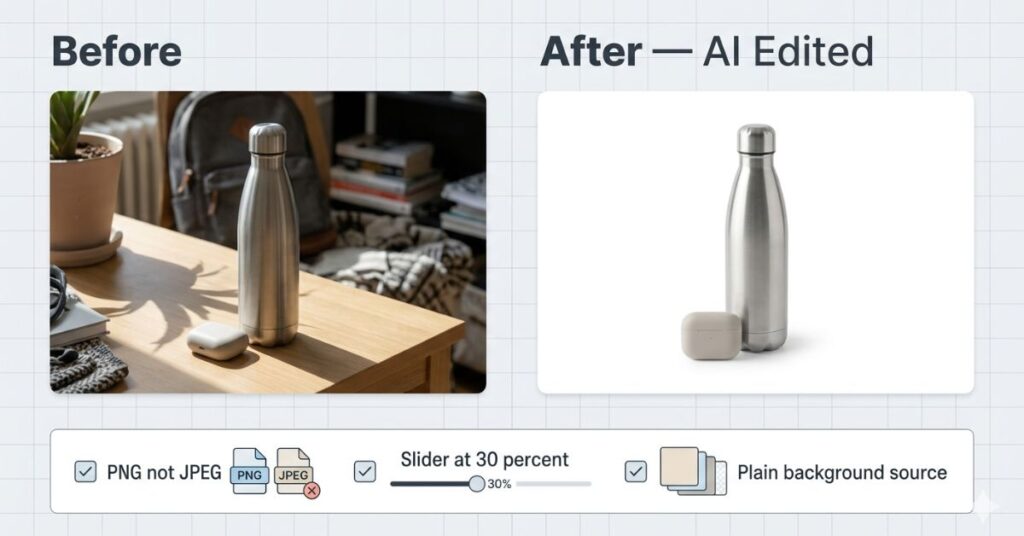
Pushing AI enhancement sliders to maximum. This is the single most consistent mistake across portrait editing, structure enhancement, and sharpening tools. The best results are almost never at 100% strength, they are at 30–50%, where improvement is visible but processing is not. The impulse to max the slider is human and understandable. It is also what produces the plastic-skin, over-sharpened, obviously processed look that makes AI editing recognisable as AI editing. Start at 30% and increase only until you see the improvement. Then stop.
Exporting as JPEG between editing steps. JPEG is a lossy format that recompresses and degrades the image every time it is saved. Moving a photo from Clipdrop to Canva to a final export? Use PNG between every step. Convert to JPEG only at the very end when the editing is completely finished. The quality loss from multiple JPEG saves is cumulative and visible on close inspection.
Expecting generative fill to handle complex repeating patterns. Firefly and similar tools are impressive on natural environments, plain surfaces and open backgrounds. They struggle consistently with brickwork, tiled floors, latticed structures and dense foliage because the fill needs to maintain pattern continuity across the generated area, which is genuinely difficult for current models. For these cases: smaller, more precise selection boundaries, multiple generation attempts, and accepting that some manual cleanup may follow will produce better results than expecting a single clean output.
Using one tool for everything out of convenience. Canva is fast and accessible, but running a complex background removal through Canva when Clipdrop would produce a cleaner result in the same time is a habit worth breaking. Match the task to the tool it was built for. The five minutes spent switching tools is recovered immediately in the output quality and post-processing time saved.
Accepting the first output without trying again. AI results vary between attempts on the same image, sometimes significantly. A background removal with rough edges often produces clean edges on the second attempt. A generative fill that looks slightly off frequently looks right on the third try. Regenerating costs nothing and is the easiest improvement available.
When The Cost of Not Switching Becomes Real
The case for staying with Photoshop out of habit or professional identity is emotionally understandable and practically difficult to justify.
The time cost is the part that gets overlooked. Manual background removal in Photoshop; pen tool selection, refine edge and mask cleanup. It takes several minutes on a complex subject and longer if the result needs touching up. The same task in Clipdrop takes thirty seconds with a result that is at least as clean and often cleaner. For a business processing fifty product photos a week, that time difference is not trivial. Compounded across months, it represents real working hours.
For early-career creatives and students, the Photoshop learning curve is also a real cost that rarely gets acknowledged honestly. Learning Photoshop deeply is a genuinely valuable skill in specific professional contexts motion graphics, complex compositing, print production. But pointing beginners toward Photoshop mastery as a prerequisite for producing professional-quality content creation or social media output in 2026 is directing them toward a longer path than the work requires. The tools in this guide produce professional results with a fraction of the learning investment.
The financial cost is the most straightforward. $55 per month for Photoshop alone is $660 per year. For a user whose actual editing needs are covered by free tools, that is a significant ongoing cost for a status quo that no longer reflects what the tools can actually do.
What You Should Do
Step 1: Write down your five most frequent photo editing tasks specifically not photo editing but remove backgrounds from product photos or retouch portraits for Instagram. This list drives the tool decision.
Step 2: Match your primary task to the tool built for it: Clipdrop for background removal, Firefly for generative editing and object removal, Luminar Neo for portrait and landscape photography, Photopea for complex layer-based work, Canva for combined design and photo editing.
Step 3: Create a free account on your primary tool and use it on ten real photos before evaluating. Not two or three but ten. Familiarity with AI tools improves results faster than it does with manual tools, but it still takes more than a first session.
Step 4: Bookmark Clipdrop regardless of your primary tool. Its background removal quality justifies keeping it available as a specialist option even if another tool handles everything else in your workflow.
Step 5: When exporting between tools, use PNG. Final deliverable only as JPEG.
Step 6: Apply portrait and enhancement AI at 30–50% strength until you have a specific reason to go higher. Start conservative, increase deliberately.
Step 7: If you have professional workflows that genuinely need Photoshop. Complex compositing, print prepress, technical illustration, keep it for exactly those workflows and use free AI tools for everything else. The goal is not to replace Photoshop ideologically. The goal is to stop paying for it to do things that free tools do better.
Frequently Asked Questions
Can free AI photo editing apps really replace Photoshop completely in 2026? For the majority of everyday editing needs background removal, object cleanup, portrait retouching, color correction, generative editing and social media content yes, completely and credibly. For professional compositing, print prepress, motion graphics, 3D rendering, and technical illustration, Photoshop retains specific advantages that current free tools do not replicate. The honest answer depends entirely on what you use Photoshop for and most users never touch the features that make Photoshop genuinely irreplaceable.
Which tool is the best starting point for someone with no prior editing experience? Canva, without much debate. It requires no prior knowledge, the AI tools are woven into a drag-and-drop interface, and the learning curve from zero to producing clean professional results is measured in hours, not weeks. Beginners who start with Photopea often spend the first few weeks just learning the interface rather than creating anything. Canva eliminates that barrier entirely.
Is Adobe Firefly’s free tier actually useful or is it designed to push you toward a paid plan? Genuinely useful for light to moderate use. The free monthly credit allocation covers casual content work and small business editing without requiring a subscription. Where the free tier runs short is for high-volume professional or agency workflows where generative operations are performed dozens of times daily. For most individual users, the free allocation covers real working needs.
What is the most accurate free background removal tool available right now? Clipdrop produces the most consistently accurate results on difficult subjects like fine hair, translucent materials, complex edges, soft fur. For standard subjects with clear foreground-background contrast, Canva and Firefly are also strong. When a difficult subject matters, a product with reflective edges, a portrait with flyaway hair try Clipdrop first, then compare against the others. All three are free.
Are outputs from these tools safe to use in commercial work? It depends on the tool and varies by use case. Adobe Firefly was designed specifically with commercial safety in mind and Adobe indemnifies its generated content for commercial use. Canva permits commercial use under its Content License Agreement. Clipdrop and Photopea outputs are generally unrestricted since they process images you already own. Always verify current terms of service before commercial use, these policies update and the terms that apply today may differ from when this article was written.
Is Photopea reliable enough for actual professional client work? Reliable for the majority of professional editing tasks on standard file sizes. Performance degrades noticeably with very large files 200MB+ PSDs with many high-resolution layers or in memory-constrained browser environments. For typical professional photo editing, retouching, and design work on modern hardware, it handles real workloads without significant issues. For extremely heavy production workflows on large files, the performance gap versus a native application becomes a genuine working limitation.
Which of these tools has the best experience on a phone or tablet? Canva’s mobile app is the strongest on this list, most of its AI editing features are available on iOS and Android and the interface was genuinely designed for touch. Clipdrop has a functional mobile app for its core tools. Adobe Firefly and Photopea work in mobile browsers but were not optimised for touch interfaces. Luminar Neo is desktop only. For editing that happens primarily on a mobile device, Canva is the only tool here that treats mobile as a first-class experience.
Can Luminar Neo replace both Photoshop and Lightroom? Yes and this is arguably its strongest value proposition. Luminar Neo handles photo organisation, culling, and editing in a single application. The AI tools consistently outperform Lightroom’s manual sliders for specific tasks like sky replacement and portrait work. For photographers currently paying monthly for both Photoshop and Lightroom, Luminar Neo’s one-time purchase as a replacement for both subscriptions represents meaningful savings over two or three years and a larger saving every year after that.
What happens to my projects if a free cloud tool shuts down or changes its pricing? This is a legitimate concern for any cloud-based workflow. The best practice is simple: always export finished files locally in a standard format PNG or JPEG immediately after completing each project. Do not treat cloud storage inside any free tool as your primary file backup. Photopea and Luminar Neo work with local files by default. Canva and Firefly store projects in the cloud make downloading finished work a non-negotiable final step in every project.
Is there a free tool on this list that handles RAW photo files from a DSLR or mirrorless camera? Photopea supports RAW files from most major camera manufacturers Canon, Nikon, Sony, Fujifilm and handles them competently for a browser-based tool. Luminar Neo also supports RAW and is the stronger choice for photographers who shoot RAW regularly, given its more sophisticated color and detail processing. Canva, Firefly, and Clipdrop do not support RAW file input in any meaningful sense.
Final Thoughts
The framing of free Photoshop alternatives has always done these tools a disservice. It positions them as lesser options, things you turn to when you cannot afford the real thing. That framing has been wrong for at least two years and is now actively misleading people who would be better served by tools that cost nothing.
For background removal, object cleanup, portrait retouching, generative editing and sky replacement. The tasks that represent the daily editing work of the vast majority of people who use photo editing software free AI tools in 2026 are faster, require less skill, and frequently produce better results than the equivalent Photoshop workflow. Not comparable results. Frequently better.
Photoshop is the right answer for specific professional workflows that depend on its unique and deep capabilities. That is a meaningful but smaller group than its cultural dominance would suggest.
The shift worth making is practical, not ideological: evaluate tools by what they do for your specific work not by whether they carry the most familiar name. For most people’s real editing needs, the best tool available in 2026 happens to be free. That is not a consolation. It is just where the technology has arrived and there is no good reason to pay for less.

Pingback: Canva vs Adobe Express: Which Free Design Tool Is Better in 2026?
Pingback: How to Get 12 Camera Angles of Your Photo Using Gemini AI